A major Windows update (for example, moving from Windows 10 to Windows 11, or a large Windows 11 feature release) changes core security baselines, drivers, and default behaviors. Prepare by checking hardware compatibility, updating firmware and critical drivers, backing up, and planning rollback. Use Windows Update first; only use manual installers when your update path is blocked.
At-a-glance: Major changes and immediate risks
- Security baselines can change (TPM, Secure Boot, virtualization-based security), affecting older devices and some drivers.
- Driver updates may swap vendor drivers for Microsoft-provided ones, breaking device utilities or niche peripherals.
- Default privacy and sign-in behaviors can shift after an update; verify permissions and account policies.
- Large updates increase the chance of app compatibility issues (VPN clients, endpoint security, legacy line-of-business tools).
- Rollback is time-limited and may not preserve every app setting; plan backups instead of relying on rollback.
- If you need อัปเดต Windows ล่าสุด reliably, prioritize Windows Update and postpone only when you have unresolved compatibility risks.
What's new in the latest Windows release
For intermediate users in Thailand, a "big" Windows update usually means a feature update (new platform build) or a move to Windows 11. It's suitable when you need newer security features, better device support, or vendor software that requires a newer build. Avoid or delay it if you rely on critical peripherals, legacy VPN/AV, or a work PC that cannot tolerate downtime.
- Good time to update: you have verified drivers, current BIOS/UEFI, and tested key apps.
- Don't update yet: the device is borderline on requirements, you lack admin access, or you cannot create a full backup.
| Area | Before (typical older build / Windows 10) | After (newer build / Windows 11 and newer feature updates) | Practical risk | What to verify |
|---|---|---|---|---|
| Security baseline | More permissive defaults on some hardware | Stricter requirements and protections on supported devices | Boot failures or degraded performance on old drivers | TPM/Secure Boot status, BitLocker recovery readiness |
| Drivers | Vendor drivers installed long-term | Driver refresh via Windows Update more common | Wi‑Fi/Bluetooth/audio/peripheral issues | Chipset, storage, GPU, Wi‑Fi drivers; BIOS/UEFI updates |
| App compatibility | Legacy tools tolerated | Hardened kernel and security features | VPN/AV/virtualization conflicts | VPN client, endpoint security, hypervisor settings |
| Privacy & accounts | Existing app permissions | Some defaults re-evaluated after upgrade | Unexpected telemetry or sign-in prompts | Privacy toggles, Microsoft account vs local account policies |
| Recovery | Restore points relied on | Rollback window and recovery tools emphasized | Rollback not available or incomplete | System image / file backup, recovery drive, BitLocker keys |
Under-the-hood technical changes every admin should know
Before you proceed, confirm you have the right access and tools. This matters whether you run อัปเดต Windows ล่าสุด through Settings or you plan to ดาวน์โหลด Windows 11 รุ่นล่าสุด for an in-place upgrade.
- Access: local administrator rights; for managed devices, confirm organization policy and maintenance windows.
- Hardware/firmware: BIOS/UEFI access; TPM availability; Secure Boot capability.
- Disk and health checks: enough free space; check OS and disk integrity.
- Recovery readiness: BitLocker recovery key saved; Windows Recovery Environment (WinRE) available.
- Connectivity: stable power and internet; avoid updating on flaky Wi‑Fi.
Useful built-in commands (run in Windows Terminal as admin):
winver(confirm current build)systeminfo(quick OS/hardware summary)chkdsk /scan(file system check without reboot in many cases)sfc /scannow(repairs protected system files)
Compatibility and software breakage: components to verify
Use this sequence to reduce surprises. This also answers how to เช็คสเปคคอมเพื่ออัปเกรด Windows 11 safely and how to เตรียมคอมก่อนอัปเดต Windows 11 with minimal downtime.
-
Confirm the target update path and method
Start with Windows Update (Settings > Windows Update). Use a manual installer only if your device isn't offered the update or you need a controlled rollout.
- If you plan to ดาวน์โหลด Windows 11 รุ่นล่าสุด, prefer official Microsoft distribution channels and verify checksums/signatures where provided.
-
Check Windows 11 readiness and hard requirements
Verify CPU support, TPM, and Secure Boot. If any requirement is missing, stop and decide whether to keep the current OS build or replace hardware.
- Open
tpm.mscto check TPM presence/status. - Open
msinfo32and confirm "Secure Boot State" is On (where applicable).
- Open
-
Update BIOS/UEFI and critical drivers before the OS upgrade
Update firmware first because it can fix TPM/Secure Boot behavior and storage compatibility. Then update chipset and storage drivers to reduce boot/BSOD risk.
- Prioritize: BIOS/UEFI, chipset, storage (NVMe/SATA), GPU, Wi‑Fi.
- Reboot after firmware updates; do not chain multiple firmware flashes.
-
Inventory and test high-risk software
VPN clients, endpoint security/AV, disk encryption tools, and virtualization software are the most common blockers. Update or temporarily remove them per vendor guidance.
- For business devices, coordinate with IT before removing security agents.
- Test: VPN connect, printing, audio/video calls, and any work-critical app.
-
Validate disk health and OS integrity
Fix corruption before upgrading. If
sfcorchkdskreports persistent errors, resolve them first to avoid failed upgrades and rollback loops.- Run
sfc /scannow, then reboot. - Run
chkdsk /scanand review results.
- Run
-
Confirm backup and recovery can actually be used
Backups must be restorable. Ensure you can access your backup location and that recovery keys are not stored only on the same PC.
- Save BitLocker recovery key to a separate location (not just the local drive).
- Ensure you have a second device or phone for account recovery prompts.
Fast-track mode: minimal safe algorithm (when you already trust your device and apps)
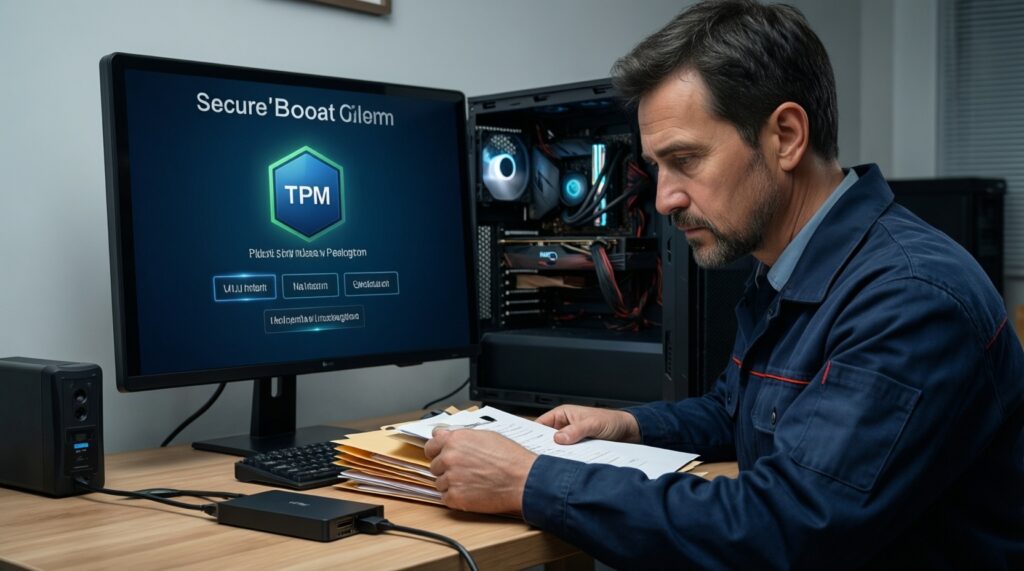
- Pre-check: confirm TPM/Secure Boot (
tpm.msc,msinfo32) and enough free disk space. - Backup: sync critical folders + make one offline copy (external drive) and save BitLocker recovery key.
- Update readiness: install BIOS/UEFI + chipset/storage drivers, reboot.
- Upgrade: run Windows Update; only then use the official Windows 11 installer if needed.
- Post-check: verify network, audio, printing, VPN, and security status.
Security and privacy implications of the update
After the update completes, validate security posture and privacy settings immediately. Use this checklist to confirm nothing critical regressed.
- Confirm Windows Security shows no active warnings (Virus & threat protection, Firewall, Device security).
- Verify BitLocker status and ensure recovery key is still accessible outside the device.
- Check that Secure Boot remains enabled (where supported) and the device boots cleanly without repeated repairs.
- Review Windows Update history and confirm no critical driver repeatedly fails.
- Re-check privacy toggles (location, diagnostics, advertising ID) and app permissions for microphone/camera.
- Confirm your sign-in method is correct (local account vs Microsoft account) and MFA prompts work.
- Validate firewall profile (Public/Private) is appropriate for your network.
- For work devices, verify endpoint protection agent is running and up to date.
Step-by-step preparation and backup checklist
These are the most common mistakes that cause upgrade failures, data loss, or long downtime-especially when people ask "อัปเกรด Windows 10 เป็น Windows 11 ราคา" and focus on cost while skipping preparation.
- Skipping firmware updates: outdated BIOS/UEFI is a frequent cause of TPM/Secure Boot and sleep/wake issues.
- Relying on a single backup in the same machine (e.g., a second partition): hardware failure still wipes it.
- Forgetting BitLocker recovery keys: you may get locked out after a firmware/boot change.
- Upgrading with low disk space: increases failure risk and can break rollback.
- Updating over unstable power or on battery: interruptions can corrupt the OS.
- Leaving third-party AV/VPN outdated: older versions often conflict during major upgrades.
- Not recording what matters: note your current build, critical apps, and driver versions before changing anything.
- Assuming peripherals will "just work": printers, USB audio, capture cards, and specialty dongles need explicit checks.
Rollback, recovery and post-update validation
If the update causes issues, choose the least risky recovery path based on how broken the device is and how quickly you need to return to work.
-
Use built-in rollback (when available and the PC still boots)
Go to Settings > System > Recovery and look for the option to go back. Use it if core functions are broken and you need a fast return to the previous build.
-
Repair system files (when Windows boots but behaves incorrectly)
Run
sfc /scannow. If issues persist, runDISM /Online /Cleanup-Image /RestoreHealth, then reboot and re-test drivers and apps. -
System Restore or recovery environment (when boot issues start)
Use Advanced startup (Shift + Restart) to access troubleshooting. This is appropriate for driver-related boot loops and repeated automatic repairs.
-
Restore from backup / reinstall (when stability is unacceptable)
If you cannot reach a reliable state quickly, restore the system image or perform a clean install, then restore user data. This is often safer than repeatedly retrying a failing upgrade.
Common practical concerns and quick answers
Should I use Windows Update or manually download the installer?
Use Windows Update first for the safest, device-tailored path. Only use a manual package when the update is blocked or you must control timing, such as when you plan to ดาวน์โหลด Windows 11 รุ่นล่าสุด for an offline upgrade.
How do I check if my PC can upgrade to Windows 11?
Use tpm.msc for TPM status and msinfo32 for Secure Boot, then confirm CPU support and RAM/storage. That's the practical way to เช็คสเปคคอมเพื่ออัปเกรด Windows 11 before spending time on downloads.
What is the safest way to prepare right before a big update?
Update BIOS/UEFI and key drivers, create a restorable backup, save BitLocker recovery keys, then run the upgrade on stable power and internet. This sequence matches a reliable เตรียมคอมก่อนอัปเดต Windows 11 routine.
Will my apps and peripherals stop working?
Most standard apps survive, but VPN clients, endpoint security, printer drivers, and niche USB devices are common breakpoints. Test those first and update or temporarily remove conflicting software.
How do I know I'm on the latest Windows update?
Check Settings > Windows Update for status and "update history," and run winver to confirm the installed build. This is the simplest check for อัปเดต Windows ล่าสุด.
Does upgrading from Windows 10 to Windows 11 cost money?
Pricing and eligibility can depend on your license and device state, so don't assume based on rumors. Treat "อัปเกรด Windows 10 เป็น Windows 11 ราคา" as a licensing question: confirm your Windows activation status and your organization/OEM terms before you proceed.