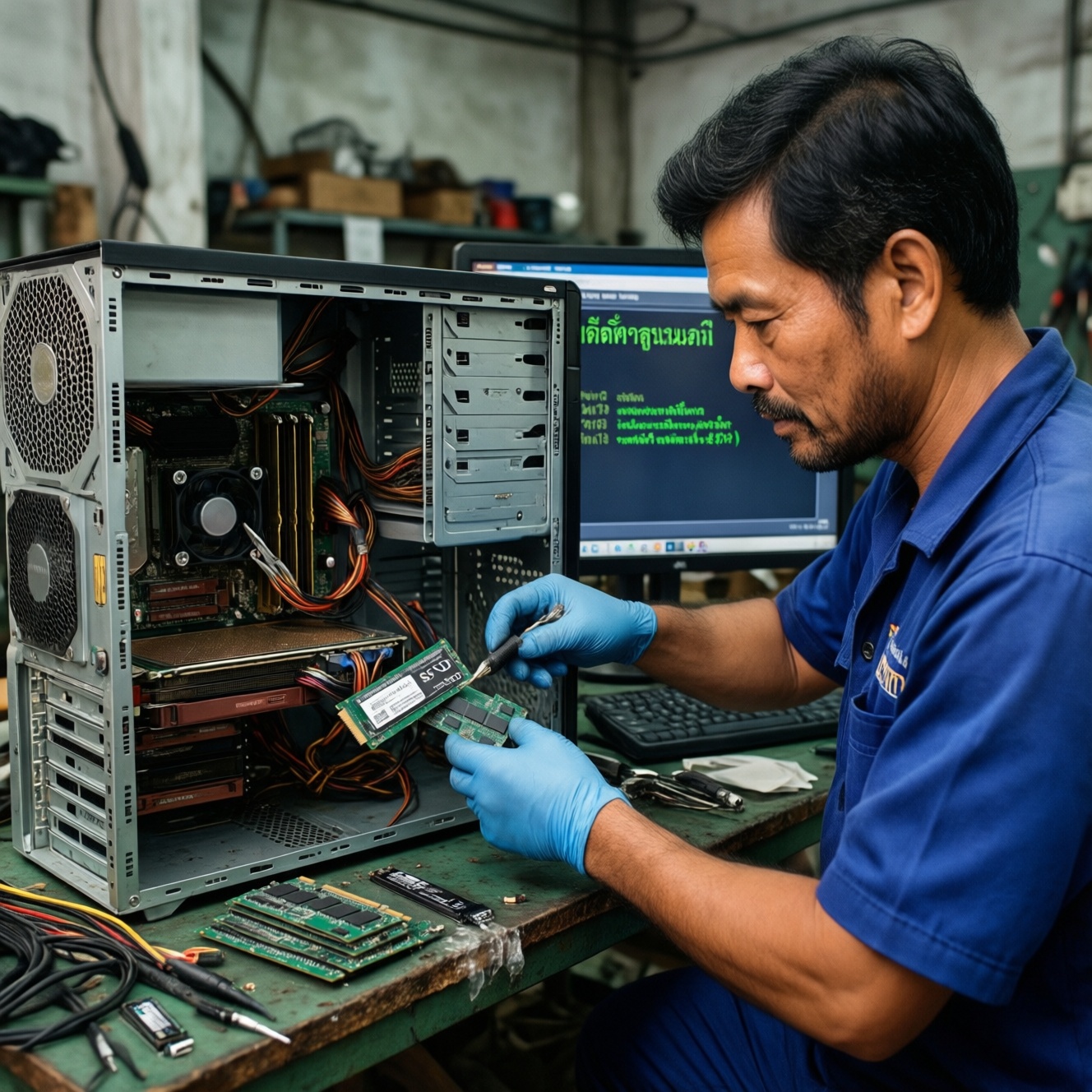
For most older PCs in Thailand, swapping to an SSD delivers the biggest "feel" improvement first-faster boot, faster app launches, less stutter-unless you are clearly running out of memory (heavy browser tabs, office files, or light editing) where RAM is the limiter. Diagnose the bottleneck, then buy only the compatible parts your platform can actually use.
Quick verdict and upgrade priorities
- If your PC has a hard drive, prioritize an SSD first; it changes daily responsiveness immediately.
- If you regularly hit high memory use (tab-heavy browsing, Teams/Zoom + Office), add RAM first to stop swapping.
- For very old DDR3 systems, a small SSD + modest RAM top-up is often the most "budget-first" combo.
- For SATA-only motherboards, a good SATA SSD is already enough; NVMe adapters rarely help typical legacy workloads.
- Verify RAM type/slots and storage connectors before buying; compatibility mistakes waste the most money.
- Run quick before/after checks (Task Manager, CrystalDiskMark) so you can confirm the upgrade worked.
How to diagnose whether RAM or storage is the bottleneck
- Disk usage at 100% during simple tasks (opening apps, switching windows): storage is likely the limiter, especially with HDD.
- Memory consistently near full and the system becomes sluggish when multitasking: RAM is likely the limiter.
- Frequent pagefile/swap activity (Windows feels "stuck" with constant drive LED activity): not enough RAM and/or slow drive.
- Boot time and app launch time are the main pain: SSD tends to fix this more than RAM.
- Stutter when switching between apps with many browser tabs or large spreadsheets: RAM helps first.
- Game loading times vs in-game FPS: SSD helps loading; RAM helps stability only if you're memory-bound.
- CPU pegged at high usage during your normal work: neither RAM nor SSD is the primary fix; consider background apps or a platform refresh.
- Check what you have: 4GB with Windows 10/11 is usually RAM-constrained; an HDD is usually storage-constrained.
When you search Thai marketplaces, you'll often see "อัปเกรดคอมเก่า เพิ่ม RAM หรือ SSD" used as a one-size-fits-all suggestion-use the checks above to avoid upgrading the wrong part.
Performance impact: what extra RAM delivers vs what an SSD change delivers
Fast comparison (RAM vs SSD)
| Upgrade | What you feel most |
|---|---|
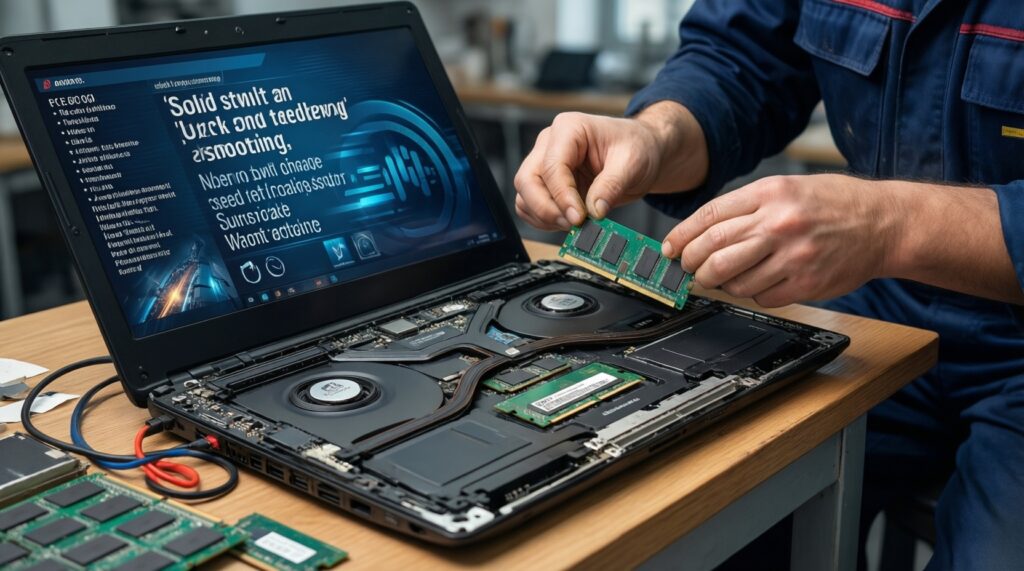
| Add RAM | Smoother multitasking, fewer slowdowns when many apps/tabs are open, less swapping. |
| Switch to SSD | Much faster boot and launching, quicker updates/installs, less "freezing" caused by slow storage. |
Which option fits your situation (variants)
| Variant | Who it fits | Pros | Cons | When to choose |
|---|---|---|---|---|
| 1) SSD only (keep current RAM) | Older PC on HDD; basic office/home use | Biggest perceived speed-up; easy migration; helps everything that touches storage | Doesn't fix true low-RAM multitasking; old CPUs still slow in heavy workloads | Disk usage spikes to 100% and you're still on an HDD; you want the quickest "wow" upgrade |
| 2) RAM only (keep current drive) | PC already on SSD, but struggles with many tabs/apps | Reduces swapping; improves responsiveness under load; can help some creation apps | Boot/app launch won't improve much; HDD systems may still feel slow | Memory is often near full and the system slows when multitasking |
| 3) SATA SSD + small RAM bump | Budget-first refresh of DDR3-era desktops/laptops | Balanced gains; keeps costs controlled; usually the best "all-round" feel | Requires checking RAM type/capacity limits; may need OS reinstall or cloning | You see both high disk activity and high memory pressure in normal use |
| 4) Bigger RAM upgrade (e.g., 16GB+) with SSD already installed | Intermediate users: many browser tabs, dev tools, light photo/video work | Better headroom; fewer slowdowns; reduces background thrash | May be limited by platform (slots, max capacity); diminishing returns for simple tasks | You already have an SSD and want smoother multitasking or heavier workflows |
| 5) SSD + clean OS install (or careful clone) | PC feels "heavy" due to years of software bloat | Often feels faster than hardware alone; fewer driver/app conflicts | Time cost; backups needed; licenses/apps to reinstall | You want the most reliable result after an SSD swap, especially on very old systems |
| 6) NVMe SSD on a legacy platform (only if truly supported) | Some newer-ish "old" PCs with M.2 NVMe support | Higher peak throughput than SATA | Often not noticeable for typical use; BIOS/boot support can be tricky on older boards | Your motherboard supports NVMe natively and you do large file work that benefits from sustained throughput |
Cost-to-benefit: budget scenarios and realistic gains
- If you're on HDD and the goal is "feels faster" with minimal spend, then do a SATA SSD first. In Thai listings, this is commonly framed as "เปลี่ยน SSD คอมเก่า ราคา" and it's often the best first step for everyday speed.
- If you already have an SSD but multitasking is the pain, then add RAM first (especially going from very low capacity to "enough" for your workload). Shoppers often compare "เพิ่ม RAM คอมเก่า ราคา" across DDR generations-match your platform before chasing capacity.
- If you have a very old DDR3 platform (e.g., Intel 3rd/4th gen Core on H61/B85, or AMD FX on 970 chipset), then pick a small-to-mid SATA SSD plus a modest RAM top-up as the most budget-first balanced upgrade.
- If you have a slightly newer "old" platform (e.g., Intel 6th-8th gen Core on H110/B250, or Ryzen 1st/2nd gen on A320/B350), then prioritize SSD if still on HDD; otherwise prioritize RAM if you run many apps and browsers.
- If you want a "premium" refresh without changing the whole PC, then combine a quality SSD (good controller, good warranty) with a RAM upgrade sized for your workload, and do a clean OS install to remove long-term software drag.
- If prices for your RAM type are unusually high locally, then redirect budget into SSD and maintenance (thermal paste, cleaning, reinstall) instead of overpaying for hard-to-find modules-this happens often with older DDR3 sticks compared to newer mainstream parts.
When people search "RAM DDR3 DDR4 ราคา อัปเกรดคอม", the key trap is comparing DDR3 and DDR4 as if they were interchangeable-your motherboard decides the generation, and that decision dominates value.
Compatibility and practical constraints for older PCs
- Identify your platform: motherboard model (desktop) or laptop model; confirm DDR3 vs DDR4, number of slots, and maximum supported RAM.
- Confirm current storage interface: 2.5-inch SATA bay, M.2 SATA, or M.2 NVMe. Many "old" PCs are SATA-only.
- Check BIOS/UEFI mode: legacy BIOS can complicate NVMe boot; SATA SSD is usually straightforward.
- Pick the right SSD form factor: for most older PCs, a 2.5-inch SATA SSD is the safest choice. If you're unsure, search locally for "SSD สำหรับคอมเก่า แนะนำ" but verify your connector before buying.
- Match RAM correctly: same DDR generation, laptop SO-DIMM vs desktop DIMM, and ideally matched pairs for dual-channel when supported.
- Plan data migration: clone (needs care with partitions) or clean install (needs backup and time).
- Power/thermals check: unstable PSUs or overheating can mimic "slow PC" symptoms and reduce the benefit of upgrades.
Step-by-step upgrade paths: RAM-first, SSD-first, and combined
- Mistake: buying DDR4 for a DDR3 board (or vice versa). DDR generations are not cross-compatible; check the board/laptop spec first.
- Mistake: assuming "more RAM" fixes slow boot. Boot/app launch is usually storage-bound, so SSD is the right first move for HDD systems.
- Mistake: ignoring single-channel vs dual-channel. On some iGPU-heavy systems, dual-channel can matter; don't replace a matched pair with one larger stick unless necessary.
- Mistake: choosing NVMe for a SATA-only system. An M.2 slot does not automatically mean NVMe; M.2 can be SATA or NVMe.
- Mistake: buying the cheapest SSD with unknown components. For older PCs you want stability; prioritize reputable models and warranty over peak specs.
- Mistake: cloning without checking alignment/boot mode. Misconfigured clones can boot slowly or fail; consider a clean install if you can.
- Mistake: upgrading hardware but keeping a bloated OS. Startup programs and background services can erase perceived gains-clean up after upgrading.
- Mistake: forgetting the real limit is the CPU. If your workload is CPU-bound (encoding, heavy compile), SSD/RAM won't transform it; they mainly reduce waiting and stutter.
Benchmarks to run and metrics to compare before and after
For "everyday speed" (boot, launching, responsiveness), SSD-first is usually the best fit; for "smooth multitasking" (many tabs/apps, light creation), RAM-first is often the better next step once storage is solid. Use Task Manager (Memory % and Disk active time), CrystalDiskMark (storage baseline), and a simple timed boot/app-open routine to confirm which upgrade actually reduced your waiting.
Typical decision questions and concise answers
Should I upgrade RAM or SSD first on an old HDD-based PC?
SSD first. An HDD is typically the biggest source of lag in daily use, and an SSD improves boot and app launch immediately.
If I already have an SSD, will adding RAM still help?
Yes, if you multitask heavily and memory usage is often near full. More RAM reduces swapping and keeps the system responsive under load.
Is NVMe worth it for an older desktop?
Only if the motherboard supports NVMe natively and your workload involves large transfers. For typical older PCs, a good SATA SSD feels very similar in everyday tasks.
How do I avoid buying the wrong RAM (DDR3 vs DDR4)?
Check the motherboard/laptop specification and read the existing module label. DDR3 and DDR4 are physically and electrically incompatible.
What's the safest SSD choice for legacy PCs?
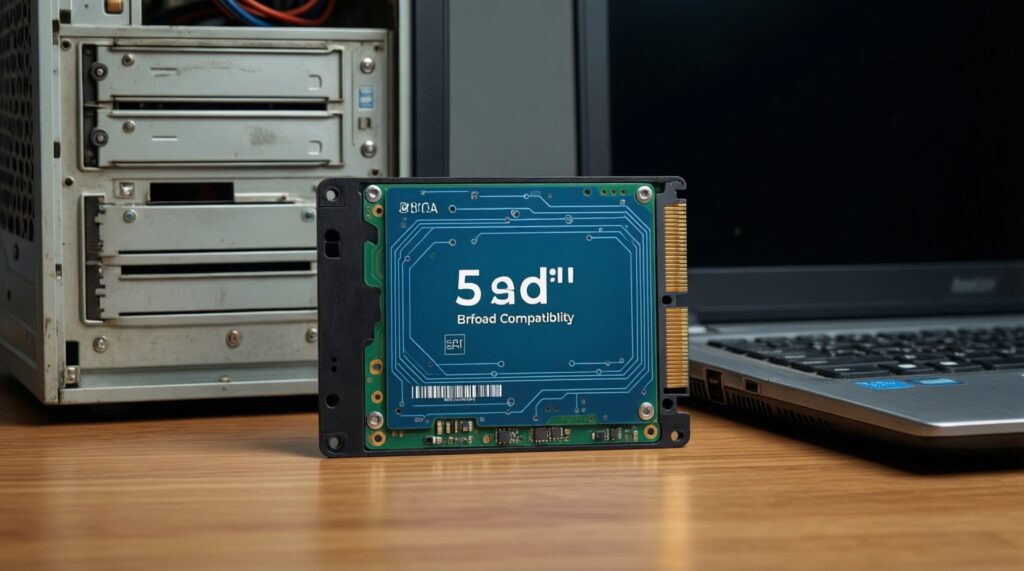
A 2.5-inch SATA SSD from a reputable brand is the safest. It fits the broadest range of older desktops and laptops with minimal compatibility risk.
Should I clone Windows or do a clean install after switching to SSD?
Clone if you need to keep apps exactly as-is and can verify boot mode/partitioning. Choose a clean install if the system is years old and feels bloated or unstable.