If you're deciding whether to move to the new Windows (Windows 11), the best upgrade happens when your hardware is compatible, your daily apps are supported, and you want stronger security plus newer UI and productivity features. If compatibility is uncertain, you'll get better results by first เช็คสเปคเครื่องรองรับ Windows 11 and planning a safe rollback path.
Snapshot: What's Changed in the New Windows
- Modern UI and window management aimed at faster multitasking on wide monitors and laptops.
- Stricter hardware baseline (TPM/Secure Boot era) that improves security but blocks older PCs.
- Security defaults are more "on by design," reducing reliance on manual hardening.
- Driver and firmware quality matters more; stable vendors deliver a smoother experience.
- Upgrade outcomes vary by workload: office users benefit quickly; niche software users should validate first.
Major New Features and How They Work
Use these criteria as a decision checklist: identify what you need, then verify constraints before you อัปเกรด Windows 11.
- Window management: If you constantly arrange multiple apps, newer snapping/layout features can reduce friction.
- Security baseline: If the PC handles sensitive data, the modern boot and encryption-friendly posture is a primary reason to upgrade.
- Update cadence expectations: If you want อัปเดต Windows 11 ล่าสุด without surprises, you'll need a stable driver stack and a patch-testing habit.
- App compatibility: Line-of-business apps, VPN clients, accounting tools, and older peripherals are the usual blockers.
- Hardware age: Older CPUs and boards often fail eligibility checks; performance may be fine, but the platform requirements matter.
- Peripheral ecosystem: Printers, scanners, audio interfaces, and dongles depend on current drivers and signed installers.
- Gaming and graphics stack: If you rely on modern GPU drivers and features, newer Windows versions tend to be better aligned.
- Manageability: If you administer multiple PCs, policy control, device encryption readiness, and update rings matter.
Performance, Battery and Resource Changes
Pick an approach based on your device class and risk tolerance. The options below compare "old vs new vs alternative" paths you can take in Thailand (including when you might ซื้อคอมพิวเตอร์รองรับ Windows 11 instead of upgrading).
| Option | Best for | Pros | Cons | When to choose |
|---|---|---|---|---|
| Upgrade eligible Windows 10 PC to Windows 11 | Most home/office users with supported hardware | Modern security baseline; newest platform features; smoother long-term support planning | Potential driver/app friction; requires careful pre-checks and backup | When your PC passes eligibility and your key apps/peripherals are verified |
| Stay on Windows 10 (for now) | Users with stable workflows and older peripherals | Lowest disruption; known-good driver ecosystem | Fewer new capabilities; you still need a future plan for hardware refresh | When an essential app/device isn't validated on Windows 11 yet |
| Clean install Windows 11 (wipe & reinstall) | Power users who want maximum stability | Removes accumulated bloat; fixes many "mystery issues" after years of use | Time cost; reinstall apps; data migration risk if unprepared | When your current installation is slow/unstable or you want a fresh baseline |
| Buy a new Windows 11-ready PC | Laptop users needing battery life, warranty, and modern CPUs | Best driver/firmware alignment; better efficiency; less troubleshooting | Higher cost; data migration effort; decision complexity in specs | When the current PC fails requirements or is near end-of-life; compare Windows 11 ราคา as "OS cost" vs total device value |
| Use Windows 11 in a test environment (spare PC/virtual machine) | Teams validating compatibility; careful upgraders | Low risk; lets you test updates, VPN, printers, and business apps | Not a full replacement for real hardware/peripheral testing | When you must confirm workflows before a broad rollout |
Security Enhancements and Updated Privacy Controls
Apply scenario-based rules to decide what to enable immediately after upgrading:
- If the device is used for work documents or customer data, then prioritize device encryption, Secure Boot, and a standard (non-admin) daily user account.
- If the PC travels (cafés, co-working, university), then enable stronger sign-in (PIN/biometrics where available) and review sharing/discovery settings on public networks.
- If you install many tools or browser extensions, then tighten app install permissions and periodically review startup/background apps to reduce attack surface.
- If you support family members or small business users, then standardize update timing (patch day window) and document recovery steps (BitLocker key location, Microsoft account recovery).
- If privacy is a priority, then audit diagnostics and ad-related toggles during first-run setup and after major feature updates.
Compatibility: Hardware, Drivers and App Support
Use this fast algorithm before committing to the upgrade:
- Inventory your must-have items: critical apps, printer/scanner drivers, VPN, smart card, accounting tools, and any USB dongles.
- Run eligibility checks: confirm CPU generation, TPM availability, Secure Boot status, and storage/RAM headroom (this is the practical meaning of เช็คสเปคเครื่องรองรับ Windows 11).
- Validate drivers: check your OEM (laptop/desktop brand) support page for Windows 11 drivers and BIOS/UEFI updates.
- Confirm app versions: ensure your key software is supported on Windows 11 (and that you have installers/licenses ready).
- Plan data protection: make a full backup (files + recovery keys) and confirm you can access it without the upgraded PC.
- Choose a rollback window: decide how long you'll test before you consider reverting; document the steps for your device.
- Pilot first: upgrade one non-critical machine, use it for a full work cycle, then proceed to your main device.
Upgrade Pros and Cons by Typical Workloads
These are the mistakes that most often lead to a "bad upgrade" experience, especially when people rush into อัปเดต Windows 11 ล่าสุด on day one:
- Upgrading without confirming printer/scanner and audio device drivers (a common pain point in home offices).
- Assuming "it boots" means "it's compatible," while ignoring firmware/BIOS updates and OEM driver packages.
- Not checking VPN, endpoint security, or company policies before upgrading a work machine.
- Skipping a full backup and then discovering cloud sync was incomplete or misconfigured.
- Upgrading while low on disk space, which increases update failures and post-upgrade sluggishness.
- Leaving too many startup/background apps enabled, then blaming the OS for slow boot and poor battery life.
- Using an admin account daily, increasing the impact of malware or risky installers.
- Buying new hardware based only on "รองรับ Windows 11" claims without checking ports, screen quality, Wi‑Fi, and warranty terms in Thailand.
Recommendations by user type (Thailand context)
- Home user: Upgrade if your device is eligible and your printer/VPN/antivirus are confirmed; otherwise wait and schedule the change when you have time for troubleshooting.
- Power user (creator/dev/gamer): Prefer a clean install or a staged migration; validate GPU drivers, WSL/dev tools, and peripherals before switching your main workstation.
- Enterprise/SMB admin: Pilot on representative hardware, use update rings, and enforce security baselines; avoid broad upgrades until line-of-business apps and device encryption recovery are verified.
Deployment Paths, Rollback Strategies and Enterprise Considerations
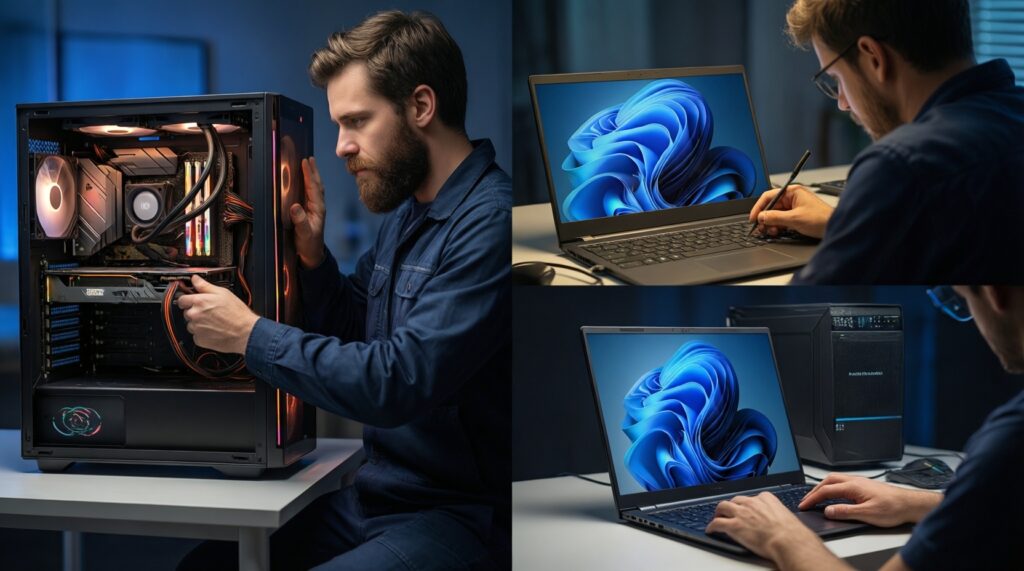
- If your PC passes eligibility and your must-have apps are confirmed, then do an in-place upgrade and keep a rollback plan.
- If you see driver uncertainty (OEM has no Windows 11 package), then pilot on a spare device or VM before touching your main machine.
- If the device fails requirements or is unstable, then plan to ซื้อคอมพิวเตอร์รองรับ Windows 11 and migrate data deliberately.
- If your environment is managed (work/school), then follow IT policy first and treat feature updates as a controlled change.
Best fit tends to be: Windows 11 upgrade for supported home/office PCs that benefit from the newer security baseline; a clean install for power users who want a fresh, predictable system; and a new Windows 11-ready device for older machines where eligibility, drivers, or reliability are uncertain-especially when total value matters more than debating Windows 11 ราคา as a standalone item.
Answers to Frequent Upgrade Concerns
How do I know my PC can run Windows 11?
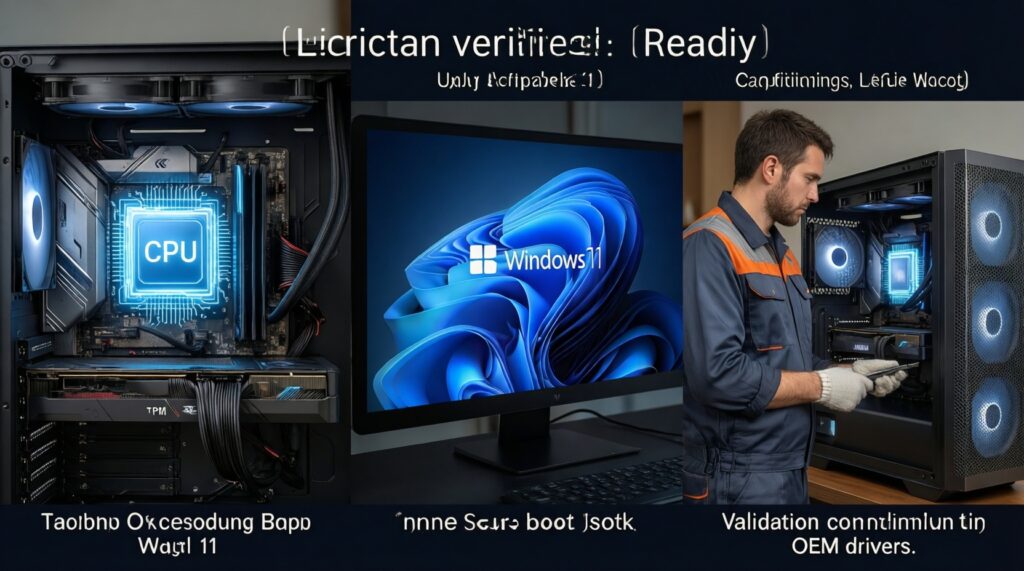
Confirm CPU generation, TPM availability, and Secure Boot status, then validate OEM Windows 11 drivers. This is the practical workflow behind เช็คสเปคเครื่องรองรับ Windows 11.
Should I upgrade now or wait?
Upgrade now if your key apps and peripherals are verified and you have backup/rollback ready. Wait if you rely on older printers, specialized hardware, or business software that hasn't been tested.
Will upgrading delete my files?
An in-place upgrade is designed to keep files, but failures happen. Always make an offline or cloud-verified backup before you อัปเกรด Windows 11.
Do I need a clean install for best performance?
Not always. Choose a clean install if your current Windows has long-term instability, heavy bloat, or repeated update issues.
How should I handle the latest Windows 11 updates?
Install อัปเดต Windows 11 ล่าสุด after verifying driver stability, especially for GPUs, Wi‑Fi, and audio. For critical work machines, pilot updates on a secondary device first.
Is Windows 11 price something I need to pay separately in Thailand?
Windows 11 ราคา depends on whether you're upgrading an existing licensed PC, buying a new device, or purchasing a separate license. For many buyers, the practical cost decision is the total PC value (warranty, specs, support) rather than the OS alone.
When is it better to buy a new PC instead of upgrading?
If the device fails Windows 11 requirements, lacks OEM driver support, or is unreliable, a new PC built to ซื้อคอมพิวเตอร์รองรับ Windows 11 usually reduces risk and troubleshooting time.