If your PC already meets Windows 11 requirements, the "latest Windows 11" (current feature update) is usually the better pick for security, newer drivers, and smoother day‑to‑day behavior, while the previous version can be preferable when you rely on older peripherals or line‑of‑business apps. Choose based on hardware constraints, gaming stability, and laptop power tuning needs.
Top practical differences at a glance
- Latest Windows 11 tends to align faster with new GPU/Wi‑Fi driver branches; the previous version can be safer for older device drivers.
- Feature updates may change background services and defaults, so the "best" performance depends on your startup apps and power plan-not just the version.
- Gaming gains are typically about frame pacing, input latency consistency, and driver scheduling-not guaranteed FPS increases on the same hardware.
- Laptop battery results depend more on Modern Standby behavior, OEM power profiles, and browser/GPU settings than on the Windows version alone.
- If you need legacy VPN, printer stacks, niche USB devices, or older anti-cheat dependencies, upgrading can introduce friction.
- Budget-first wins often come from small tweaks (drivers, startup trimming, power limits) rather than a full reinstall or new PC.
Architecture and system requirements: what affects cost-conscious upgrades
Use these criteria to decide whether the latest Windows 11 is worth it on your current machine (and to answer "อัปเกรด Windows 11 รุ่นล่าสุด คุ้มไหม" in a practical way).
- CPU generation and supported instruction sets: newer CPUs typically get better scheduler and driver attention; older supported CPUs may still work but see fewer vendor optimizations.
- TPM/Secure Boot readiness: check BIOS/UEFI configuration before blaming the OS version for upgrade failures.
- RAM headroom (especially with browser tabs + Teams/Zoom): if you're paging to disk, version differences won't matter much.
- Storage type and free space: SATA SSD vs NVMe impacts boot/app launch more than the update itself; low free space increases update and maintenance overhead.
- GPU driver cadence: if you upgrade Windows, plan to upgrade GPU drivers too; mismatches are a common source of stutter.
- OEM laptop utilities and power profiles: many "battery" and "fan noise" complaints are OEM services, not Windows core.
- Peripheral ecosystem: printers, scanners, audio interfaces, capture cards-confirm driver availability for the latest build.
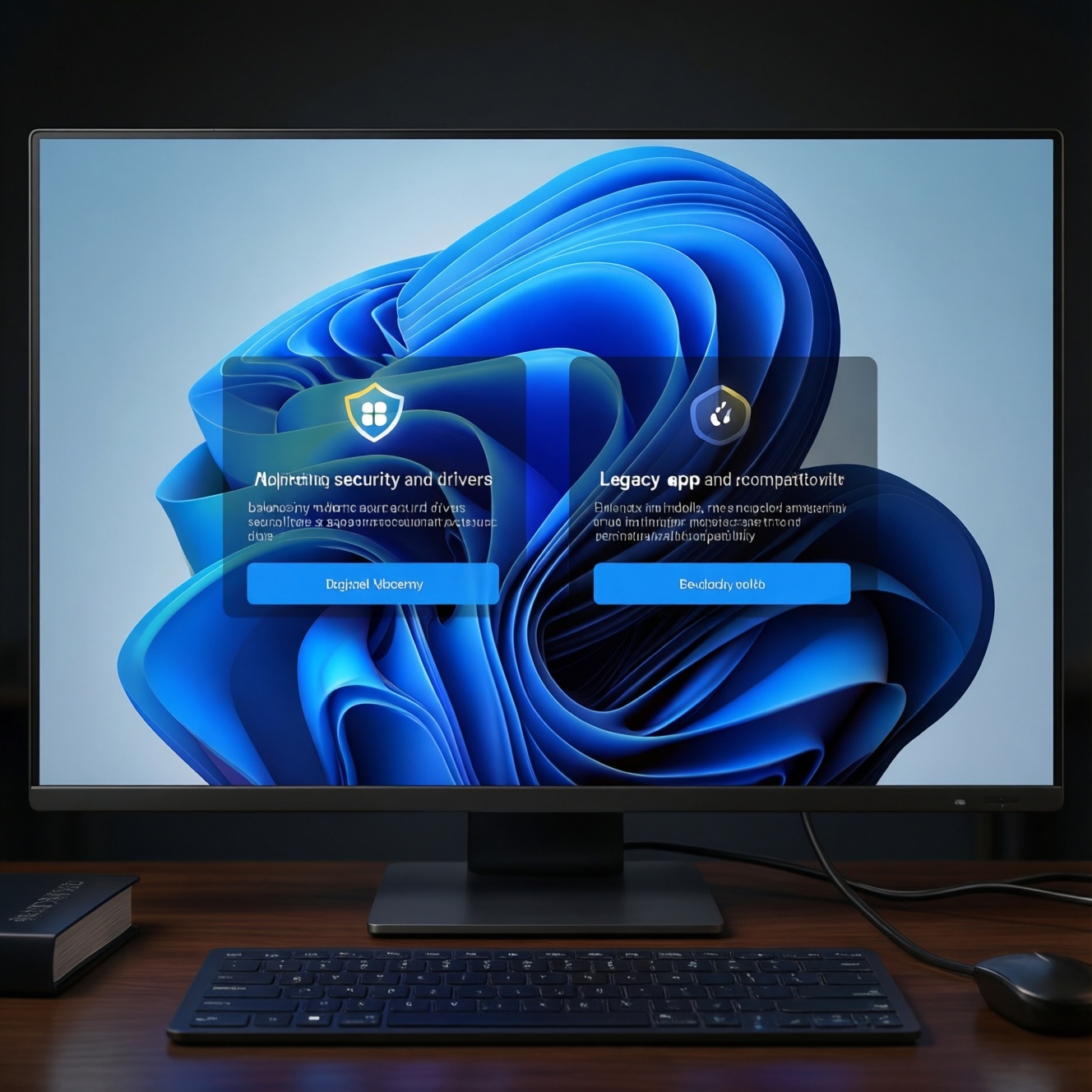
- Security posture: if you rely on VBS/Memory Integrity, expect a trade-off: better security can reduce peak performance on some setups.
Raw performance: boot, app launch, and multitasking benchmarks
For "เปรียบเทียบ Windows 11 23H2 กับ 22H2 ประสิทธิภาพ", the most reliable approach is to compare on your hardware with the same drivers and the same startup set. Use a simple scenario instead of chasing one-off internet scores: cold boot to desktop, launch your top 5 apps, then run your typical multitasking (browser + calls + file sync) for 15-30 minutes.
Quick comparison table (what to look at, and what to do)
| Metric | Windows 11 latest | Previous version | Recommended action |
|---|---|---|---|
| Boot consistency (same startup apps) | Often improves after driver and indexing settle post-update | Often more predictable if already "tuned" and stable | Measure after 2-3 restarts; trim Startup apps and re-check |
| App launch (Office/Adobe/Browser) | Depends on Defender scanning + storage + app updates | Similar if storage and app versions are identical | Exclude heavy dev/build folders; ensure SSD has free space |
| Multitasking responsiveness | Can feel smoother with updated drivers and scheduling fixes | Can feel smoother if fewer background services are enabled | Compare Task Manager "Startup impact" and background sync apps |
| Update overhead (downtime) | Newer feature updates may take longer first time | Typically smaller monthly deltas once stabilized | Plan updates off-hours; keep enough disk space to avoid rollback loops |
Which "variant" to choose (practical options)
| Variant | Who it fits | Pros | Cons | When to choose |
|---|---|---|---|---|
| Upgrade in-place to Windows 11 latest | Most users with supported hardware and stable drivers | Fast path; keeps apps/data; better alignment with new drivers | May carry old clutter; occasional driver conflicts | If your current install is healthy and you want minimal downtime |
| Stay on previous Windows 11 version (defer feature update) | People with critical legacy peripherals or business apps | Predictability; avoids early-cycle regressions | Slower access to new OS-level fixes and features | If your workflow depends on older drivers/VPN/printers and everything works today |
| Clean install of Windows 11 latest | Intermediate users who can back up and reinstall apps | Removes accumulated bloat; clean driver stack | Time cost; license/app reactivation; missing OEM utilities until reinstalled | If in-place upgrades have left you with slow boot, weird services, or broken updates |
| Latest + "debloat-lite" tuning (no risky scripts) | Budget-first users wanting better responsiveness | Near-zero cost; reduces background load | Requires discipline; easy to over-disable needed features | If you want measurable everyday gains without changing hardware |
| Previous version + stability-first drivers (OEM-recommended) | Laptops and older GPUs sensitive to driver updates | Lower chance of sleep/hibernate issues | May miss newer game profiles and fixes | If sleep, Wi‑Fi, or audio is fragile and you can't troubleshoot often |
| New PC with Windows 11 latest (hardware refresh) | Users blocked by CPU/TPM limits or very old storage | Best overall experience; modern NVMe/Wi‑Fi; longer support runway | Highest cost | If you're asking "ซื้อคอมพิวเตอร์ใหม่สำหรับ Windows 11 รุ่นล่าสุด สเปกแนะนำ" because your current device is the bottleneck |
Gaming experience: latency, frame stability, and driver support
If you're evaluating "Windows 11 รุ่นล่าสุด เล่นเกมดีขึ้นไหม FPS เพิ่มไหม", focus on frame-time consistency and stutter frequency with the same GPU driver branch and the same in-game settings. Then decide by scenario:
- If you play competitive shooters and care about input latency, then prefer the latest Windows 11 plus the latest stable GPU driver, and disable unnecessary overlays (Xbox Game Bar capture, third-party OSD) to reduce latency spikes.
- If you see stutter after upgrading, then roll back one GPU driver version first (not the OS), clear shader caches, and retest before blaming the update.
- If you're on a budget GPU/CPU and chase smoothness more than peak FPS, then lock a consistent frame cap (in-game or driver), use a balanced power plan, and reduce background startup apps-this often beats switching Windows versions.
- If you run a premium setup (high-refresh monitor + high-end GPU), then use the latest Windows 11 and keep chipset + GPU + monitor firmware updated for best frame pacing and VRR behavior.
- If an anti-cheat or a specific title breaks on the latest build, then stay on the previous Windows 11 version until the game vendor patches, rather than forcing risky workarounds.
Power management and battery life: real-world measurements for laptops
To validate "Windows 11 รุ่นล่าสุด ประหยัดแบตเตอรี่กว่าเดิมไหม", run the same workload (same brightness, same browser, same Wi‑Fi, same apps) and compare. Use this quick selection and tuning checklist:
- Update BIOS/UEFI and chipset drivers first; many sleep/battery fixes live there, not in Windows.
- Choose the same Power mode (Best power efficiency / Balanced) on both versions before comparing.
- Standardize screen brightness and refresh rate (high refresh can dominate power draw).
- Disable or limit background sync for nonessential apps (cloud drives, chat clients) and re-check idle drain.
- Check Task Manager for "Power usage" outliers; fix the app/driver causing wakeups before switching OS versions.
- Prefer vendor GPU switching mode (hybrid/advanced optimus equivalents) that is known-stable for your laptop model.
- If results are still inconsistent, clean install can be more effective than version hopping-especially on machines with years of OEM utilities piled up.
Compatibility and legacy software: trade-offs for older hardware
These are the mistakes that most often turn a simple comparison into a bad upgrade decision in Thailand's mixed-hardware reality (office desktops, campus laptops, café gaming rigs):
- Upgrading Windows first and only then checking printer/scanner drivers (especially older USB and network printers).
- Assuming an old VPN client or endpoint security agent will behave identically on the latest build.
- Mixing OEM laptop power utilities with generic drivers (or removing OEM services that control fan curves and sleep states).
- Turning on every security feature at once (VBS/Memory Integrity) and then attributing the performance change to "the update".
- Keeping multiple overlay/capture tools enabled while testing games, leading to false "OS version" conclusions.
- Upgrading GPU drivers during the same test window as the OS upgrade, so you can't isolate the cause.
- Not validating disk health and free space; update churn and paging on a stressed SSD/HDD can mimic "slow Windows".
- Forgetting to re-check BIOS settings (TPM, Secure Boot) after a BIOS update or reset.
Cost-effective tuning: settings and hardware tweaks to maximize value
Best for budget-first upgrades: keep your current Windows version (latest or previous) but optimize startup apps, update chipset/GPU/Wi‑Fi drivers, standardize power settings, and consider a low-cost SSD/RAM upgrade if you're bottlenecked. Best for premium smoothness: move to Windows 11 latest with a clean driver stack and stable game-ready drivers, prioritizing frame pacing and sleep stability over chasing headline FPS.
Common deployment and troubleshooting concerns
Should I upgrade immediately or wait if my PC is stable?
If you depend on legacy peripherals or line-of-business apps, defer the feature update until you confirm driver support. If you mainly want better security and newer driver alignment, upgrading sooner is usually fine after a full backup.
How do I do a fair "23H2 vs 22H2" performance comparison?
Use the same GPU/chipset drivers, the same startup apps, and the same power mode. Test a repeatable workflow (boot, app launches, a 15-30 minute multitasking session) and only change one variable at a time.
My games started stuttering after updating Windows-what should I do first?
Start with the GPU driver: roll back to the prior stable version and clear shader caches. Then disable overlays/recording features and retest before considering an OS rollback.
Will the latest Windows 11 automatically improve FPS?
Not reliably; improvements are more often in frame-time stability and compatibility fixes. On identical hardware, settings, and drivers, FPS may be similar while "smoothness" changes.
Why did my laptop battery get worse after upgrading?
Post-update indexing, driver changes, and OEM power utilities can increase background activity. Normalize brightness/refresh rate, verify power mode, and identify high "Power usage" processes before blaming the Windows version.
When is a clean install worth it compared to an in-place upgrade?
If your system has years of accumulated startup apps, broken updates, or unexplained background load, a clean install is often the fastest way to restore consistency. If your current install is healthy, in-place is usually enough.
What specs should I prioritize if buying a new PC for the latest Windows 11?
Prioritize an NVMe SSD, adequate RAM for your multitasking, and a supported modern CPU/TPM configuration. Choose a GPU based on your target resolution and game type, not just the Windows version.