Yes-Windows can feel slower right after an update, but it's usually temporary or caused by drivers, startup tasks, background indexing, or storage pressure rather than permanent "damage." Start with read-only checks (Task Manager, Event Viewer, reliability history), then clean startup and update drivers. Only escalate to repairs, rollbacks, or hardware upgrades after backups.
Quick Diagnosis: Why Windows Feels Slower After an Update
- Background post-update work is still running (indexing, Defender scans, Store updates), raising disk/CPU usage.
- Driver changes (GPU, chipset, storage) introduce latency, stutters, or power-management issues.
- Startup and scheduled tasks multiply after updates, extending boot/login time.
- Storage becomes the bottleneck (low free space, heavy writes, failing SSD/HDD, corrupted file system).
- Security/AV and compatibility layers add overhead or conflict with new builds.
- Power plan resets or thermals throttle performance, especially on laptops.
Immediate Post-Update Checks: Startup, Drivers, and Services
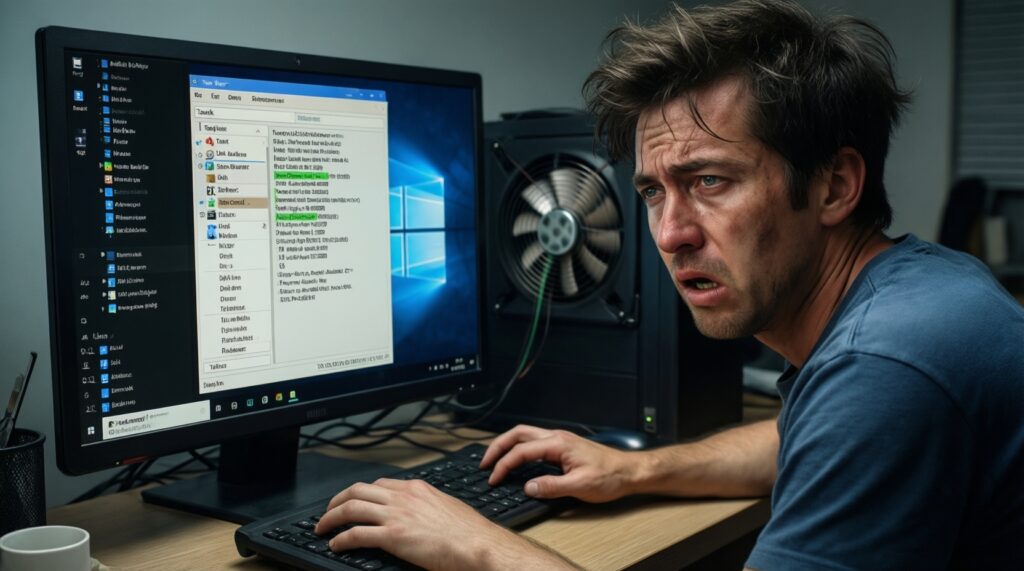
Typical symptoms users notice:
- Boot or sign-in is slower than before.
- Apps take longer to open; Explorer feels laggy.
- High disk usage (often 100%) shortly after startup.
- Random freezes, micro-stutters, or video driver resets.
- Fans ramp up and the system runs hotter than usual.
- Confirm what changed: Settings > Windows Update > Update history. Note the latest cumulative/feature update date.
- Wait out post-update tasks (safe-first): keep the PC plugged in, idle on the desktop for a while; then reboot once. This often resolves "อัปเกรด Windows 11 แล้วช้า แก้ยังไง" cases caused by background maintenance.
- Check startup impact (read-only first): Task Manager > Startup apps. Sort by Startup impact. Don't disable security or vendor hotkey utilities blindly.
- Identify the heaviest processes: Task Manager > Processes. Sort by CPU, Memory, Disk. If Disk is high, note the exact process name before changing anything.
- Driver sanity check: Device Manager > look for warnings. For GPUs, open the vendor panel (NVIDIA/AMD/Intel) to confirm driver version.
- Reliability timeline: Control Panel > Security and Maintenance > Reliability Monitor. Look for new "App failures" or "Windows failures" starting after the update.
- Services awareness (don't mass-disable): If you suspect a service, first observe in Task Manager > Services which ones spike CPU. Avoid "tweak guides" that disable core Windows services.
Resource Bottlenecks: CPU, RAM, Disk, and GPU Troubleshooting
- Open Task Manager > Performance and check if CPU is pinned, memory is near full, or disk active time is consistently high.
- Run Resource Monitor (Start > type resmon) to see top disk I/O files and processes.
- Check Windows Security > Virus & threat protection > Protection history for repeated scan actions after the update.
- Check Event Viewer (eventvwr.msc) for Disk, Display, or WHEA errors. Don't "fix" yet-just confirm patterns.
- Verify free space on C: (File Explorer). Low free space can cause slow updates, paging, and indexing.
- Measure startup apps and scheduled tasks: Task Manager > Startup apps, then Task Scheduler for recently added vendor updaters.
- For GPU stutters: Settings > System > Display > Graphics > check if the app is forced into the wrong GPU (laptops with iGPU+dGPU).
- For RAM pressure: close heavy browser tabs, then retest. If improvement is large, you're memory-bound.
- For disk pressure: pause OneDrive syncing temporarily and retest responsiveness.
- Check Windows Update "Delivery Optimization" activity (Settings > Windows Update > Advanced options > Delivery Optimization).
Storage and File System Fixes: Defragmentation, SSD Health, and Disk Cleanup
Storage issues are the most common root cause of "คอมช้า หลังอัปเดต Windows 11 วิธีแก้", especially on older HDDs or nearly-full SSDs. Start with non-destructive checks, then cleanup, then repair commands.
- Confirm the drive type: Task Manager > Performance > Disk shows SSD vs HDD. HDDs are far more sensitive to background activity.
- Check drive health (read-only): use the SSD/HDD vendor tool if available; otherwise, review Event Viewer disk warnings.
- Run Disk Cleanup safely: Settings > System > Storage > Temporary files. Avoid deleting Downloads unless you review it.
- Optimize drives: Search "Defragment and Optimize Drives." Optimize is safe; on SSD it sends TRIM, on HDD it defrags.
- File system check (safe first, then repair):
- Read-only scan: open Command Prompt as admin and run
chkdsk C: /scan - If errors are found, schedule repair:
chkdsk C: /f(requires reboot)
- Read-only scan: open Command Prompt as admin and run
- System file integrity (non-destructive):
sfc /scannowDISM /Online /Cleanup-Image /RestoreHealth
| Symptom | Possible causes | How to verify (read-only first) | How to fix (safe-first) |
|---|---|---|---|
| Disk usage stays high after boot | Indexing, updates, Defender scan, HDD limitations, low free space | Task Manager/Resource Monitor: top disk process; check C: free space | Let maintenance finish; Storage cleanup; pause cloud sync; Optimize Drives (TRIM/defrag) |
| Apps open slowly; Explorer lag | Pagefile pressure, disk errors, corrupted system files | Reliability Monitor errors; chkdsk C: /scan; Event Viewer Disk warnings |
sfc /scannow; DISM /RestoreHealth; repair with chkdsk /f if needed |
| Stutters during installs/copies | Thermal throttling, failing drive, background write-heavy tasks | Task Manager temps (if available), Event Viewer warnings; observe write spikes | Improve cooling; reduce background tasks; consider replacing the drive if errors repeat |
| System "feels fine" only after long idle time | Post-update optimization, Store/app updates, indexing catch-up | Check Microsoft Store downloads; Windows Update activity | Keep plugged in; allow completion; reboot; then re-test baseline performance |
If the machine is HDD-based and you're considering ซื้อ SSD อัปเกรดคอมให้เร็วขึ้น, that upgrade often brings the largest real-world responsiveness gain-especially after Windows 11 updates-because background tasks become much less noticeable.
Software Conflicts: Compatibility, Background Apps, and Antivirus
Use this escalation ladder. Stop as soon as performance returns to normal.
- Create a restore point: search "Create a restore point" > Create. This is your safe rollback anchor before deeper changes.
- Update Windows fully: Settings > Windows Update > Check for updates (including optional driver updates only if you need them).
- Update critical drivers from the OEM (safe, targeted): chipset + GPU + Wi‑Fi/LAN from your laptop/board vendor support page.
- Clean boot test (diagnostic, reversible):
- Run
msconfig> Services > Hide Microsoft services > Disable all - Task Manager > Startup apps > Disable non-essential items
- Reboot and test; then re-enable in batches to find the culprit
- Run
- Remove or update known conflict apps: old VPN clients, overlay/recorders, device "boosters," and legacy printer suites are common offenders after updates.
- Antivirus check: if you use third-party AV, ensure it's updated and compatible with your current Windows build. Don't run multiple AV engines at once.
- Repair problematic apps: Settings > Apps > Installed apps > (app) > Advanced options > Repair/Reset.
- Last resort for conflicts: uninstall the conflicting software, reboot, retest, then reinstall the latest version.
In Thailand, people often ask about บริการลง Windows 11 ราคา when performance problems persist. Before paying for reinstall, try the diagnostic steps above; if errors point to disk or repeated system corruption, professional help may be justified.
Power, Performance Plans, and Thermal Throttling
Escalate to a specialist or vendor support when any of the following is true:
- You see repeated WHEA hardware errors, frequent BSODs, or Disk/Controller errors in Event Viewer.
- The system throttles heavily (sudden slowdowns under load), fans are constantly high, or the chassis becomes unusually hot even after software cleanup.
- Performance drops only on battery and won't recover after setting Best performance in Windows power settings.
- GPU driver resets continue after clean driver updates from the OEM/GPU vendor.
- The device is under warranty and you suspect failing storage, battery, or cooling system-avoid DIY actions that may risk coverage.
Quick checks you can do safely:
- Settings > System > Power & battery: set power mode to Best performance for testing.
- Confirm the laptop is using the correct charger and not a low-wattage USB-C source (common cause of throttling).
- Clean vents externally; avoid opening the chassis unless you're experienced.
Rollback and Recovery Options: Uninstalling Updates and System Restore
- Back up important files before any rollback or repair action (external drive or cloud).
- Try System Restore to the point created before deeper troubleshooting if the slowdown started abruptly after a specific update.
- Uninstall the latest quality update: Settings > Windows Update > Update history > Uninstall updates (choose the most recent relevant KB).
- If it's a feature update and the device became unstable, use Recovery options to roll back (when available).
- After rollback, pause updates briefly and update OEM drivers first to reduce reoccurrence.
- If corruption keeps returning, consider an in-place repair install (keeps apps/files) before a full reinstall.
- Document what you changed (drivers, startup items, apps) so you can reverse safely.
- If you're pricing options like อัปเกรด Windows 10 เป็น Windows 11 ราคา, decide based on your device readiness (TPM, CPU support, SSD/RAM) rather than the OS alone-hardware bottlenecks won't disappear with an upgrade.
Common Practical Concerns and Short Solutions
How long should I wait after an update before troubleshooting?
If the PC is usable, give it time to finish post-update tasks, then reboot once. If disk/CPU stays maxed for long periods on every boot, start diagnosis immediately.
Is it safe to run SFC and DISM on a work PC?
Yes-sfc and DISM are standard, non-destructive integrity checks/repairs. Still, run them during a maintenance window and keep a backup for critical machines.
What if disabling startup apps breaks something I need?
Disable in small batches and reboot-test, so you can revert quickly. Avoid disabling security tools, device hotkeys, touchpad utilities, and backup/sync agents without a plan.
Should I uninstall the latest Windows update right away?
Only if you can correlate the slowdown to that update and safer steps didn't help. Uninstalling updates can reintroduce security risk, so prefer fixes like drivers, cleanup, and conflict isolation first.
Will upgrading to SSD really help after Windows 11 updates?
If you currently use an HDD or a nearly-full, aging SSD, moving to a healthy SSD can drastically improve responsiveness because Windows background tasks complete faster.
When should I pay for a reinstall service?
If you have repeated corruption, persistent crashes, or can't isolate conflicts after clean boot testing, a professional reinstall may save time. Ask the shop to back up data and install OEM drivers, not just "wipe and go."
Does Windows 11 itself make PCs slower than Windows 10?
Not inherently; most slowdowns come from driver changes, background services, and storage/RAM limitations. On borderline hardware, the extra background activity can feel worse without an SSD and sufficient RAM.