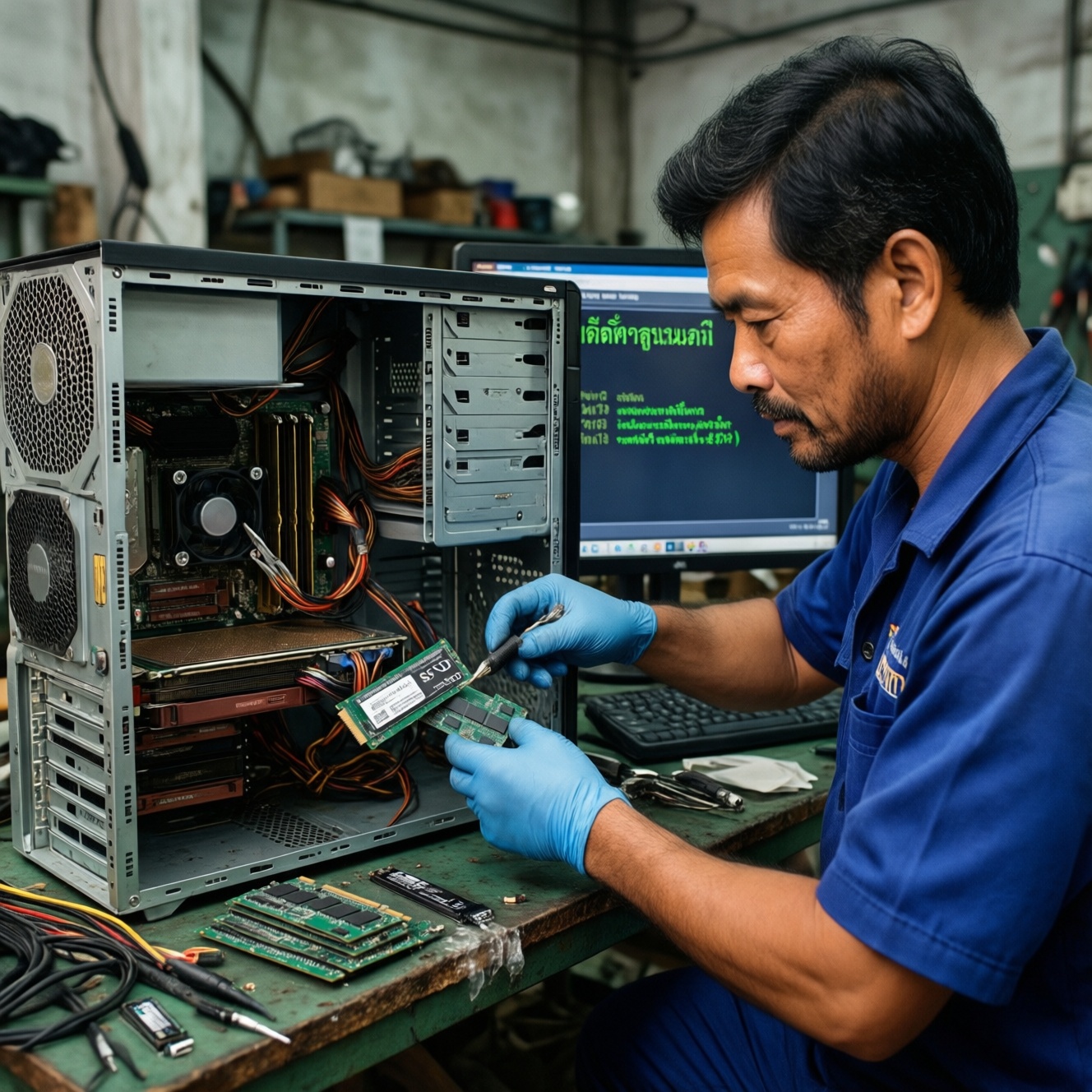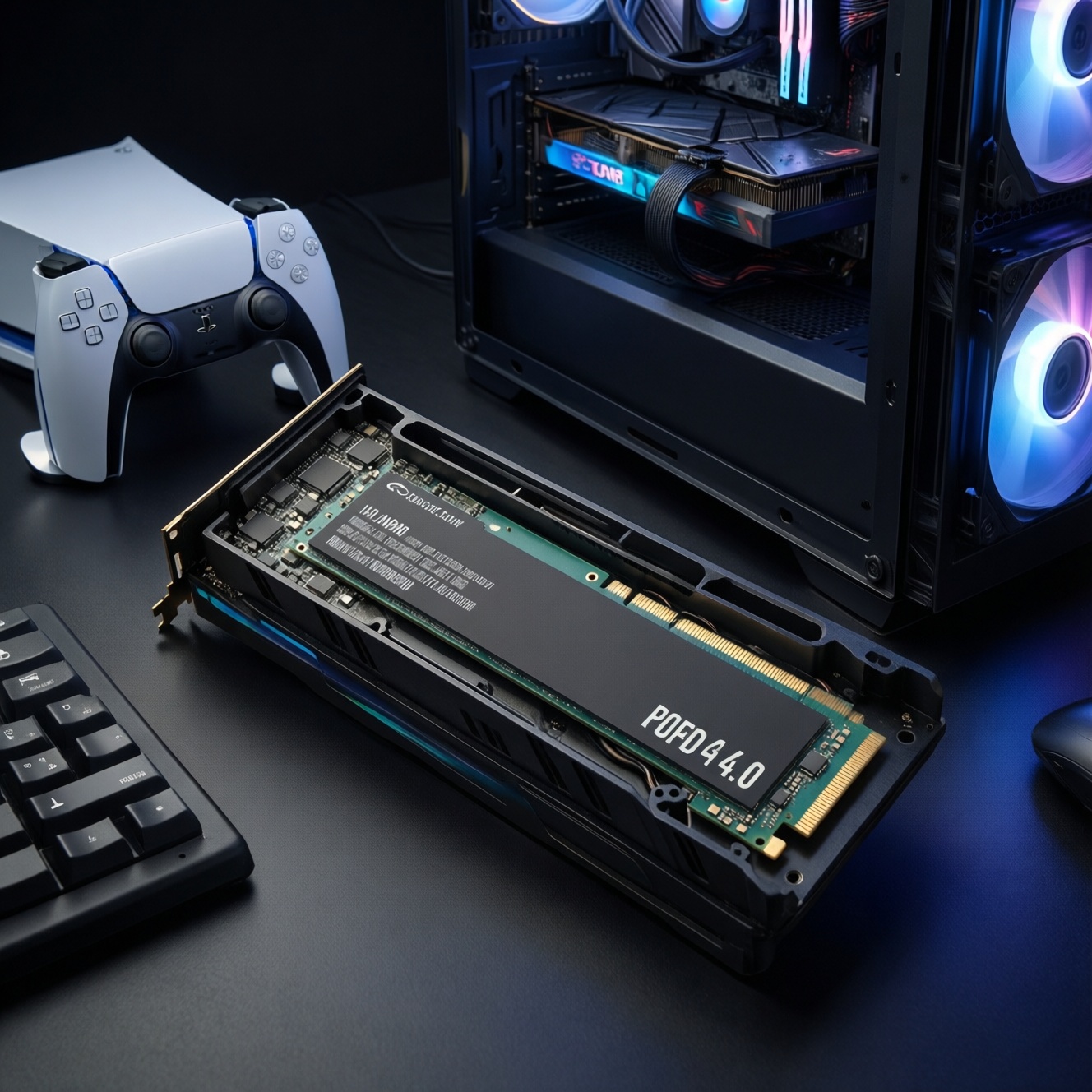
For PS5, gaming PCs, and creator workloads in Thailand, the safest "best SSD" choice is usually a PCIe 4.0 NVMe M.2 drive with a proper heatsink, strong sustained performance, and a capacity that matches your library or project size. Use PS5 fit/height first, then pick a performance tier and budget tier.
At-a-glance decision guide for PS5, gaming PCs and content creators
- If your target is PS5 expansion, prioritize a PCIe Gen4 NVMe M.2 (2280) that physically fits the PS5 bay and includes (or accepts) a low-profile heatsink.
- If you mainly ask "SSD เกมมิ่งพีซี รุ่นไหนดี", pick based on motherboard generation (Gen4/Gen5) and whether your games benefit more from capacity or peak speeds.
- If you mainly ask "SSD สำหรับตัดต่อวิดีโอ/ครีเอเตอร์ รุ่นไหนดี", prioritize sustained write behavior, thermal stability, and higher endurance (TBW rating), not just peak benchmarks.
- If you compare "SSD 1TB PCIe 4.0 ราคา", treat price as a tier signal and verify warranty, controller class, and DRAM/HMB behavior before buying.
- When in doubt, a mainstream Gen4 SSD + good heatsink is the most consistent cross-device pick for PS5 + PC dual use.
Compatibility and slot requirements: PS5, M.2 NVMe slots and motherboard support
- Interface and form factor: NVMe M.2 (typically 2280) is the default target for both PS5 expansion and modern PCs; avoid SATA M.2 unless you specifically need it for an older system.
- PCIe generation support: Confirm whether your PC slot is Gen3/Gen4/Gen5; Gen4 SSDs work in Gen3/Gen5 slots but may run at the lower negotiated speed.
- PS5 physical fit: Check the full module height with heatsink to ensure it fits the PS5 expansion bay; oversized heatsinks can prevent the cover from closing.
- Heatsink requirement: PS5 usage strongly favors a heatsink; in PCs, a motherboard M.2 shield can substitute, but only if it makes solid contact and has airflow.
- Lane sharing and slot wiring (PC): Some boards share lanes between M.2 and SATA/PCIe slots; confirm you won't disable ports you need.
- Capacity support and practical limits: Make sure your device firmware/OS supports the capacities you plan to buy (especially very large drives).
- Boot vs storage role (PC): A "boot+apps" SSD benefits from responsiveness and reliability; a "game library" SSD benefits from capacity per baht and stable thermals.
- Power and thermal environment: Small-form-factor PCs and PS5 bays can heat-soak; favor drives known for stable sustained behavior rather than just headline peak numbers.
For people searching ซื้อ SSD สำหรับ PS5 รุ่นไหนดี or SSD NVMe PCIe 4.0 สำหรับ PS5 แนะนำ, treat "Gen4 NVMe + fit + heatsink" as non-negotiable, then select capacity and tier based on your library size.
Performance tiers explained: Gen4 vs Gen5, sequential I/O and sustained speeds
| Variant | Who it fits | Pros | Cons | When to choose |
|---|---|---|---|---|
| Gen4 NVMe (mainstream, with heatsink) | PS5 owners; most gaming PCs | Best balance of real-world loading, thermals, and price; widely compatible | Not the absolute top peak numbers | Default pick if you want one SSD that "just works" across PS5 + PC |
| Gen4 NVMe (high-end, stronger sustained writes) | Creators doing frequent large file writes; competitive gamers who want stability | More consistent under long transfers; better behavior when the drive is fuller | Costs more; still needs cooling | Choose if you do editing/capture scratch and don't want speed drops mid-task |
| Gen5 NVMe (performance-first) | New high-end PCs with Gen5 slots and cooling | Highest peak throughput on compatible platforms | Runs hotter; often requires strong heatsink/airflow; diminishing returns in many games | Choose if your workflow is throughput-heavy and your PC cooling is built for it |
| Gen3 NVMe (value/compatibility) | Older PCs; secondary storage | Often cheapest per GB; fine for general use | Not ideal for PS5 expansion; lower ceiling | Choose for budget upgrades on Gen3 systems or as bulk game storage |
| DRAM-based NVMe (responsiveness-first) | OS drive; heavy multitasking | Better consistency under mixed workloads; strong small-file behavior | Typically higher cost | Choose when the SSD is your main system drive and you care about snappy behavior |
| DRAM-less NVMe with HMB (budget-first) | Game libraries; light creator use | Lower cost; good enough for many gaming loads | Can slow down more under sustained writes; more sensitive to being nearly full | Choose when your priority is capacity per baht and you don't write huge files daily |
Capacity, TBW and heat: matching endurance and cooling to gaming vs creation workloads
- If you install lots of large games (PS5/PC), then choose at least 1TB and prioritize a stable Gen4 drive with a heatsink; performance differences matter less than not running out of space.
- If you record gameplay or write large files daily, then choose a "high-end Gen4" or "DRAM-based NVMe" tier and check the manufacturer TBW/endurance rating; avoid the cheapest DRAM-less models.
- If you edit video with proxies and caches, then use one SSD as a scratch/cache drive (sustained writes + cooling) and a second SSD/HDD for archive; don't rely on a single budget SSD for everything.
- If your case/PS5 bay runs hot, then choose a proven heatsink solution (SSD heatsink or motherboard M.2 shield) and avoid performance-first Gen5 unless you have strong airflow.
- If you keep drives nearly full, then choose a higher tier model and plan free space headroom; many SSDs slow down more sharply when close to full.
When comparing SSD 1TB PCIe 4.0 ราคา, treat "cheapest" as a signal to double-check sustained behavior and endurance specs, especially for creator workloads.
Budget-focused selections: best SSDs under $60/$120/$200 for gaming and storage
- Define the device: PS5 expansion, PC boot drive, PC game drive, or creator scratch.
- Yes/No: Is it for PS5? If Yes, filter to Gen4 NVMe M.2 2280 + heatsink that fits the bay; if No, continue.
- Yes/No: Does your motherboard support Gen5? If Yes, consider Gen5 only if you also have strong cooling; otherwise prefer a high-end Gen4.
- Pick a capacity target: 1TB for typical libraries; 2TB+ if you juggle many AAA titles or video projects.
- Choose a tier by workload: DRAM-less/HMB for budget game storage; mainstream Gen4 for best overall; high-end Gen4 or DRAM-based for creators.
- Confirm cooling: Ensure a heatsink plan (included heatsink, PS5-compatible low-profile, or motherboard M.2 shield with airflow).
- Finalize by warranty/spec sheet: Check official TBW/endurance and warranty terms; avoid unknown/unclear spec listings.
High-performance recommendations for creators and competitive gamers
- Buying for peak sequential only: High peaks don't guarantee sustained speed during long writes (exports, captures, backups).
- Ignoring thermals: Thermal throttling can erase the advantage of a faster tier; cooling is part of the SSD choice.
- Overpaying for Gen5 on a gaming-only build: Many games won't feel different versus a solid Gen4; spend more on capacity or GPU/CPU if that's your bottleneck.
- Putting scratch + archive on one budget drive: Creator workflows often need separation to keep performance stable.
- Choosing an SSD that physically doesn't fit PS5: A too-tall heatsink or wrong form factor turns into returns and downtime.
- Filling the SSD to the brim: Plan headroom; performance and maintenance are easier with free space available.
- Forgetting slot lane sharing (PC): Your "fastest" M.2 slot can disable SATA ports or reduce GPU lanes on some boards.
- Mixing up SATA M.2 and NVMe M.2: Same connector shape, different performance and compatibility expectations.
Practical setup and maintenance: installing, formatting, firmware and optimization tips
Mini decision tree (Yes/No checkpoints)
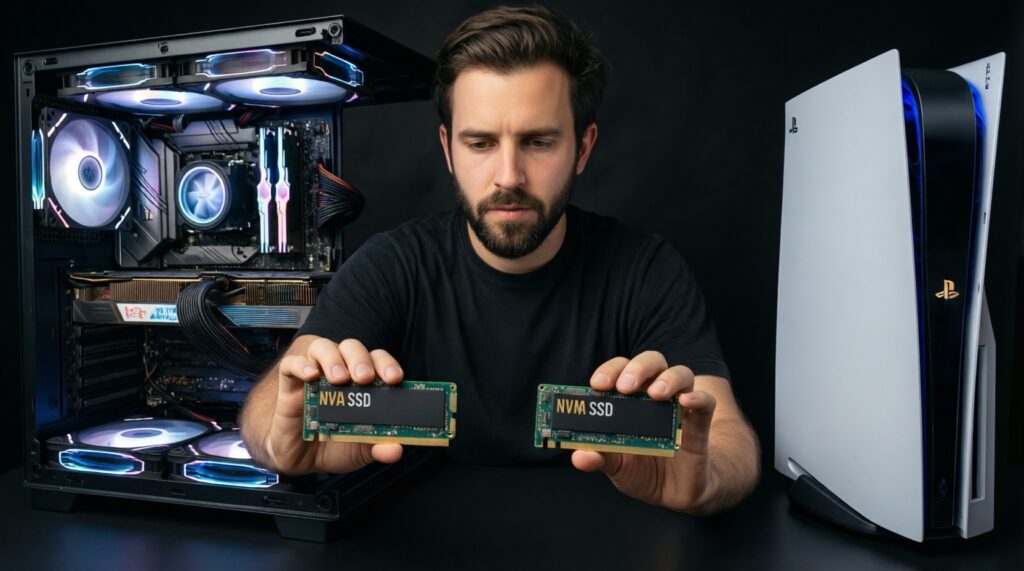
- Is it for PS5 expansion? If Yes: choose Gen4 NVMe (mainstream, with heatsink) or Gen4 NVMe (high-end); avoid Gen3/SATA. If No: go to next step.
- Is your primary goal creator work (editing/capture/export)? If Yes: choose Gen4 NVMe (high-end) or DRAM-based NVMe, and prioritize cooling + endurance. If No: go to next step.
- Are you building a new Gen5-capable PC with strong cooling? If Yes: consider Gen5 NVMe. If No: choose Gen4 NVMe (mainstream) for best value.
- Is the SSD mainly a secondary game library? If Yes: a DRAM-less NVMe with HMB can be fine if you're not doing heavy sustained writes.
- Install: Seat the M.2 fully, secure with the correct screw/standoff, and ensure heatsink contact pads align with the controller/NAND where applicable.
- Format: On PS5, use the console's expansion storage format workflow; on PC, initialize and format in Disk Management (or your OS equivalent) with the intended file system.
- Firmware: Check the vendor tool for firmware updates after installation (especially if you notice instability); avoid updating mid-critical project.
- Optimize: Keep free space headroom, confirm TRIM is enabled, and avoid unnecessary "SSD cleaning" tools that do repeated writes.
Best fit for PS5 expansion is typically a mainstream Gen4 NVMe with a PS5-compatible heatsink; best fit for a gaming PC is usually a value-to-mainstream Gen4 matched to your motherboard; best fit for creators is a high-end Gen4 or DRAM-based NVMe tuned for sustained writes and cooling rather than peak-only specs.
Common deployment dilemmas answered
Can I use a Gen5 SSD in a Gen4 M.2 slot?
Yes. It will typically run at Gen4 speeds, and you still need appropriate cooling to avoid throttling.
Do I really need a heatsink for PS5?
In practice, yes: the PS5 expansion bay is thermally constrained, and a suitable low-profile heatsink improves stability under long sessions.
Is DRAM necessary for gaming?
Not always. For a game library drive, DRAM-less with HMB can be acceptable; for an OS drive or creator workloads, DRAM (or higher-tier designs) tends to stay more consistent.
Should I buy 1TB or 2TB for PS5/PC?
Choose 1TB for a moderate library and 2TB if you rotate many large titles or keep multiple big projects locally.
Why does my SSD slow down during large copies or exports?
Sustained writes can drop after the cache fills, and heat can trigger throttling. Better-tier drives and better cooling reduce these slowdowns.
Can one SSD serve both PS5 and PC?
Not as a shared plug-and-play library: formatting differs. You can move the SSD between devices, but expect to reformat for the target system.