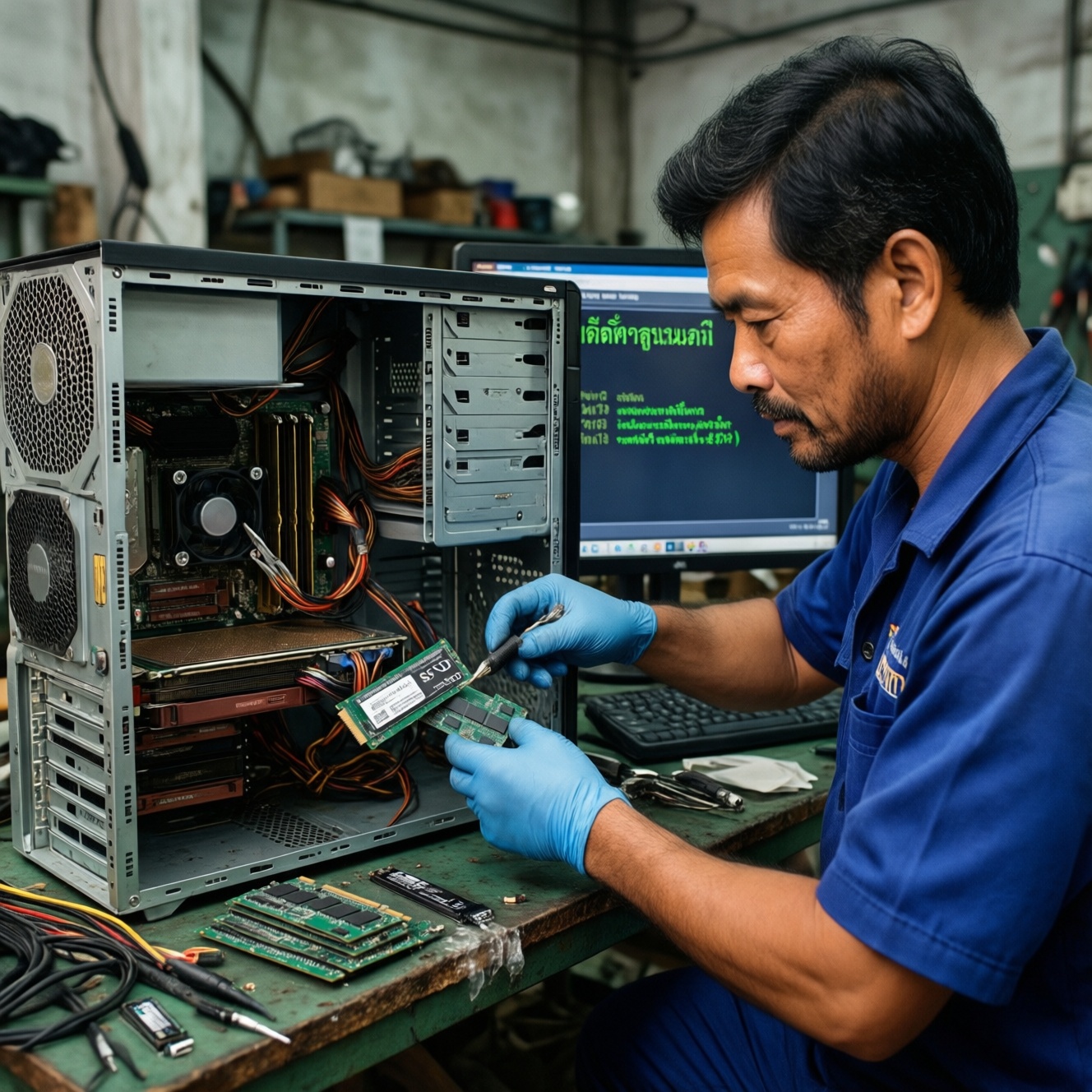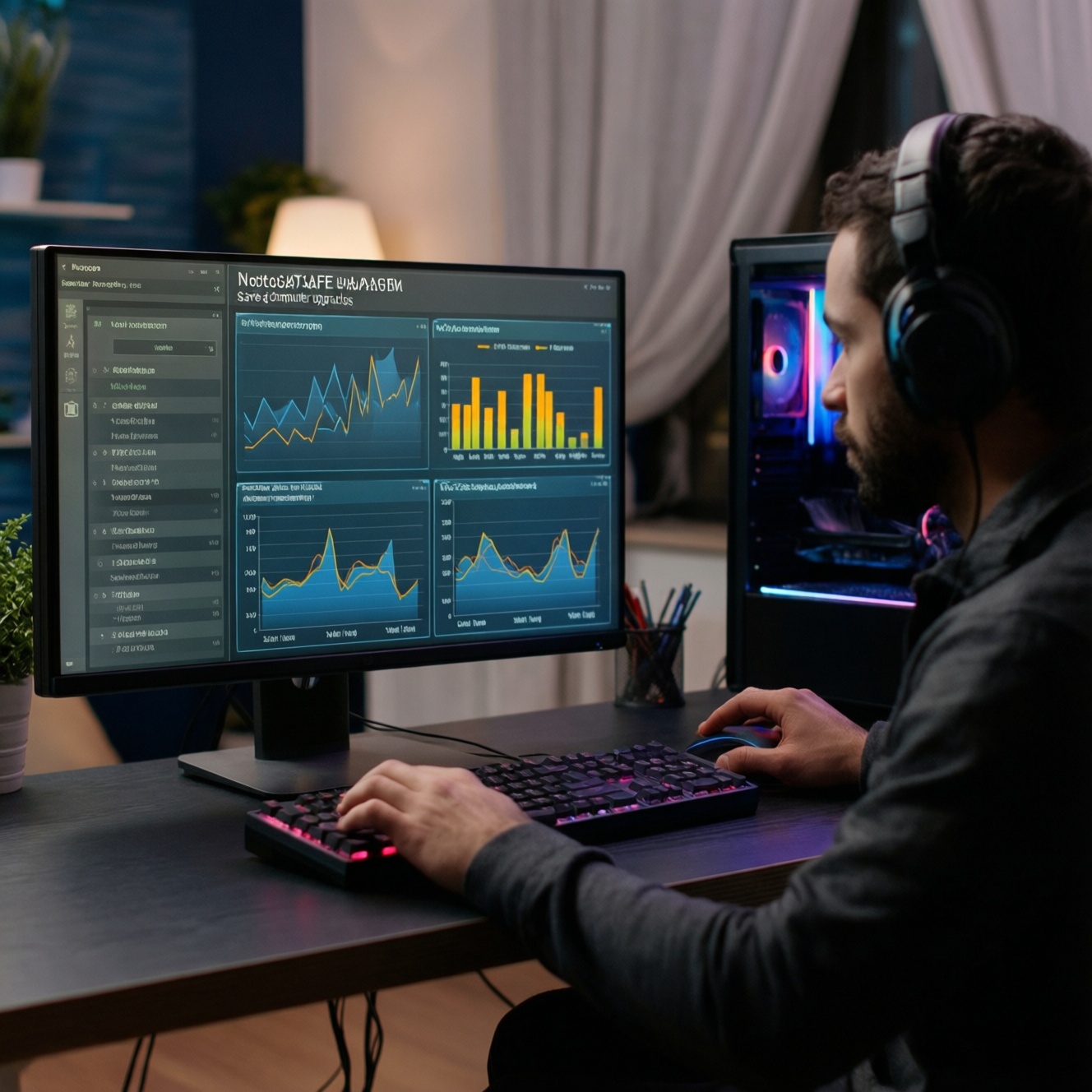
If you're deciding what to upgrade first this year, measure where your PC actually stalls: GPU-bound issues show up as low FPS with high GPU usage, CPU-bound issues as high CPU usage and stutter, RAM limits as frequent paging, and storage limits as long load times. This checklist helps you อัปเกรดคอมพิวเตอร์ safely, starting with the highest-impact bottleneck.
Upgrade decision checklist: what to measure first
- Check utilization during your real workload: GPU %, CPU per-core %, RAM used, and disk active time.
- Log symptoms: average FPS vs 1% lows (stutter), app launch time, level load time, export/render duration.
- Confirm thermals aren't the real problem (throttling can mimic "needs upgrade").
- Verify free storage space and SSD/HDD health before buying parts.
- Identify your current platform limits: socket, chipset, PSU capacity/connectors, case clearance.
- Pick one primary target (CPU or GPU or RAM or SSD) and upgrade only 1-3 components per cycle.
When an upgrade is necessary: measurable performance triggers
Upgrade when a repeatable metric blocks what you do most (gaming, editing, coding, streaming). It's usually not worth upgrading if performance issues come from overheating, background apps, malware, outdated drivers/BIOS, or a near-full system drive-fix those first because they cost little and can restore performance.
- GPU trigger (gaming/3D): GPU usage stays high while FPS is below your target and lowering resolution helps a lot.
- CPU trigger (simulation/compiling/streaming): one or more CPU cores hit near-max and you see stutter, slow exports, or dropped frames while GPU usage is moderate.
- RAM trigger (multitasking/content creation): RAM use is near full and the system swaps to disk (slowdowns when switching apps/tabs).
- Storage trigger (general responsiveness): boot/app/load times feel slow and disk active time spikes; HDDs are the usual culprit.
| Upgrade target | Most noticeable improvements | What to measure before buying | Common "gotchas" |
|---|---|---|---|
| GPU (NVIDIA/AMD) | Higher FPS, better 1% lows at the same settings | GPU utilization; FPS/frametime; VRAM usage | PSU wattage/connectors, case length, PCIe power cables, CPU bottleneck |
| CPU (Intel/AMD) | Less stutter, faster exports/compiles, smoother streaming | Per-core utilization; frametime spikes; encode time | Socket/chipset support, BIOS update, cooler/TDP limits, RAM compatibility |
| RAM | Smoother multitasking, fewer slowdowns from swapping | RAM used; pagefile activity; app memory peaks | Mixing kits, XMP/EXPO stability, motherboard max speed/capacity |
| SSD (SATA/NVMe) | Much faster boot/app/level loads; snappier system | Current drive type (HDD vs SSD); queueing/active time; free space | M.2 slot type (SATA vs NVMe), lane sharing, cloning/UEFI settings |
Prioritizing CPU or GPU: workload-driven guidance
Prepare these items before you decide "ซื้อการ์ดจอรุ่นไหนดี" or "ซื้อซีพียูรุ่นไหนดี", so you upgrade the right part once.
- Monitoring tools: Task Manager (Windows), built-in game overlays, or vendor utilities to watch CPU/GPU/RAM/disk while you work/play.
- A repeatable test scene: the same game benchmark, the same timeline export, or the same compile task.
- System details: motherboard model, BIOS version, PSU model, case GPU clearance, current RAM configuration, storage layout.
- Access and safety: a screwdriver, anti-static habits (power off, unplug, press power to discharge), a clean workspace.
- Decision rule: if lowering resolution boosts FPS a lot, prioritize GPU; if it barely changes FPS but stutter persists, prioritize CPU/platform or RAM.
RAM and SSD upgrades: capacity, speed and real-world impact
-
Confirm the bottleneck (RAM vs storage).
Watch RAM usage and disk activity during your heaviest workload. If RAM is nearly full and disk active time spikes while switching apps, RAM is likely the limiter; if loads are slow even with plenty of free RAM, storage is likely the limiter.- RAM bottleneck signs: frequent freezes when alt-tabbing; heavy browser + game + chat/OBS causing stutter.
- Storage bottleneck signs: long boot/login times; slow app launches; slow file search/copies.
-
Plan the upgrade (compatibility first).
For RAM, match generation (DDR4 vs DDR5), target a stable configuration (prefer a matched kit), and check the board's supported speeds. For SSD, confirm whether your M.2 slot supports NVMe or only SATA, and whether installing it disables any SATA ports.- If you're comparing เพิ่มแรมคอมราคา, don't optimize for MHz alone-stability and capacity are usually more noticeable.
- If you're comparing เปลี่ยนเป็น SSD ราคา, prioritize a reputable model and the right interface (SATA vs NVMe) for your slots.
-
Back up and decide: clone or clean install.
For an SSD swap, back up critical files first. Cloning is faster to get running; a clean install is cleaner if the OS has years of clutter.- Keep BitLocker/recovery keys available if you use drive encryption.
- Ensure you can access your OS/account credentials before you change hardware.
-
Install the hardware safely.
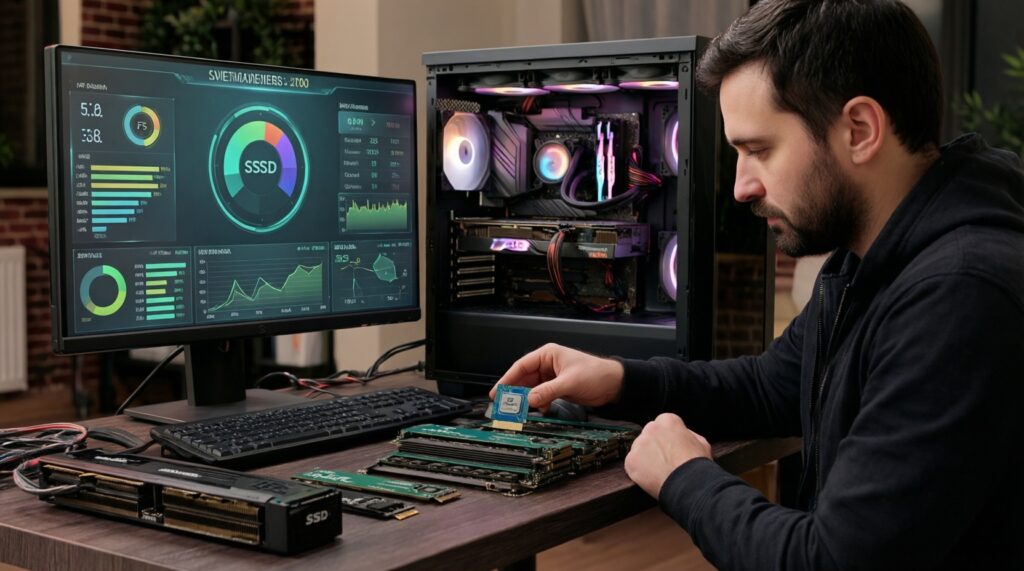
Power down, unplug, and discharge. Seat RAM fully until both latches click; install M.2 SSD at the correct standoff length and secure it gently (don't overtighten).- After installing RAM, boot once at default settings before enabling XMP/EXPO.
- After installing an SSD, confirm it appears in BIOS/UEFI before proceeding.
-
Validate performance and stability.
Re-run your repeatable test and confirm the symptom is gone: less paging, faster loads, fewer stutters. If you enabled XMP/EXPO, watch for crashes-if they happen, drop to a lower profile or update BIOS.
Quick mode (3-5 steps)
- If you're on an HDD: move your OS and main apps/games to an SSD first.
- If RAM hits near-full: increase RAM capacity before chasing CPU/GPU.
- If FPS is low and GPU usage is high: upgrade the GPU (and check PSU/case).
- If stutter persists with moderate GPU usage: upgrade CPU/platform (and check BIOS/socket/cooler).
- After each change: retest the same scenario and stop when the bottleneck moves.
Compatibility and bottlenecks: sockets, TDP, PCIe and lanes
- Motherboard socket matches the CPU generation (Intel/AMD) and the BIOS supports the exact CPU model.
- CPU cooler can handle the CPU's power/heat; mounting hardware fits the socket.
- PSU has enough capacity and the right PCIe power connectors for the GPU (and is from a reputable line).
- Case clearance fits GPU length/height and cooler height; airflow is adequate to prevent throttling.
- RAM type matches (DDR4 vs DDR5); slots are populated in the recommended channels (usually A2/B2 first).
- M.2 slot supports the SSD type (NVMe vs SATA); installing it won't disable the ports you need.
- PCIe slot is the primary x16 slot for the GPU; check if additional cards/M.2 adapters reduce lanes.
- After upgrade, confirm no thermal throttling under load and that clocks remain stable.
Cost-effective upgrades: where to spend and where to wait
- Buying a high-end GPU while keeping an old, CPU-limited platform-your FPS may not scale as expected.
- Upgrading CPU without budgeting for a motherboard/DDR generation change when your socket is at end-of-life.
- Chasing RAM frequency numbers while staying at too-low capacity; capacity usually fixes stutter first.
- Mixing different RAM kits and assuming XMP/EXPO will be stable at rated speeds.
- Installing an NVMe SSD but leaving the OS on the old HDD; you only moved "cold" data.
- Filling an SSD to near-full and then blaming "slow SSD"-keep breathing room for performance and updates.
- Ignoring PSU quality/connectors and using adapters as a default solution.
- Upgrading multiple components at once and losing the ability to identify what caused instability.
Fast-track upgrade plan: a step-by-step path for 1-3 component swaps
Option A: "Feels slow" PC (general use, office, study)
- Swap HDD to SSD (or move OS to SSD).
- Add RAM if multitasking pushes usage near full.
- Only then consider CPU/platform if responsiveness is still limited.
Option B: Gaming at 1080p-1440p with low FPS
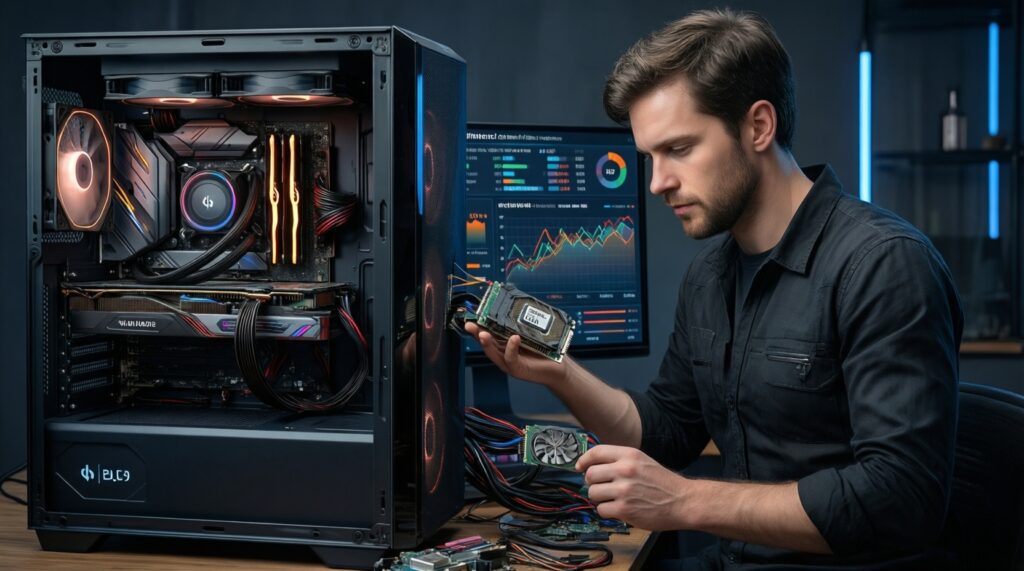
- If GPU usage is high: upgrade GPU first (confirm PSU/case clearance).
- If stutter/1% lows are the issue: upgrade CPU (and possibly motherboard/RAM generation).
- Add RAM capacity if games + background apps trigger paging.
Option C: Creator workflow (editing, rendering, streaming)
- Upgrade RAM capacity and SSD scratch/project drive first if timelines swap or loads are painful.
- Upgrade CPU for encoding/export/compile-heavy tasks; upgrade GPU for effects/3D acceleration.
- Validate thermals to keep sustained performance.
Option D: Budget-limited upgrade (one purchase now)
- Buy the part that removes the current bottleneck you measured (not the most "popular").
- Keep the change reversible: one component swap, then retest and plan the next step.
Answers to common upgrade trade-offs and pitfalls
How do I know if I'm CPU-bound or GPU-bound in games?
If lowering resolution increases FPS significantly, you're usually GPU-bound; if FPS barely changes but stutter persists and CPU cores spike, you're often CPU-bound.
Is RAM speed or RAM capacity more important?
Capacity matters first when you hit swapping/paging; speed tweaks help after you have enough capacity and stable settings.
Should I upgrade to NVMe if I already have a SATA SSD?
You'll usually notice it most in heavy file transfers and some production workloads; for everyday boot/app launches, the jump from HDD to any SSD is the big step.
Can I mix different RAM sticks to save money?
It can work, but stability and rated XMP/EXPO speeds are less predictable; a matched kit is safer for intermediate users.
What should I check before deciding "ซื้อการ์ดจอรุ่นไหนดี"?
Confirm PSU connectors/wattage, case clearance, and whether your current CPU will limit FPS at your target resolution/settings.
What should I check before deciding "ซื้อซีพียูรุ่นไหนดี"?
Verify socket/chipset support and BIOS availability, cooler compatibility, and whether your workload benefits from higher single-core speed or more cores.
Why did my PC get unstable after upgrading?
Common causes are unstable XMP/EXPO, insufficient PSU headroom, outdated BIOS, or thermal throttling; revert to default memory settings and validate temperatures first.