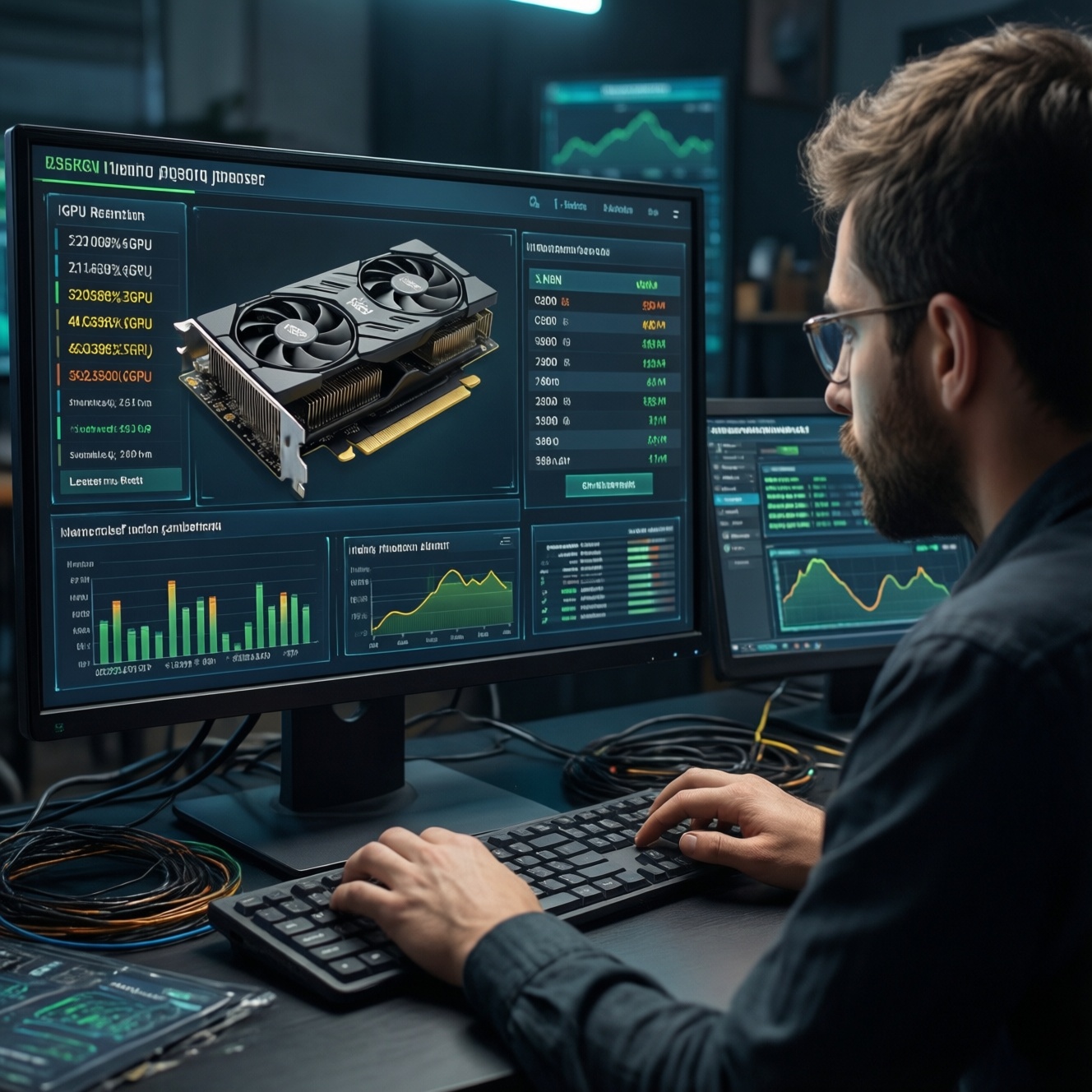
If you want the most cost-effective PC upgrade, change the part that is currently limiting your real workload: GPU for higher FPS and creative apps that are GPU-bound, CPU for heavy multitasking and compile/render, RAM when you hit capacity limits, and SSD when load times and stutter come from storage. Measure first, then upgrade in stages.
Upgrade Priorities at a Glance
- Upgrade GPU first when your FPS is low but CPU usage is not pegged and lowering resolution barely improves performance.
- Upgrade CPU first when frame-time spikes, background apps slow you down, or productivity tasks scale with cores/IPC.
- Add RAM first when you see paging/commit pressure, frequent tab/app reloads, or games hitching after long sessions.
- Switch to SSD/NVMe first when boot/app loads are slow or games stutter while streaming assets from disk.
- Check power, thermals, and motherboard support before buying parts to avoid compatibility traps.
Assessing Your Current Bottleneck: Measure CPU, GPU, RAM and Storage

This workflow fits intermediate users who can open Task Manager/Resource Monitor and are comfortable checking motherboard/PSU specs. It is ideal when you are asking อัปเกรดคอม เปลี่ยนอะไรก่อน and want to avoid wasting budget on parts you won't feel.
Skip upgrading (for now) if your PC is unstable (random restarts/BSOD), overheating, or has a failing PSU/storage device-fix reliability first, then tune performance.
- Capture a "bad moment" trace. Recreate the stutter/slowdown (a specific game scene, export, compile, or browser-heavy workflow) and watch CPU, GPU, RAM, and disk activity at the same time.
- Interpret the limiter. A sustained ~high GPU load with modest CPU load suggests GPU-bound; sustained high CPU load (or one main thread pegged) suggests CPU-bound; RAM near full with disk spikes suggests paging; high disk active time during stutter suggests storage-bound.
- Validate with a quick toggle. Lower resolution/graphics: if FPS barely improves, it's often CPU-limited; if it improves clearly, it's often GPU-limited.
| Upgrade | Typical impact you feel | Cost level (TH context) | Ease of install | Main risks to check |
|---|---|---|---|---|
| GPU | Higher FPS, better ray tracing/AI features, faster GPU renders | Usually highest (see อัปเกรดการ์ดจอ ราคา) | Medium | PSU wattage/PCIe connectors, case clearance, cooling, CPU bottleneck |
| CPU | Smoother frame-times, faster exports/compiles, better multitasking | Medium-high (see อัปเกรด CPU รุ่นไหนดี) | Medium-hard | Motherboard socket/BIOS, VRM cooling, RAM compatibility, cooler mount |
| RAM | Fewer hitches, fewer reloads, smoother heavy multitasking | Medium (see เพิ่ม RAM ราคา) | Easy | XMP/EXPO stability, mixing kits, dual-channel config |
| SSD (SATA/NVMe) | Much faster boot/app loads, less asset-streaming stutter | Low-medium (see เปลี่ยน SSD ราคา) | Easy-medium | Cloning mistakes, M.2 slot lanes/heat, low free space hurts performance |
When to Upgrade the GPU First: Gaming and GPU-bound Applications
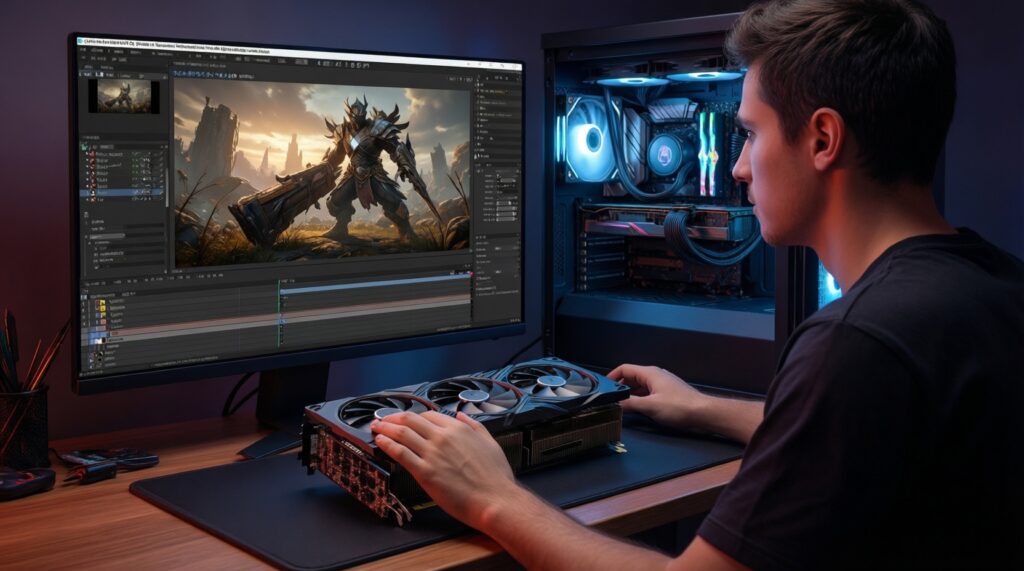
Upgrade the GPU first if you mainly game at 1080p/1440p with settings that push graphics, use ray tracing, run GPU-accelerated creative tools, or your GPU sits near full load while the CPU is not the limiting factor.
What you'll need before buying/installation
- Case clearance: measure length and thickness (slot count) of the new GPU versus your case.
- PSU capability: confirm wattage headroom and the exact PCIe power connectors required by the card (avoid risky adapters unless the manufacturer explicitly supports them).
- Display outputs: ensure ports match your monitor(s) and cable standards.
- Driver cleanup plan: be ready to update drivers; if switching vendors, consider a clean driver reinstall.
- Thermal airflow check: front intake and at least one exhaust fan; clean dust before testing.
Prioritizing the CPU: Multithreading, IPC and Productivity Workloads
- Compatibility risk: motherboard socket/chipset may not support your target CPU, or it may require a BIOS update first.
- BIOS update risk: power loss during update can brick the board; do it carefully and only when stable.
- Cooling risk: a stronger CPU can exceed your current cooler's capability, causing throttling that erases gains.
- Platform cost creep: CPU upgrades can trigger RAM/motherboard changes; plan total cost, not just the CPU.
-
Decide whether you're CPU-limited in your real tasks.
Watch per-core CPU usage during the slowdown; if one or a few threads pin high and GPU usage dips, a CPU upgrade is likely to help.- In games, prioritize stronger single-thread/IPC and stable boost behavior for smoother frame-times.
- In rendering/encoding/compiling, prioritize more cores/threads if your software scales well.
-
Lock your platform constraints (socket, chipset, BIOS).
Identify your motherboard model and current BIOS version; confirm which CPUs are supported and whether a BIOS update is required before installing the new chip.- If you must update BIOS, do it with the current stable CPU installed and default settings.
-
Pick the CPU tier that matches your workload and GPU.
If your GPU is mid/high-end and you play high-FPS competitive titles, avoid pairing it with a CPU that will cap frame-times; for productivity, target the CPU with the best performance for your specific app mix. -
Plan cooling and power delivery.
Verify cooler mounting compatibility and check VRM cooling on your board; inadequate cooling often causes throttling and instability.- Replace thermal paste and ensure firm, even mounting pressure.
- Confirm case airflow is not starved (front intake unobstructed).
-
Install, then validate stability before tuning.
Boot with default BIOS settings first, run a quick stability check, then enable XMP/EXPO and only then consider undervolt/OC.- If instability appears after enabling XMP/EXPO, reduce RAM speed one step or increase DRAM voltage within safe motherboard guidance.
RAM Decisions: Capacity, Speed, Latency and Channel Configuration
- Under your worst workload, RAM usage stays comfortably below total capacity (no frequent hits to the limit).
- Disk activity does not spike repeatedly when switching apps/tabs (a common paging symptom).
- Dual-channel is active (two sticks in the correct slots per motherboard manual).
- XMP/EXPO is enabled and stable after several reboots and normal use.
- No new random app crashes or game exits after the RAM change.
- Memory speed/latency is reasonable for your platform; you are not forcing unstable timings "just to match the box".
- Integrated graphics (if used) gets a measurable uplift from dual-channel RAM.
Storage Strategy: NVMe vs SATA, Cache Tactics and Practical Capacities
- Cloning without a rollback plan. Always back up critical files before cloning/migrating; cloning can fail silently and leave an unbootable system.
- Filling the SSD too much. Keeping very low free space can reduce sustained performance and increase stutter during big installs/updates.
- Ignoring M.2 slot sharing. Some boards disable SATA ports or reduce PCIe lanes when certain M.2 slots are used-check the manual before buying.
- No heatsink for hot NVMe drives. Some NVMe models throttle under long transfers; use the motherboard M.2 heatsink if available.
- Buying speed you can't use. A fast PCIe NVMe drive won't feel much different for light tasks if your workload is mostly small random reads; prioritize reliability and capacity if that's your case.
- Misplacing the OS and games. Put OS + frequently used apps on the fastest drive; put large, rarely used libraries on secondary storage.
- Forgetting firmware/drivers. Update SSD firmware only via official tools; avoid risky third-party flash methods.
Budget vs Performance: Compatibility, ROI and Staged Upgrade Paths
Balanced path (most users)
- SSD first if you're still on HDD or a small/old SSD and you feel system "lag" during loads.
- RAM next if you're hitting capacity (common with heavy browsing + gaming/Discord/streaming).
- GPU or CPU last based on your measured bottleneck.
Risk note: Do SSD/RAM before GPU/CPU only if your current bottleneck evidence supports it; otherwise you may delay the upgrade you actually feel.
Performance-first (gaming/creator acceleration)
- Upgrade GPU if you're GPU-bound and chasing higher FPS/quality or faster GPU renders.
- Then upgrade CPU if frame-times are inconsistent or productivity tasks stall on CPU.
- Finalize with RAM/SSD to remove remaining stutters and improve responsiveness.
Risk note: A large GPU upgrade can expose PSU/cooling weaknesses and highlight CPU limits at high refresh rates.
Budget-first (minimum spend, maximum "feel")
- Upgrade to a larger SSD (or add a second SSD) for faster everyday use and fewer in-game asset streaming issues.
- Add RAM to reach a comfortable capacity for your multitasking profile.
- Only then consider GPU/CPU once you have clear bottleneck proof.
Risk note: The cheapest path can still be wasted if your main problem is actually GPU/CPU; measure first, buy once.
Common Upgrade Concerns and Quick Clarifications
How do I decide "GPU or CPU first" without running formal benchmarks?
Watch GPU load during your real game/app: high, steady GPU load with low/moderate CPU usually points to a GPU upgrade. If GPU load drops while one CPU core/thread is pegged and frame-times spike, the CPU is likely first.
Will adding RAM always increase FPS?
Only if you were memory-limited (paging, stutters, or single-channel). If you already have enough capacity and dual-channel, more RAM usually won't raise average FPS much, but it can reduce hitching.
Is NVMe always worth it over SATA SSD for gaming?
NVMe is great for large file transfers and some asset-streaming cases, but many everyday tasks feel similar to SATA SSD once you're off HDD. Choose NVMe when pricing is close, your board supports it well, and you need capacity plus sustained performance.
Can I upgrade the CPU without changing the motherboard?
Sometimes, if the socket and chipset support the target CPU and a BIOS update is available. Check the exact CPU support list for your board before buying.
Is it safe to mix different RAM kits?
It can work, but stability is less predictable. For the best chance, match capacity, speed, and timings; if issues appear, run at a lower speed or use a single matched kit.
Do I need to reinstall Windows after changing SSD or CPU?
Not usually. For SSD changes, cloning or a clean install both work; for CPU changes, Windows typically boots fine, but you should update chipset drivers and verify stability.
How should I think about price when searching in Thailand?
Use your bottleneck proof to guide searches like อัปเกรดการ์ดจอ ราคา, เพิ่ม RAM ราคา, and เปลี่ยน SSD ราคา, then compare total platform cost (PSU/cooler/motherboard) rather than the part alone.