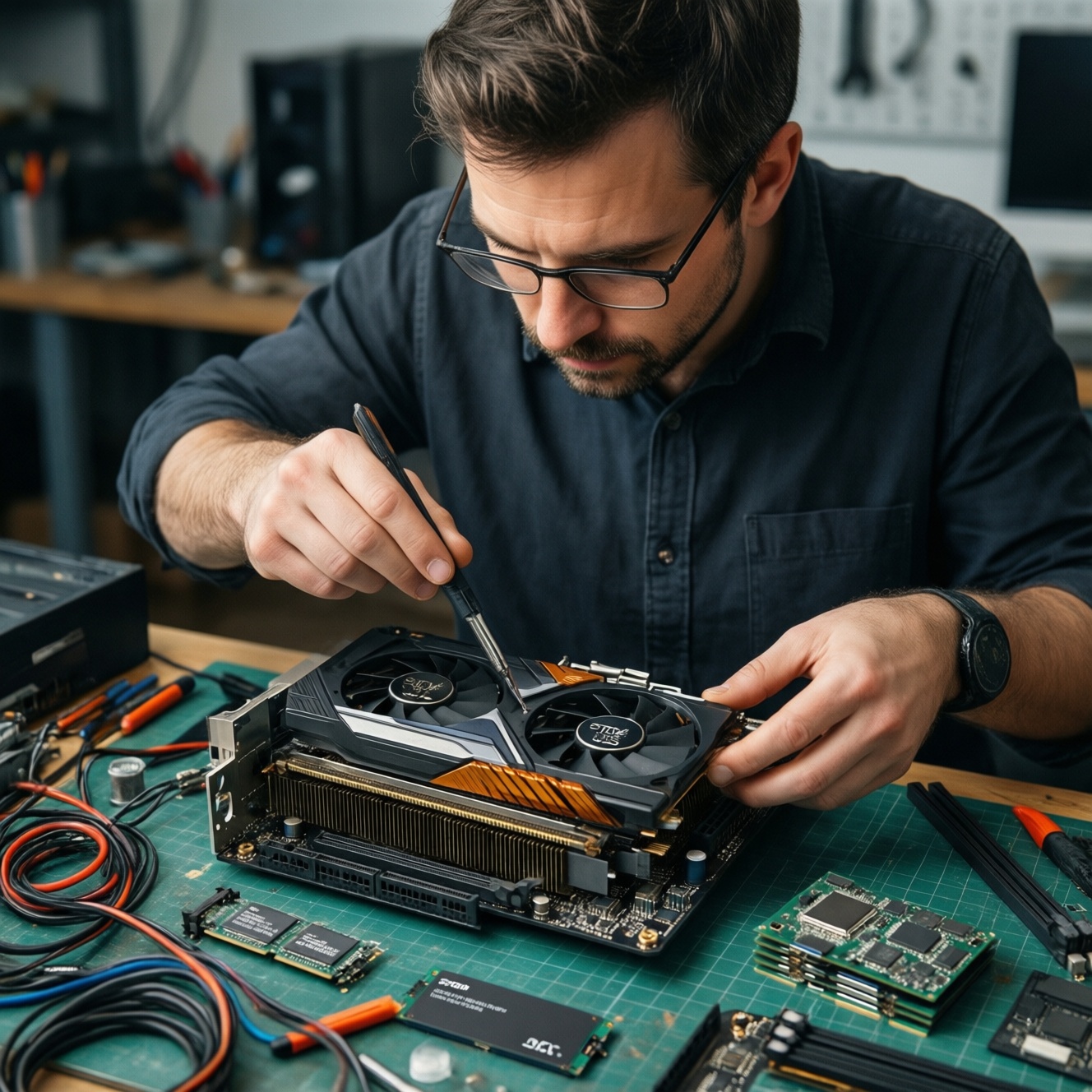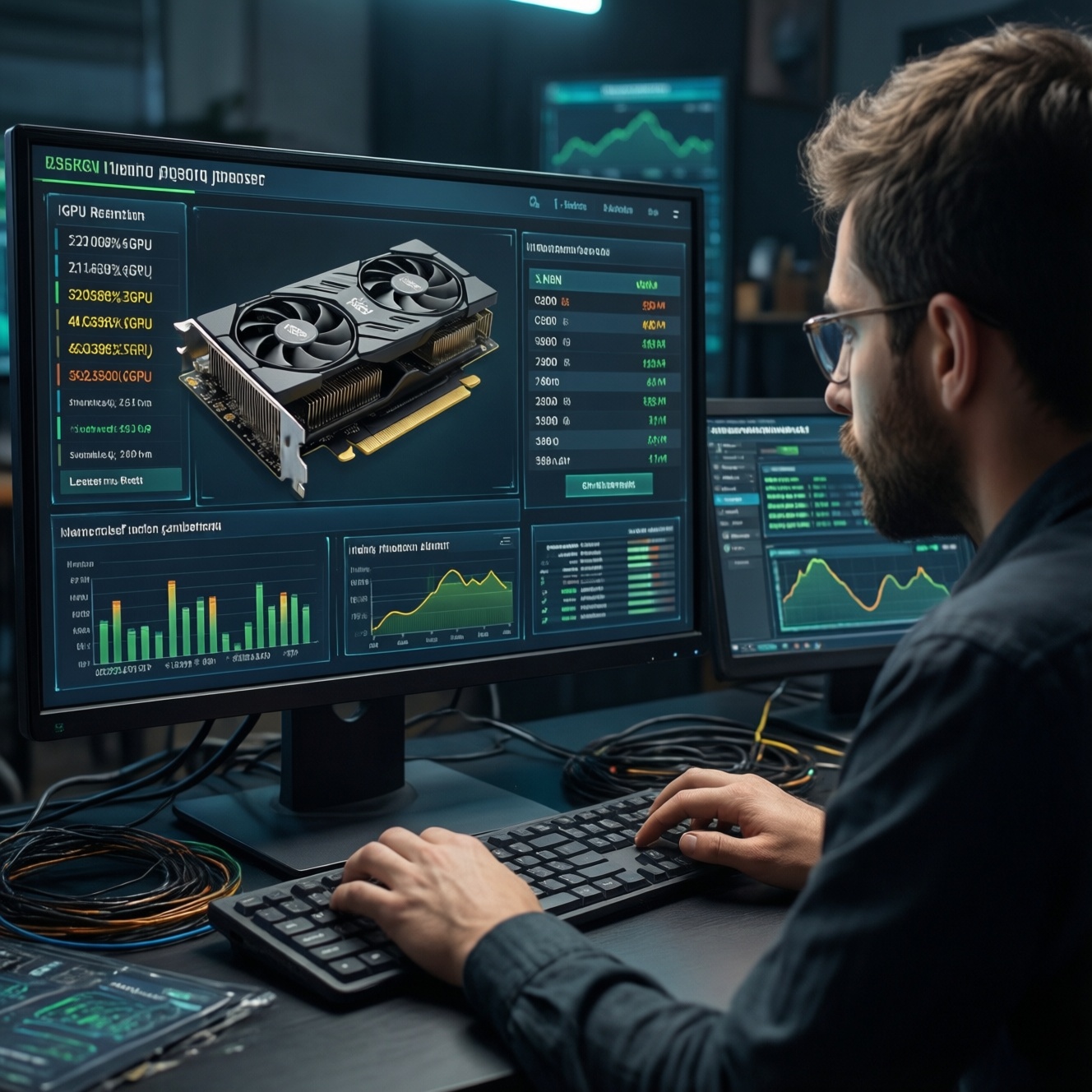
Read GPU specs by translating each line into a real limit: VRAM capacity and bandwidth decide texture/model size, memory bus shows how fast that VRAM can be fed, and TGP/TDP determines sustained speed under heat and noise constraints. Verify with one monitoring tool and one repeatable benchmark so you do not buy a "paper spec" upgrade.
Quick GPU Specs Cheat Sheet
- VRAM (GB) sets "how big": if VRAM is exceeded, you get stutter, texture drop, or out-of-memory errors.
- Memory bandwidth sets "how fast": bus width + memory type/clock often matters more than small core-clock differences.
- TGP/TBP (desktop) or TGP (laptop) sets sustained performance: lower power limits can erase the advantage of a higher-tier GPU name.
- Boost clocks are conditional: real clocks depend on temperature, power limit, and workload.
- PCIe and platform can bottleneck: wrong slot, few lanes, or bad driver state can cap performance.
- Always cross-check with the exact model: AIB coolers, laptop variants, and "OC" editions change power limits and behavior.
Understanding VRAM: Type, Capacity and Effective Bandwidth
- Use VRAM capacity to match content scale: high-resolution textures, large scenes, and bigger ML batches need more headroom; otherwise you hit paging and stutter.
- Do not buy VRAM alone without bandwidth context: more GB on a narrow/slow configuration can still underperform in bandwidth-limited games or render kernels.
- Know what "effective" means: GDDR "effective" speed already includes DDR signaling; compare like-for-like within the same memory type (GDDR6 vs GDDR6X).
- When NOT to over-prioritize VRAM: if you play mostly eSports at 1080p or do light editing, extra VRAM may sit unused; prioritize efficiency, cooler quality, and drivers.
- Answering the common Thai query: การ์ดจอ VRAM 8GB 12GB 16GB ต่างกันอย่างไร? It mainly changes the maximum asset/model size you can keep on-GPU before performance collapses from swapping.
| What you see in the spec | What it usually changes in real use | How to verify quickly (safe, user-level) |
|---|---|---|
| VRAM capacity (GB) | Max texture/detail level, stability in heavy scenes, ability to hold larger ML batches without OOM | Run a repeatable scene/benchmark and watch VRAM allocation in Task Manager / vendor overlay; look for stutter exactly when VRAM is saturated |
| Memory bus width (bits) + memory speed | Bandwidth-limited performance (high resolutions, RT, some pro/compute kernels), 1% lows | Compare two settings: same scene at 1080p vs 4K; if scaling is unusually poor, bandwidth may be the limiter |
| TGP/TBP (W) | Sustained clocks under load, noise/temps, consistency across long sessions | Log GPU power + clock for 10-15 minutes; if clocks drop while power/temps hit a limit, the "boost" is not sustainable |
| Boost clock (MHz) | Short bursts; modest impact if power-limited or thermally constrained | Watch "average clock" during a long run; ignore single-second peaks |
| PCIe generation/lanes | Can bottleneck some workloads on restricted lanes or wrong slot; can hurt 1% lows in edge cases | Check link width/speed in GPU-Z (or vendor panel) while the GPU is under load |
Memory Bus and Bus Width: Why Bits and Frequency Matter
- Collect the right spec fields: VRAM type (GDDR6/GDDR6X), VRAM speed (Gbps), bus width (bits), and reported memory bandwidth (GB/s) if provided.
- Have two verification tools ready: a spec reader (GPU-Z or vendor control panel) and a monitoring overlay/logger (AMD Adrenalin, NVIDIA app/overlay, or MSI Afterburner).
- Prepare one repeatable workload: one game benchmark run, one creator render test, or one ML inference loop-same settings each time.
- Know what you are comparing: model name alone is not enough for "เปรียบเทียบการ์ดจอ NVIDIA กับ AMD"; compare bandwidth, power limit, and tested results on the same workload.
- Decide your goal first: when asking "การ์ดจอ รุ่นไหนดี", define resolution, target FPS, noise tolerance, case airflow, PSU capacity, and your application stack.
TGP vs TDP: Power Limits, Thermal Behavior and Throttling
- Prep checklist before you judge power specs (safe steps, no overclocking required):
- Update GPU driver to a stable version (clean install only if you have issues; otherwise normal update).
- Ensure the PC/laptop is in a consistent power mode (Windows power plan, laptop performance mode).
- Close background updaters and overlays you do not need (to stabilize results).
- Confirm fan intakes/exhaust are not blocked; clean obvious dust safely (power off first).
- Pick one monitoring view that shows: GPU power, GPU temperature/hotspot (if available), GPU clock, and utilization.
-
Identify the correct power metric for your device
Desktop cards typically advertise TBP/TGP (board power), while laptops use TGP with vendor-defined limits. When you ask "การ์ดจอ TGP คืออะไร เลือกยังไง", the practical answer is: choose the highest sustained TGP your cooling and noise tolerance can handle, not the highest advertised boost clock.
- For laptops, search the exact laptop SKU and its configured TGP range.
- For desktops, note if it is a reference design or AIB model with a higher power limit.
-
Run a sustained load long enough to reveal throttling
Use a built-in game benchmark, a known stress test, or your real workload for 10-15 minutes. Short runs hide power/thermal limits and exaggerate boost behavior.
- Keep the same ambient conditions and fan mode for repeatability.
- Avoid "power virus" tests if you only care about gaming; use a gaming-like load.
-
Read the log: power cap vs thermal cap vs CPU/system cap
If clocks drop while GPU power is pinned at a limit, you are power-limited (TGP/TBP bound). If clocks drop when temperatures hit a ceiling, you are thermally limited (cooling bound). If GPU utilization is low while CPU is high, you are CPU/system-limited and a bigger GPU may not help.
- Power-limited: expect stable temps but lower average clocks than "max boost".
- Thermal-limited: expect rising temps followed by step-down clocks and sometimes louder fans.
-
Compare apples-to-apples across models and vendors
When doing "เปรียบเทียบการ์ดจอ NVIDIA กับ AMD", align the test: same resolution, same quality settings, same driver maturity, and similar power limits. A lower-TGP variant can lose to a higher-TGP competitor even with a "better" tier name.
-
Make a buying decision using sustained averages, not peak numbers
Use average FPS, 1% lows, average GPU clock, and average GPU power. This directly answers "สเปกการ์ดจอ ดูอะไรบ้าง ก่อนซื้อ": look for sustained behavior under your workload, then validate with at least one independent benchmark source or your own repeatable test.
Clocks, Boost Algorithms and Real-World Throughput
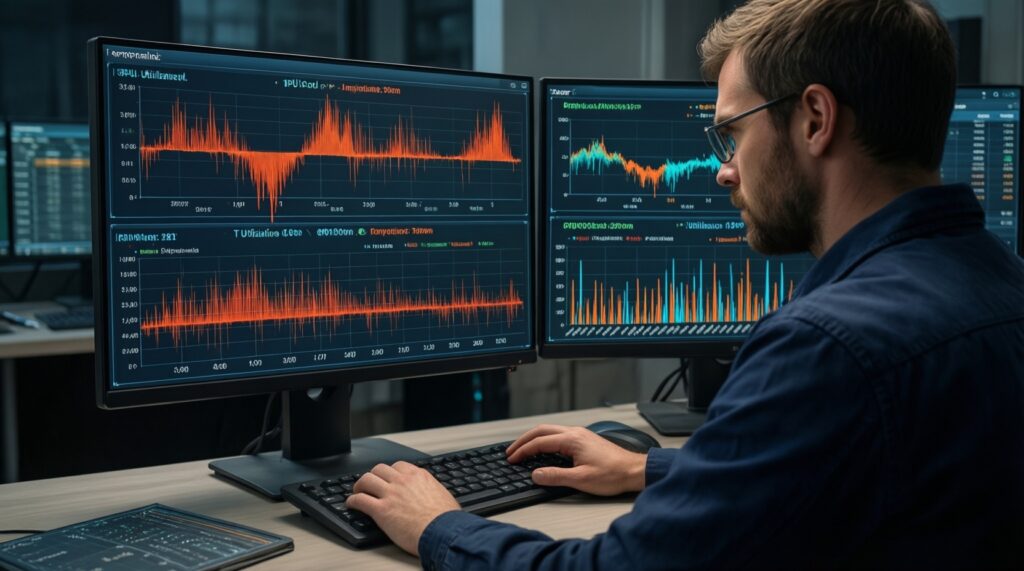
- Check average clock over the full run, not the single highest boost value.
- Confirm GPU utilization stays high in GPU-bound scenes; low utilization suggests a CPU, RAM, or game-engine bottleneck.
- Watch power and temperature at the moment performance dips; match dips to power limit or thermal limit indicators.
- Validate frame-time consistency (1% lows / frame-time graph) rather than only average FPS.
- Repeat the run twice with identical settings; large variance usually means background tasks, shader compilation, or thermal saturation.
- If you change settings, change one variable at a time (resolution, RT, texture quality) to see whether you are VRAM-limited, bandwidth-limited, or compute-limited.
- For creator/ML tasks, confirm VRAM headroom remains (no near-100% allocation spikes that coincide with slowdowns or errors).
System Interfaces: PCIe Lanes, Driver Impact and Bottlenecks
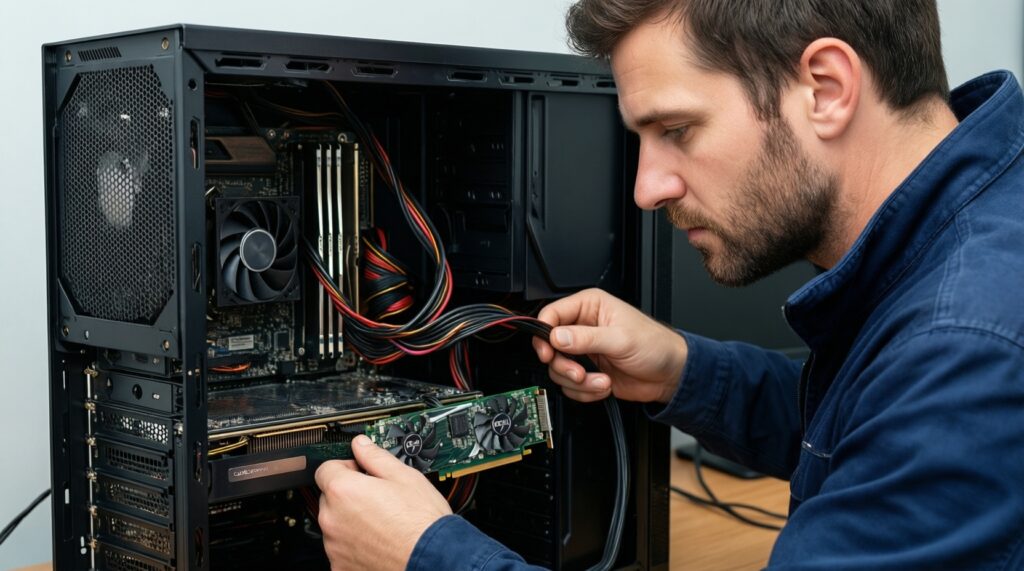
- Installing the GPU in a slot that is not wired for full x16 (or expected lanes) can reduce performance; verify link width under load, not only at idle.
- Running on an iGPU display output by accident can route frames inefficiently; ensure the monitor cable is connected to the discrete GPU.
- Mixing old and new driver remnants can cause instability; if you see crashes or weird performance, do a clean driver reinstall using a trusted uninstaller procedure.
- Using single-channel RAM or insufficient system RAM can bottleneck the GPU, especially in open-world games and some creator apps.
- Ignoring PSU capacity and quality can lead to shutdowns or transient instability under spikes; follow the GPU vendor's PSU guidance.
- Thermal issues from the case (poor airflow, blocked intake) can make TGP irrelevant because the GPU throttles early.
- Background overlays/recorders can distort results; benchmark with minimal overlays and only essential monitoring enabled.
- On laptops, "silent" or "balanced" modes can enforce low TGP; confirm the active performance profile before judging the GPU.
Mapping Specs to Tasks: Gaming, Content Creation and ML Workloads
- Gaming-first (1080p-1440p): prioritize stable TGP/TBP, adequate VRAM for your texture settings, and strong bandwidth scaling at your target resolution; avoid paying extra for peak boost clocks you cannot sustain.
- High-res gaming and ray tracing: lean toward higher bandwidth and enough VRAM headroom; check 1% lows and long-run clocks to avoid "fast for 2 minutes" behavior.
- Content creation (video/editing/3D): prioritize VRAM capacity and driver stability for your app stack; long renders reveal cooling limits, so TGP plus cooler quality matters.
- ML experimentation: prioritize VRAM capacity first, then bandwidth; confirm your framework support and memory behavior on your exact models before deciding "การ์ดจอ รุ่นไหนดี" for your workflow.
Common Practical Concerns and Quick Answers
How do I answer "สเปกการ์ดจอ ดูอะไรบ้าง ก่อนซื้อ" in one checklist?
Check VRAM (capacity + type), memory bus/bandwidth, TGP/TBP, cooler quality, and PCIe/slot compatibility. Then validate using one sustained benchmark with monitoring.
What is the simplest explanation of "การ์ดจอ TGP คืออะไร เลือกยังไง"?
TGP is the power limit that largely controls sustained clocks and heat. Choose based on your cooling/noise tolerance and confirm the exact model's configured TGP (especially on laptops).
Does "การ์ดจอ VRAM 8GB 12GB 16GB ต่างกันอย่างไร" matter if I only change FPS settings?
Yes, because VRAM limits texture quality, high-resolution assets, and some RT settings. If you exceed VRAM, performance drops sharply regardless of core speed.
For "เปรียบเทียบการ์ดจอ NVIDIA กับ AMD", which specs are most comparable?
Compare VRAM/bandwidth and power limits first, then use the same game/app benchmark results. Brand-to-brand features differ, so prioritize measured performance in your actual workload.
Is bus width alone enough to predict performance?
No. Bus width interacts with memory speed and architecture; treat it as a bandwidth clue, then validate with resolution scaling tests and 1% lows.
Why does my GPU not reach the advertised boost clock?
Boost is conditional on power, temperature, and workload. If you are hitting a power cap or thermal ceiling, the sustained average clock will be lower than the peak spec.
How can I tell if my platform is bottlenecking the GPU?
If GPU utilization stays low while CPU utilization is high (or frame times spike), you are likely CPU/system-limited. Also verify PCIe link width/speed under load and ensure the display is connected to the discrete GPU.