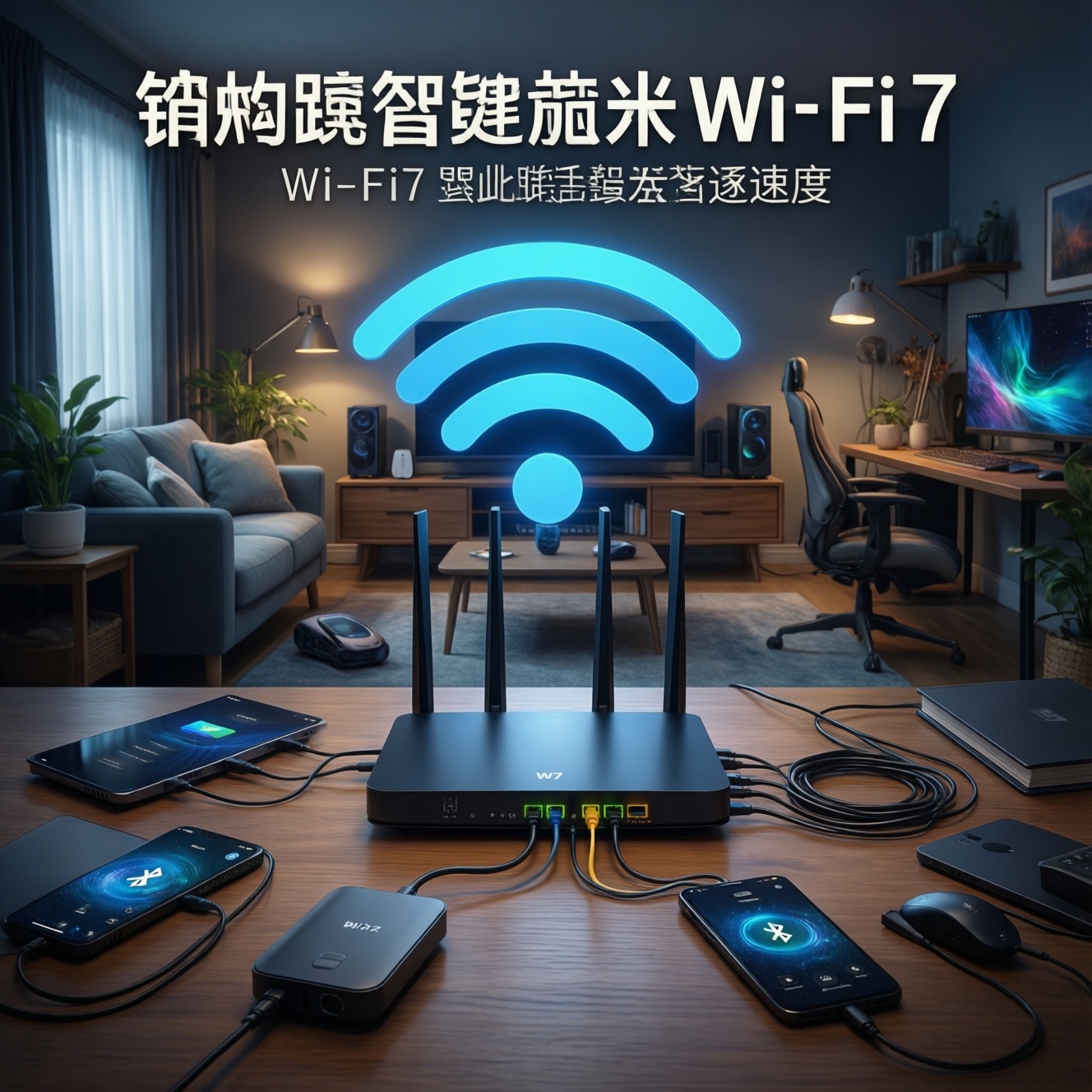
Upgrading to Wi‑Fi 7 and newer Bluetooth can deliver clearly noticeable wins at home, but only when your router, client devices, and layout match the technology. Most households see the biggest practical benefit as lower latency under load, steadier speeds in busy rooms, and better multi-device behavior, not headline peak throughput.
Immediate measurable gains from Wi‑Fi 7 and new Bluetooth
- Lower in-home lag during gaming/voice calls when several devices stream at once (especially with Wi‑Fi 7's smarter multi-link behavior).
- More stable performance in crowded condos/apartments when interference is high and channels are contested.
- Better "many devices at once" handling for smart home + phones + TVs, with fewer random slowdowns.
- Bluetooth improvements that matter day-to-day: better power efficiency, improved coexistence behavior, and clearer paths to broadcast-style audio on supported gear.
- More predictable upgrade planning: you can upgrade router, PC adapter, and phone over time and still get partial benefits.
Technical differences: Wi‑Fi 7 versus Wi‑Fi 6/6E and what it means at home
Use these criteria to choose whether Wi‑Fi 7 is worth paying for now (budget-first) or whether Wi‑Fi 6/6E remains the smarter value.
- Your client mix (the real bottleneck): Wi‑Fi 7 gains require Wi‑Fi 7 clients (phones/laptops/PC adapters). A Wi‑Fi 7 router alone mainly improves scheduling and congestion handling, but not peak rates on older clients.
- Interference level where you live: Dense Thai condo environments tend to reward newer radio features and better chipset implementations more than "bigger numbers" on the box.
- Band strategy (2.4/5/6 GHz): Wi‑Fi 6E/7 shine when you can use 6 GHz; if 6 GHz is unusable (range/walls), a strong 5 GHz setup can outperform a weak 6 GHz plan.
- Backhaul requirements (mesh vs single router): In multi-room homes, backhaul quality matters more than Wi‑Fi generation. Ethernet backhaul usually beats any wireless backhaul upgrade.
- Latency under load: If you do gaming/Zoom while others stream, prioritize routers known for good buffer management/QoS options over maximum "AX/BE" marketing.
- Port speeds and ISP plan: If your ISP is fast, check WAN/LAN port speeds and whether you need multi-gig ports; otherwise Wi‑Fi improvements won't reach wired devices or the internet.
- Router CPU/RAM and firmware: Stability, updates, and features (VLAN, guest network, parental controls) often differ more than Wi‑Fi version.
- Total upgrade cost: Budget reality often favors "better placement + one mesh node + a PC adapter" over buying the highest-tier Wi‑Fi 7 router.
Bluetooth LE Audio, Auracast and device-level benefits for household gear
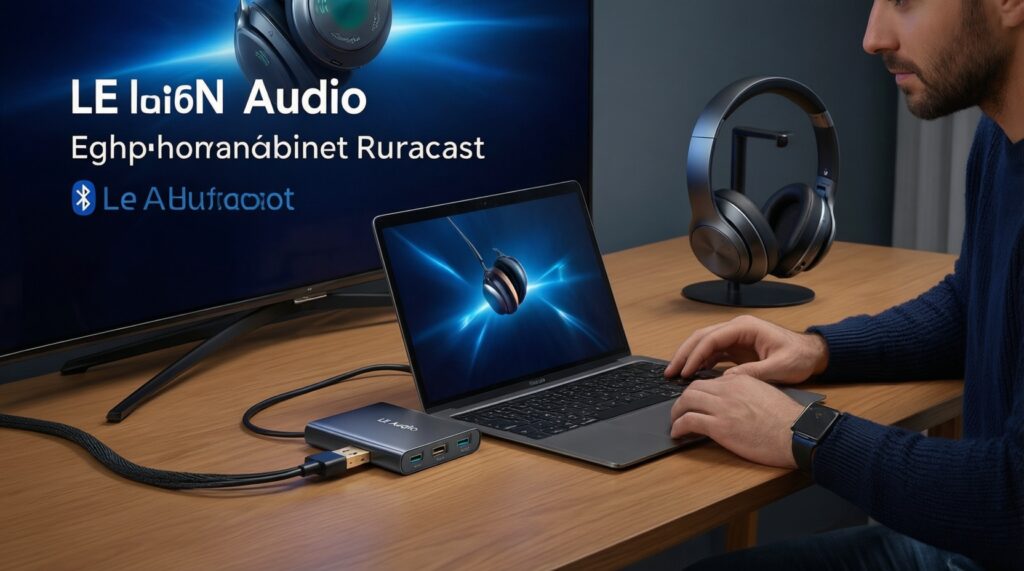
Bluetooth upgrades are most noticeable with headphones/TV audio and with battery-powered devices. Your best option depends on whether you need LE Audio/Auracast now, or just a reliable adapter for a PC.
| Option | Who it's for | Pros | Cons | When to choose |
|---|---|---|---|---|
| Keep current Bluetooth (no upgrade) | Phone-centric users; casual audio | Zero cost; no setup risk | Misses newer power/coexistence improvements; limited new audio features | If your headphones/speakers already behave well and you don't need LE Audio features |
| Bluetooth 5.4 USB dongle for PC | Desktop/laptop needing simple add-on | Cheapest path; easy to move between PCs | Quality varies by chipset/driver; antenna usually tiny | When searching "Bluetooth 5.4 adapter ราคา และรุ่นแนะนำ" and you want a low-risk, low-cost upgrade first |
| Bluetooth via Wi‑Fi/Bluetooth combo PCIe card | Desktop gamers/creators | Better antennas; typically more stable than tiny USB sticks | Needs case slot and antenna placement; driver management | When you also plan to "ซื้อการ์ด Wi‑Fi 7 PCIe/USB สำหรับคอมพิวเตอร์" and want one clean upgrade |
| Phone upgrade (newer Wi‑Fi + Bluetooth built-in) | People who do everything on mobile | Best integration; no dongles; often best codec support | Highest total cost; not targeted if only PC is the problem | If your main pain is earbuds/phone stability and you were due for a phone refresh anyway |
| LE Audio / Auracast-ready ecosystem (TV/earbuds/transmitter) | Living-room audio sharers; accessibility use | Best path to broadcast-style listening and multi-listener scenarios on supported gear | Requires compatible transmitter/receiver chain; can become a partial upgrade | When you explicitly want Auracast-like sharing and can replace/confirm compatibility across devices |
| External Bluetooth audio transmitter (TV-focused) | TV watchers; older TVs | Can bypass weak built-in Bluetooth; predictable placement | Another powered device; codec/latency depends on model | If TV audio is the main issue and your TV Bluetooth is unreliable or laggy |
Throughput, latency and range in real homes: test results versus specs
Specs don't predict your home experience as strongly as layout, interference, and client quality. Use scenario-based choices below; each includes a budget-first move and a premium move so you can decide where money actually changes the outcome.
- If your Wi‑Fi slows down mainly at night in a condo, then prioritize better interference handling and channel planning: budget = tune 5 GHz channels, reduce channel width, add one well-placed node; premium = Wi‑Fi 7 router/mesh with strong multi-band design and modern radios.
- If gaming/Zoom gets laggy when others stream, then focus on latency under load: budget = enable SQM/QoS if your router supports it, wire the gaming PC/console; premium = higher-end router with stronger CPU + Wi‑Fi 7 clients to benefit from multi-link and scheduling improvements.
- If your far bedroom has weak signal through concrete walls, then range and placement beat generation: budget = add a mesh node (even Wi‑Fi 6) or use Ethernet/Powerline where workable; premium = tri-band mesh with dedicated backhaul or Ethernet backhaul plus Wi‑Fi 7 node for dense-device rooms.
- If your internet plan is fast but Wi‑Fi feels capped, then check bottlenecks: budget = confirm your device is on 5 GHz and close enough; avoid legacy extenders; premium = upgrade to multi-gig capable router/switching and a Wi‑Fi 7 client adapter on the main PC.
- If Bluetooth audio drops when Wi‑Fi is busy, then improve coexistence and placement: budget = move router away from TV/PC USB ports, use a short USB extension for the dongle; premium = upgrade to a better-antenna Bluetooth solution (PCIe) and a router with cleaner RF performance.
Compatibility matrix and upgrade paths for budget-conscious households
- Inventory clients: list which devices are Wi‑Fi 6, 6E, 7 (phones, laptops, TV, consoles) and which actually need top performance.
- Decide your topology: single router if you can place it centrally; mesh if not; prefer Ethernet backhaul when possible.
- Pick the "first upgrade" with the highest ROI: usually placement + one node, or a PC adapter, not the most expensive router.
- Set a router target based on need: if you're currently searching "ซื้อเราเตอร์ Wi‑Fi 7 ราคา", define what you must have (multi-gig ports, mesh compatibility, QoS) before choosing Wi‑Fi 7 vs 6/6E.
- Upgrade the main workstation next: if your desktop is critical, plan to "ซื้อการ์ด Wi‑Fi 7 PCIe/USB สำหรับคอมพิวเตอร์" (PCIe preferred for stability; USB for lowest cost and portability).
- Only then upgrade secondary rooms/devices: TVs and IoT rarely need Wi‑Fi 7; stable 5 GHz/2.4 GHz coverage matters more.
- Validate with simple home tests: check performance in your 2-3 most used spots at the same time of day for a fair comparison.
Affordable hardware picks and router settings that deliver the biggest impact
These are the most common buying/setting mistakes that waste money, especially when comparing "Wi‑Fi 7 mesh router ยี่ห้อไหนดี" across brands with similar marketing claims.
- Buying Wi‑Fi 7 expecting miracles with Wi‑Fi 5/6-only devices: upgrade at least one key client (main laptop/PC) or you won't see the headline gains.
- Choosing mesh without planning backhaul: wireless backhaul through multiple walls can erase benefits; Ethernet backhaul is the budget "cheat code."
- Using maximum channel width everywhere: wider channels can be worse in crowded areas; narrower can be faster in practice due to fewer collisions.
- Placing the router next to interference sources: avoid TV cabinets, behind monitors, near USB 3.0 hubs, or next to thick concrete pillars.
- Mixing incompatible mesh ecosystems: "mesh" branding is not universal; nodes often work best within the same vendor family.
- Ignoring firmware support: stable updates matter more than a small peak-speed difference.
- Overpaying for 6 GHz when you can't use it: if your key rooms are far, you may get better results from strong 5 GHz coverage and an extra node.
- Buying the cheapest USB adapters without checking drivers: for both Wi‑Fi and Bluetooth, driver quality determines stability more than the version number.
- Skipping basic settings review: split SSIDs only when needed, keep WPA3/WPA2 compatibility sensible, and ensure band steering isn't trapping devices on 2.4 GHz.
- Not defining the goal: speed tests are not the same as smooth video calls, fast file copies, or low gaming latency.
Practical buying shortcut (Thailand context): when you see listings around "ซื้อเราเตอร์ Wi‑Fi 7 ราคา", compare by ports (WAN/LAN), mesh expandability, and firmware/QoS features first; treat "BE" class and antenna counts as secondary. Do the same for "Bluetooth 5.4 adapter ราคา และรุ่นแนะนำ": prioritize known chipsets and driver support over cosmetic design.
Managing interference and optimizing mixed Wi‑Fi/Bluetooth environments
Best for budget upgrades is usually a solid Wi‑Fi 6/6E or entry Wi‑Fi 7 router placed correctly plus one targeted client upgrade, because it fixes congestion and coverage first. Best for premium setups is Wi‑Fi 7 mesh with strong backhaul planning and upgraded main clients, paired with a higher-quality Bluetooth adapter path for PCs where audio stability matters.
Quick answers to common upgrade concerns
Do I need a Wi‑Fi 7 router to benefit from Wi‑Fi 7 on my phone?
Yes, you need both ends to be Wi‑Fi 7 to get the full feature set. With a Wi‑Fi 6/6E router, a Wi‑Fi 7 phone will behave like a Wi‑Fi 6/6E client.
Is Wi‑Fi 7 worth it if my home is small?
Often only if you have many active devices or you're sensitive to latency under load. Otherwise, strong placement and a well-tuned Wi‑Fi 6/6E setup can be the better value.
What does "อัปเกรด Wi‑Fi 7 ในบ้าน ต้องใช้อะไรบ้าง" mean in practice?
At minimum: a Wi‑Fi 7 router or mesh and at least one Wi‑Fi 7 client device. For multi-room homes, add a node or use Ethernet backhaul to avoid weak links.
Should I buy USB or PCIe for a Wi‑Fi 7 PC upgrade?
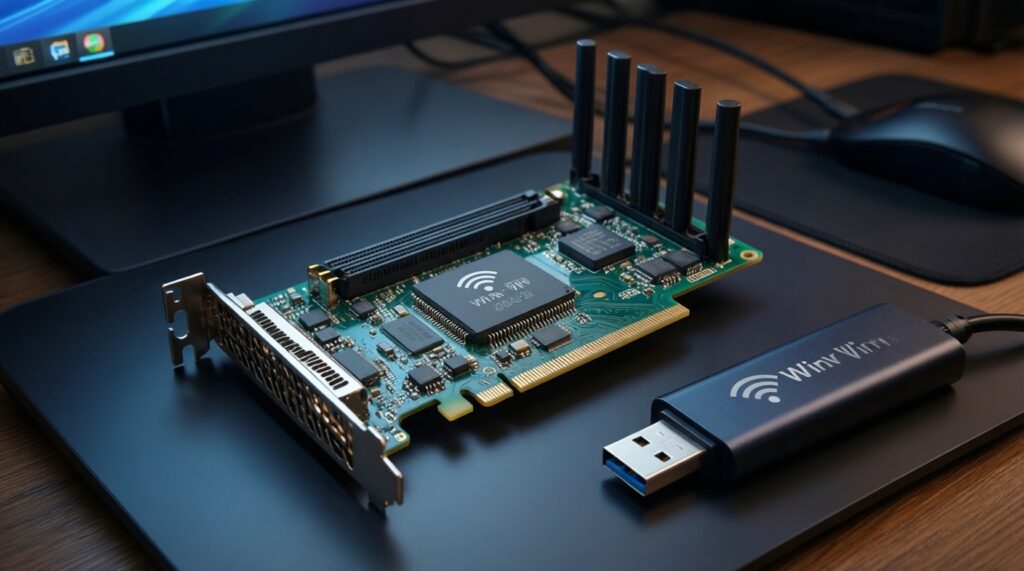
PCIe is usually more stable because of better antennas and placement. USB is cheaper and simpler, but performance depends heavily on the dongle chipset and drivers.
Will a Bluetooth 5.4 adapter instantly improve headphone sound?
Not necessarily; sound quality depends on codec support on both the transmitter and headphones. You're more likely to notice stability and power/coexistence improvements than a dramatic sound change.
Can I mix a Wi‑Fi 7 router with older mesh nodes?
Sometimes, but features and roaming quality may be limited to the lowest common capabilities. For predictable behavior, keep nodes in the same ecosystem and generation where possible.
What is the safest "first purchase" if I'm unsure?
Improve placement and add a single node or wire the most important device first. If your desktop is the pain point, start with a reliable Wi‑Fi/Bluetooth adapter upgrade before replacing the whole router.