To อัปเกรด RAM correctly, prioritize (1) matched dual-channel capacity, (2) the right DDR generation for your motherboard, then (3) frequency and timings that your CPU/board can actually run via XMP/EXPO. For most real games and productivity, stable dual-channel and enough capacity matter more than chasing the highest MHz or lowest CL.
Upgrade checklist: essentials to decide first
- Confirm your platform: DDR4 or DDR5 (motherboard manual/CPU spec), before you ซื้อ RAM DDR4 or ซื้อ RAM DDR5.
- Pick target capacity based on your heaviest workflow, not average usage (avoid constant paging to disk).
- Prefer matched pairs/kits for RAM Dual Channel stability (same size, rank, and similar timings).
- Check motherboard QVL as a risk-reducer, not a hard requirement (especially important for high-speed DDR5).
- Plan your BIOS approach: enable XMP/EXPO first, only then consider manual tuning.
- Decide what you will measure after the upgrade (frametime consistency, compile time, render time), not just synthetic scores.
Dual-channel explained: real performance impact and pairing rules
Dual-channel increases memory bandwidth by using two modules in parallel. You typically benefit when your workload is bandwidth-sensitive (many games, iGPU gaming, some content creation) or when you want smoother frametimes. If you're already capacity-limited (RAM nearly full), adding capacity can matter more than perfect timings.
Pairing rules that actually prevent headaches
- Use a matched pair when possible: same capacity per stick (e.g., 2×16), same DDR generation, ideally same model kit.
- Populate the correct slots: most boards want A2+B2 first (check the silk-screen or manual).
- Avoid mixing very different sticks: different ranks (single/dual-rank), different ICs, or very different XMP profiles often forces slower settings or instability.
When dual-channel is not the first move
- You're currently hitting the pagefile: capacity shortage causes stutter or slow task switching; add capacity first even if it means uneven sticks temporarily.
- Small-form-factor constraints: limited slots may push you to 2× larger modules instead of 4× smaller ones for stability and future upgrades.
- Workload is storage/CPU-bound: many office tasks won't show meaningful gains beyond "enough RAM".
RAM frequency: how MHz translates to gaming and productivity gains
Frequency (MHz/MT/s) affects bandwidth and, with timings, total access latency. In practice, higher frequency helps most when the CPU is waiting on memory (certain game engines, high-FPS scenarios, integrated graphics, some compression and compilation). The key is choosing a speed your platform can run stably.
What you need before you change anything
- Motherboard manual (slot population, supported speeds, XMP/EXPO instructions).
- CPU support info (memory controller limits; avoid assuming any kit will hit its rated speed).
- Current BIOS/UEFI access (know how to enter setup and how to reset CMOS if needed).
- A basic monitoring tool (to confirm frequency, timings, and whether dual-channel is active).
- A quick stability check plan (a repeatable game scene, a compile/render task, and a memory stress test).
| Representative config | Typical reasons to choose it | Where you can notice it | Where it's often negligible | Risk level (setup) |
|---|---|---|---|---|
| DDR4 2×8 @ 3200 CL16 | Balanced cost/perf; easy XMP; good baseline if you ซื้อ RAM DDR4 today | General gaming smoothness vs single-stick; everyday multitasking | GPU-limited gaming at high resolution; light office work | Low |
| DDR4 2×16 @ 3600 CL18 | More headroom for modern titles + background apps; good "set-and-forget" | Fewer stutters when streaming/recording while gaming; large projects | Simple esports titles if you already have enough RAM | Low-Medium |
| DDR5 2×16 @ 6000 (timings vary by kit) | Common sweet-spot target on many DDR5 platforms; good bandwidth | CPU-limited gaming; some productivity tasks that scale with bandwidth | GPU-limited scenes; workflows dominated by CPU cores or disk | Medium (needs BIOS maturity, correct profile) |
| DDR5 2×24 or 2×32 @ moderate speed | Capacity-first choice; helps avoid paging; consider when RAM 16GB 32GB ราคา is close enough to justify 32GB+ | Editing, heavy multitasking, VMs, large browser sessions | Light gaming with minimal background tasks | Low-Medium |
CAS latency (CL) and timings: interpreting numbers for real workloads
- Record your current baseline: RAM speed, timings, and whether dual-channel is active.
- Update BIOS if you're far behind (especially for DDR5 memory compatibility).
- Download one stability tool and pick one real workload test you can repeat.
- Know your recovery method: how to clear CMOS or use safe boot after a failed memory training.
-
Start with XMP/EXPO, not manual timings
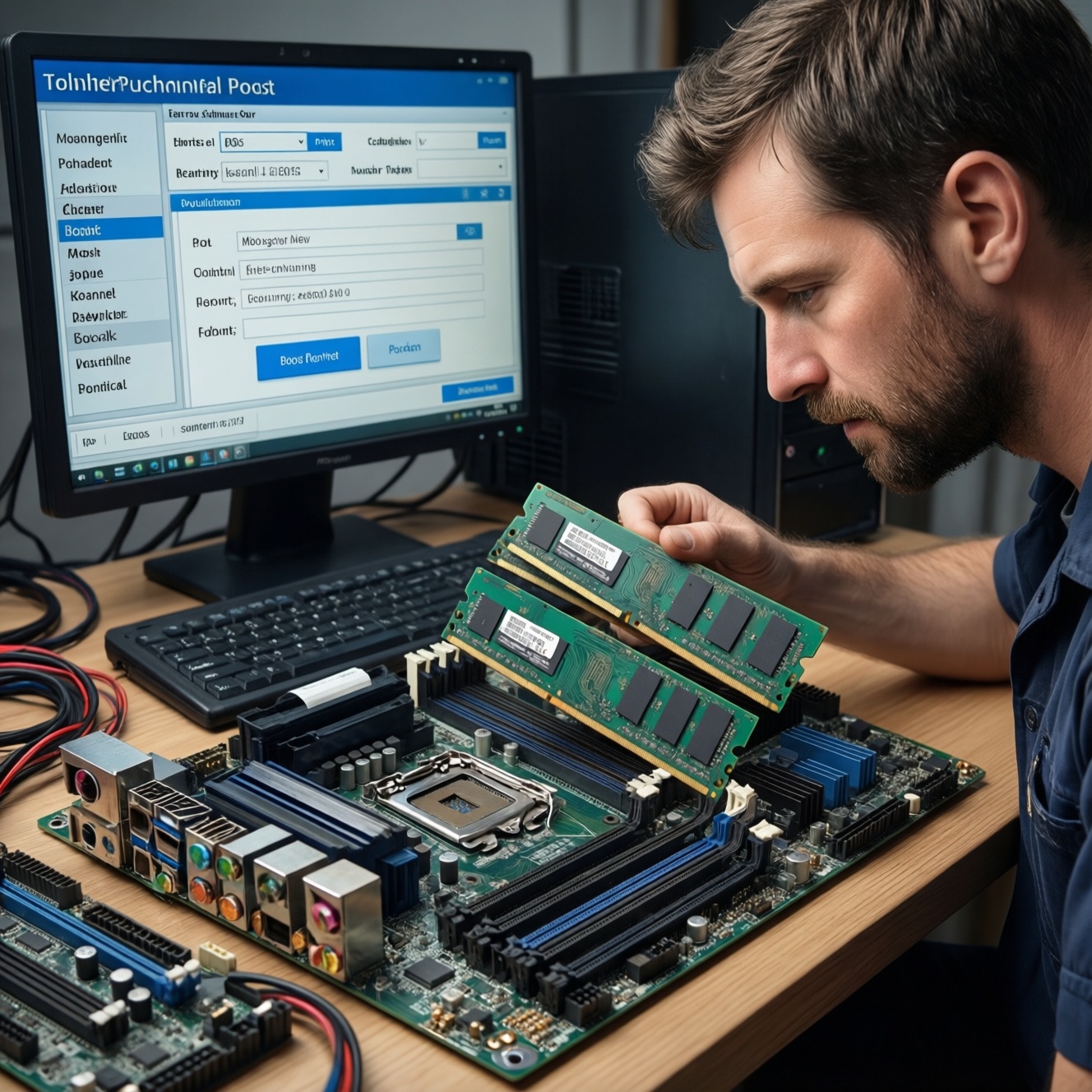
Enable the memory profile in BIOS (XMP for many DDR4 kits, EXPO for many DDR5 kits, depending on platform). This sets a known-good bundle of frequency, primary timings (including CL), and voltage.
- If the board offers multiple profiles, pick the standard one first (not "extreme").
- Save and reboot; expect longer boot on DDR5 during memory training.
-
Verify what actually applied in Windows
Check effective data rate and primary timings. Confirm dual-channel mode; if it shows single-channel, re-seat sticks and confirm correct slots (A2/B2 on many boards).
- If frequency is lower than expected, the board may have fallen back to a safe JEDEC setting due to training failure.
- Keep notes: applied speed, CL, and any BIOS changes.
-
Stability test before you chase better CL
Run a memory stress test and also your real workload (a repeatable game benchmark run, a compile, an export). If you see WHEA errors, app crashes, or random reboots, treat it as unstable even if it "feels fine".
- Instability often appears as rare stutters, corrupted archives, or browser tab crashes-don't ignore them.
-
If unstable, step down methodically
Lower frequency one step, or slightly relax timings, before increasing voltage. Use the smallest change, then re-test. This preserves safety and makes it obvious which change fixed the issue.
- Prefer lowering frequency over adding voltage when you just need reliability.
- If you change voltage, stay within your motherboard/kit guidance and prioritize thermals.
-
Only then consider manual tuning (optional)
If you want to optimize, adjust one parameter at a time: first frequency, then primary timings (CL/tRCD/tRP/tRAS), then secondary timings. Many real workloads won't show a meaningful difference between "pretty good" and "fully tuned", so stop when returns diminish.
Capacity sizing: rules-of-thumb for modern games, streaming and editing
- During your heaviest use (game + Discord + browser + capture), RAM usage stays below total capacity with headroom (no sustained 90-100% usage).
- Windows "Committed" (or similar metric) does not constantly exceed physical RAM (a sign of paging pressure).
- Game frametimes are consistent and don't spike when new areas load or when alt-tabbing.
- Streaming/recording doesn't trigger sudden encoder drops tied to background apps being swapped out.
- Creative apps (NLE, photo editor, CAD) can scrub/preview without constant disk thrashing.
- Large browser sessions remain responsive (tabs don't reload constantly after switching).
- VMs or containers run without the host becoming sluggish.
- You have an upgrade path: free slots (or a plan to replace kit) rather than mixing random leftovers.
Compatibility, XMP and BIOS setup: step-by-step validation checklist
- Buying the wrong DDR generation: DDR4 and DDR5 are not interchangeable; confirm before you ซื้อ RAM DDR4 or ซื้อ RAM DDR5.
- Wrong slot population: using A1+B1 instead of A2+B2 can break dual-channel or reduce stability.
- Mixing kits: two different 2-stick kits at the same "spec" may still train differently; expect the system to run at the slowest common denominator.
- Assuming rated speed is guaranteed: XMP/EXPO is an overclock profile; some CPUs/boards won't hold the top profile without tweaks.
- Not updating BIOS: memory compatibility often improves with BIOS updates, especially early DDR5 platforms.
- Ignoring memory training time: repeated forced restarts can make troubleshooting confusing; let the system finish training on first boot after changes.
- Over-tuning too fast: changing frequency, timings, and voltage at once makes failures hard to diagnose.
- Chasing CL alone: CL must be interpreted with frequency; a lower CL number at much lower speed isn't automatically faster in real latency.
- Thermal neglect: poor airflow can destabilize high-speed kits; check case airflow and CPU cooler clearance.
Measuring results: benchmarks, real-world tests and what data to trust
Use measurements that match your bottleneck and repeat the same test conditions. If you're GPU-limited, RAM changes may be hard to see; look at CPU-limited scenarios or productivity tasks where memory pressure is real.
Practical ways to validate improvements (and when to use each)
- Repeatable in-game benchmark or fixed route: best for seeing frametime consistency changes after enabling RAM Dual Channel or increasing capacity.
- Productivity time-to-complete: export/render/compile a real project; best to validate "does this help my work?" without synthetic bias.
- Memory-focused synthetic tests: useful to confirm bandwidth/latency deltas, but don't treat them as a promise of FPS gains.
- Long stability run: best to confirm your XMP/EXPO settings won't corrupt workloads; treat stability as the primary success metric.
Ordered action list: safest path from planning to a stable upgrade
- Check motherboard/CPU support and decide DDR4 vs DDR5; only then decide whether to ซื้อ RAM DDR4 or ซื้อ RAM DDR5.
- Pick capacity first (compare RAM 16GB 32GB ราคา against your actual usage and upgrade horizon).
- Buy a matched 2-stick kit where possible to maximize RAM Dual Channel stability.
- Install in the recommended slots (usually A2+B2), then boot once at default settings.
- Update BIOS if needed, then enable XMP/EXPO and reboot (allow training time).
- Verify applied speed/timings and dual-channel mode in the OS.
- Run a stability test plus one real workload test; if unstable, reduce frequency one step and re-test.
- Only do manual tuning if you can measure the gain and accept extra validation time.
Short answers to common upgrade dilemmas
Should I prioritize dual-channel or higher MHz first?
Prioritize dual-channel and enough capacity. Higher MHz helps mainly in CPU-limited cases, while single vs dual-channel can affect bandwidth broadly and is easier to get stable.
Is it okay to mix an old stick with a new one for a quick อัปเกรด RAM?
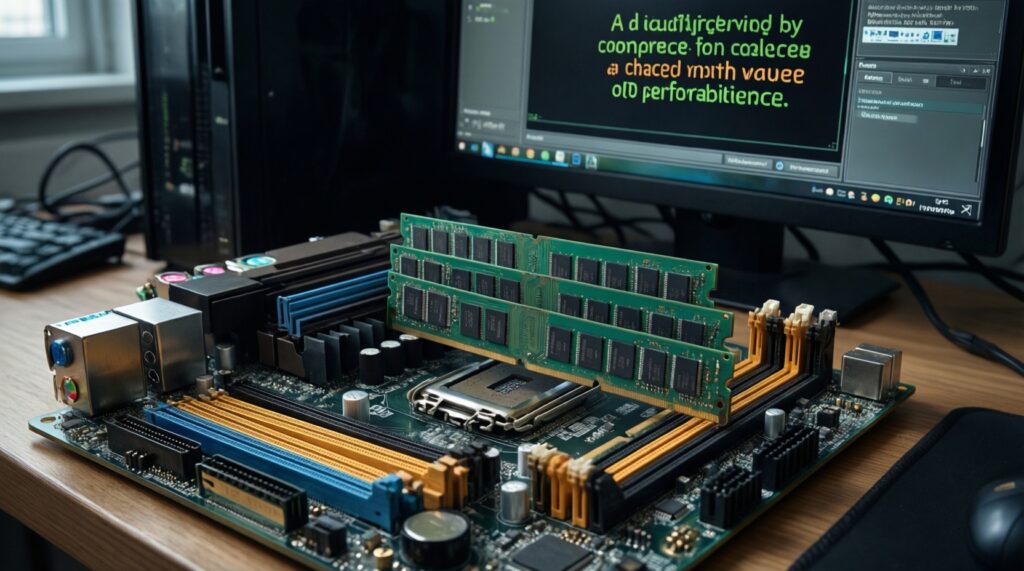
It can work, but expect the system to run at the slower stick's settings and potentially lose stability at XMP/EXPO. If you must mix, test thoroughly and be ready to run at JEDEC defaults.
How do I know if my PC is actually running RAM Dual Channel?
Check your monitoring tool for "Channel # Dual" (wording varies) and confirm sticks are in the recommended paired slots. If it shows single-channel, reseat and move to A2/B2 per the manual.
What matters more: lower CL or higher frequency?

They interact; CL alone is not enough. Start from a stable profile and compare only when the system is stable-many users will not feel the difference outside CPU-limited scenarios.
When should I choose 32GB over 16GB if RAM 16GB 32GB ราคา is close?
Choose 32GB if you stream/record while gaming, edit media, run VMs, or keep many heavy apps open. If you mainly game with minimal background tasks, 16GB can still be adequate on many setups, but headroom matters for smoothness.
Any special advice when I ซื้อ RAM DDR5?
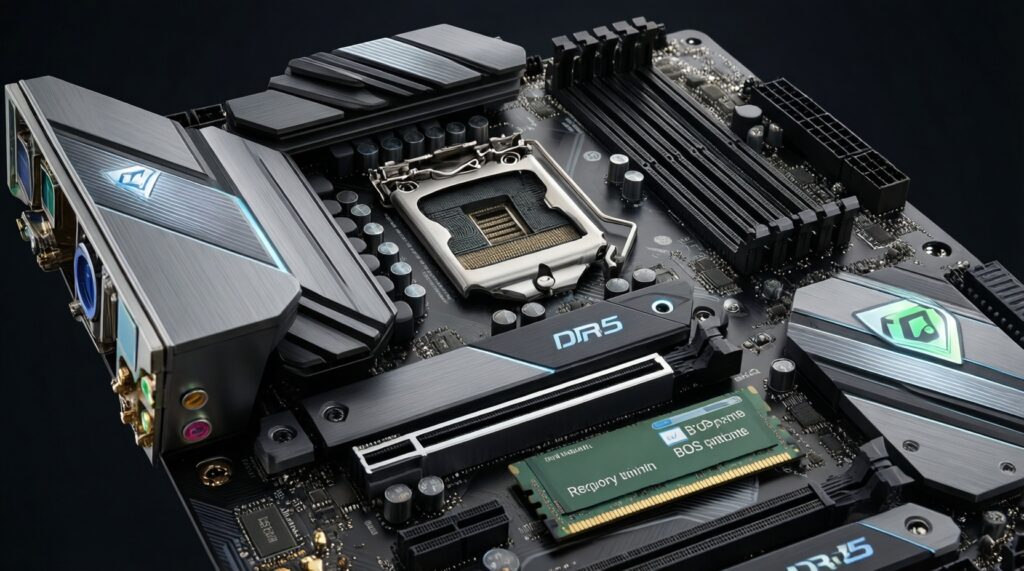
DDR5 can be more sensitive to BIOS version and memory training. Prefer a single matched kit, update BIOS, enable EXPO/XMP, and validate stability before attempting manual tuning.
Do I need to enable XMP/EXPO after installing new RAM?
Yes if you want the kit's rated speed; otherwise it will often run at a safer default (JEDEC). Enable the profile first, then test stability before making any other changes.