The latest Windows release (Windows 11 feature updates delivered via Windows Update) mainly brings UI and workflow refinements, tighter security defaults, and ongoing driver/app compatibility changes. Before you อัปเดต Windows 11 เวอร์ชันล่าสุด, validate hardware support, confirm critical app/drivers, plan a rollback window, and back up. Most update pain comes from unsupported devices, third‑party security tools, and niche peripherals.
At-a-Glance: What This Windows Release Brings
- Productivity tweaks that reduce clicks: faster window management, better search/notifications, and smoother cross-device workflows.
- Security hardening through stronger isolation, credential protection, and stricter signing/driver expectations.
- More "it just works" configuration via modern Settings, but some legacy Control Panel paths still matter.
- Compatibility remains the gate: CPU generation, TPM/Secure Boot, and vendor driver support decide the outcome.
- Performance can improve on supported hardware, yet background indexing, VBS, or driver regressions can feel slower in edge cases.
- Best practice: stage the update, keep a rollback path, and document the exact build and drivers you deploy.
Major New Features and Productivity Enhancements
In practice, "what's new" in the latest Windows 11 version is less about one headline feature and more about cumulative usability changes: smoother window snapping, refined taskbar/Start behavior, upgraded built-in apps, and continual quality-of-life improvements across Settings, File Explorer, and accessibility tools. These arrive as feature updates plus monthly cumulative updates.
Scope matters: these changes affect daily interaction (layout, notifications, sharing, search) rather than replacing core Windows fundamentals. You still manage drivers, local/AD accounts, BitLocker policies, and app compatibility in familiar ways-just with more settings moved to modern UI.
Mini-scenarios (typical intermediate use):
- Hybrid work laptop: you rely on quick window layouts during calls; the newest snapping behaviors and focus/notification tuning reduce context switching.
- Creator desktop: you juggle Explorer tabs/paths and large assets; UI/Explorer refinements help, but GPU and storage drivers decide stability.
- Family PC: you want fewer support calls; improved Settings discoverability makes it easier to manage updates, accounts, and backups.
- Confirm which devices benefit most (laptop vs desktop) based on how you multitask.
- List the two or three workflows you want improved (windowing, search, file handling) and verify they map to the update.
- Note which "must-not-break" apps you depend on (VPN, accounting, CAD, printer utilities).
Security Improvements and Privacy Controls
The security story is primarily "more secure by default," with Windows leaning harder on hardware-backed protections (TPM, Secure Boot) and virtualization-based isolation where supported. Privacy control stays a mix: Windows provides more toggles and clearer permissions, but you still need to review telemetry, diagnostics, and app permissions after updating.
How it works mechanically (what changes under the hood and what you may notice):
- Hardware root of trust: TPM + Secure Boot help validate boot components and store secrets more safely.
- Isolation via virtualization (VBS features): certain credentials and sensitive processes can be isolated from the main OS context on compatible systems.
- Driver and code integrity expectations: stricter enforcement can break older drivers, unsigned utilities, or niche security tools.
- Smarter built-in protections: Microsoft Defender and SmartScreen-style checks may be more assertive with new apps/scripts.
- App permission model: camera/mic/location/background permissions remain centrally managed in Settings; updates can reset or add new toggles.
- Account and sign-in hardening: stronger defaults around credential storage and sign-in flows can affect older domain/VPN setups.
Mini-scenario: Developer machine with local scripts and unsigned tools-after the update, a previously "quiet" tool may trigger protection prompts. Plan to re-sign internal binaries or allow-list via your organization's policy instead of disabling protections globally.
- After updating, re-check Privacy & security permissions for mic/camera/location and background apps.
- Verify Defender/EDR coexistence (one primary real-time engine; avoid overlapping drivers).
- Confirm Secure Boot and TPM status remain enabled if your security baseline expects it.
Compatibility Limits and Hardware Requirements
Compatibility for Windows 11 feature updates is mostly determined by supported CPU generation, TPM 2.0, Secure Boot capability, and vendor driver readiness. When users ask คอมพิวเตอร์รองรับ Windows 11 หรือไม่, the practical answer is: check hardware security features in firmware, then confirm OEM driver support for your exact model.
Where this matters most (common scenarios):
- Older desktops with upgraded parts: CPU may be fine, but TPM/Secure Boot configuration in BIOS/UEFI can block or complicate the update.
- Thin-and-light laptops: OEM power/thermal drivers are critical; feature updates can expose weak vendor support.
- Custom gaming rigs: RGB/peripheral utilities and anti-cheat drivers are frequent compatibility friction points.
- Office PCs with legacy printers/scanners: the OS update is usually fine; the blocker is the vendor's driver package and print/scanner software.
- Machines using niche VPN/endpoint security: kernel-level drivers or network filter drivers can cause upgrade failures or post-upgrade connectivity loss.
Mini-scenario: Small business accounting PC depends on an old USB dongle driver. Even if Windows updates successfully, the licensing driver may fail-test on a spare machine or a clone first.
- Run a compatibility check (Windows Update readiness and OEM support page for your model).
- Inventory kernel drivers: VPN, EDR, disk encryption, printer/scanner suites.
- Confirm you have admin access to firmware settings (TPM/Secure Boot) before scheduling downtime.
Performance Trade-offs and Known Bugs
Performance changes are contextual. On supported hardware, scheduler and platform tuning can feel smoother; on borderline devices, security isolation and background services may add overhead. "Known bugs" are often driver regressions rather than Windows core issues.
- Potential upsides: smoother window animations on modern GPUs, better sleep/wake behavior on well-supported laptops, improved responsiveness in common UI paths.
- Potential downsides: higher memory use after feature updates, slower boot on some configurations due to driver/services re-enumeration, short-term indexing spikes after upgrade, and occasional stutter from outdated GPU/audio drivers.
- Common regression areas to watch: Wi‑Fi/Bluetooth reliability, external monitor detection (USB‑C docks), printer discovery, and audio enhancements.
- Upgrade blockers you can influence: third-party AV/EDR, old VPN clients, storage filter drivers, and "tweaker" utilities that modify shell/taskbar behavior.
Mini-scenario: Docked laptop user with dual monitors-post-update, displays may reorder or flicker until the dock firmware and GPU driver are updated to the latest OEM-approved versions.
- Update GPU, chipset, Wi‑Fi, and dock drivers from OEM (not only via Device Manager).
- Expect 1-2 reboots and post-update background activity; avoid judging performance in the first hour.
- Keep a rollback plan if a critical peripheral fails (see preparation section).
Enterprise Considerations and Deployment Options
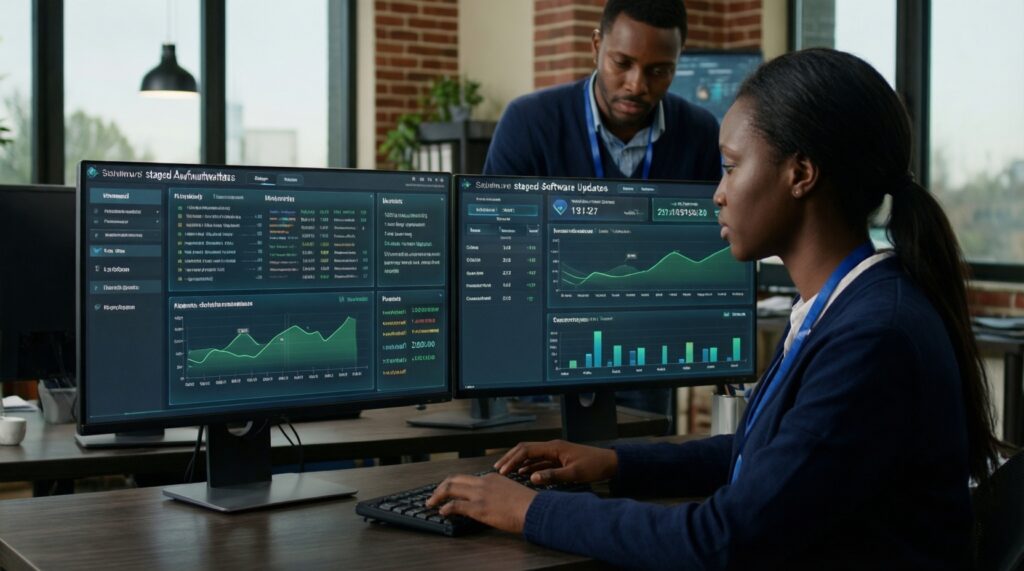
In business environments, feature updates are a change-management task: identity, policies, security agents, and line-of-business apps must be validated. "Just click update" works for some endpoints, but controlled rings and staged rollouts prevent widespread downtime.
Common mistakes and myths:
- Myth: "If it installs, it's compatible." Reality: post-upgrade driver/agent behavior (EDR, VPN, DLP) is the real risk.
- Mistake: Updating endpoints before updating deployment tooling, baselines, and agent versions (MDM policies, scripts, security baselines).
- Myth: "We can skip testing because Windows Update is safe." Reality: edge peripherals and kernel drivers can still regress.
- Mistake: No defined rollback window or no local admin path when remote access breaks.
- Myth: "Licensing is irrelevant." Reality: procurement and compliance matter-especially if users try to ซื้อไลเซนส์ Windows 11 ของแท้ from unverified sellers.
Mini-scenario: Branch office with a single multifunction printer-deploy to one pilot PC first, confirm scanning profiles and address book integration, then expand to the rest of the branch.
- Deploy in rings: pilot → small group → broad rollout.
- Pre-validate EDR/VPN/DLP versions against the target Windows build.
- Document rollback steps and ensure remote access alternatives exist.
Step-by-Step Pre-Update Preparations
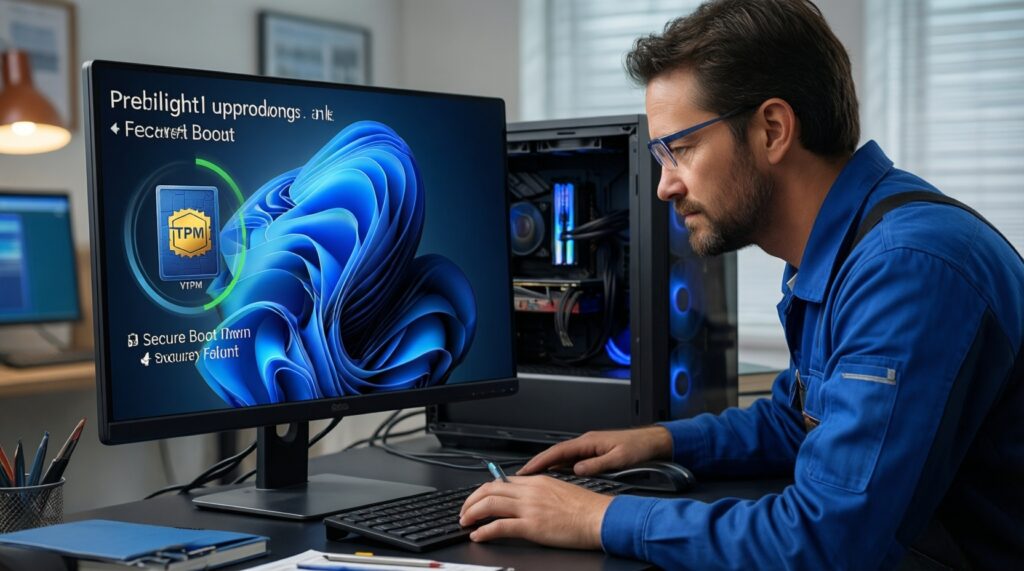
Use this as a practical pre-flight before you วิธีอัปเกรดเป็น Windows 11 เวอร์ชันล่าสุด on a primary machine. The goal is to reduce unknowns: confirm support, capture a recovery path, and remove the most common blockers.
- Confirm hardware and firmware readiness
- Check TPM and Secure Boot status in your firmware/UEFI and Windows Security.
- Verify OEM driver availability for your exact model (especially Wi‑Fi, GPU, chipset, audio, dock).
- Back up and create a rollback path
- Create a full system image (or at minimum back up user profile + critical project folders).
- Ensure you have BitLocker recovery key access if BitLocker is enabled.
- Reduce upgrade blockers
- Temporarily uninstall non-essential third-party AV/EDR/VPN clients if vendor guidance recommends it.
- Disconnect unnecessary peripherals (older USB devices, specialty adapters) during the upgrade.
- Choose an update path
- For most users: Windows Update is simplest for อัปเดต Windows 11 เวอร์ชันล่าสุด.
- If you need an ISO or installation assistant: use official channels to ดาวน์โหลด Windows 11 เวอร์ชันล่าสุด and avoid third-party repack sites.
Mini-case (quick validation commands before and after):
# Check key system info
winver
systeminfo

# List installed drivers (useful for troubleshooting regressions)
pnputil /enum-drivers

# Basic disk health check (run in elevated Command Prompt)
chkdsk C: /scan- Confirm backups are restorable (spot-check one folder/file restore).
- Confirm you can log in without relying on one fragile factor (e.g., VPN-only domain sign-in).
- Confirm you have installers for critical drivers/apps locally (Wi‑Fi driver, VPN client, printer package).
- Confirm the update method is official and your license path is compliant (avoid risky "cheap keys"; buy only if you truly need to ซื้อไลเซนส์ Windows 11 ของแท้).
Common Concerns Before You Update
Will the latest Windows 11 update delete my files?
It should not, but failures and user profile issues can happen. Make a backup you can restore, not just one you hope is fine.
How do I know if my PC supports the update?
Start with Windows Update readiness and then confirm TPM 2.0 and Secure Boot in firmware. If you're still unsure, the practical check for คอมพิวเตอร์รองรับ Windows 11 หรือไม่ is OEM model support plus driver availability.
Is it better to update via Windows Update or an ISO?
Windows Update is best for most users. Use an ISO mainly for clean installs, offline upgrades, or controlled deployment-only from official sources when you ดาวน์โหลด Windows 11 เวอร์ชันล่าสุด.
Can I roll back if something breaks?
Often yes within the rollback window, but don't rely on it as your only safety net. A system image backup is the most reliable escape hatch.
What usually causes upgrade failures?
Third-party security/VPN drivers, insufficient free disk space, and outdated storage/GPU drivers are common causes. Disconnect non-essential peripherals and update core drivers first.
Do I need to buy a new license for Windows 11?
Not always; it depends on your current edition and activation status. If you must ซื้อไลเซนส์ Windows 11 ของแท้, buy from Microsoft or authorized resellers to avoid activation and compliance issues.
What should I do immediately after updating?
Install OEM driver updates if needed, verify VPN/printer/audio/monitors, and check Windows Security for any new prompts or changed settings. Confirm your critical apps launch and can access required folders and devices.