If you want the most "worth it" SSD upgrade in Thailand, pick the fastest option your platform can actually sustain without throttling: SATA is fine for older laptops and bulk storage, NVMe Gen3 is the safest all-round jump, Gen4 makes sense for modern desktops and heavy workloads, and Gen5 is niche unless you can cool it and feed it.
Primary criteria to weigh before upgrading your SSD
- Your device's limit (SATA-only bay vs M.2 NVMe slot; desktop vs thin laptop cooling).
- Real workload (boot/app snappiness, game loads, editing scratch, VMs, large transfers).
- Sustained performance under heat and long writes, not just peak specs.
- Capacity strategy (one large drive vs OS + data split; future expansion).
- Reliability targets (endurance rating, warranty terms, power-loss behavior for your risk level).
- Total cost (drive, heatsink, enclosure/cloning tool, and resale value of the old SSD).
Performance in practice: sequential/peak speeds vs sustained throughput and latency
- Small-file latency: the "feel" of launching apps, switching projects, and OS responsiveness is often more about latency and random access than headline sequential speed.
- Sustained write behavior: long exports, caches, and installs depend on how the drive behaves after its fast cache is exhausted.
- Thermal headroom: thin laptops may force high-end NVMe drives to throttle, erasing their advantage.
- Queue depth reality: many consumer tasks don't keep deep queues, so top-tier NVMe can be underutilized.
- Controller/firmware maturity: stability and consistent performance can matter more than the newest interface generation.
- System bottlenecks: CPU, RAM size, and background processes can dominate perceived speed.
- Game and app patterns: some titles benefit from faster storage, others are CPU-bound; creators often see more benefit from fast scratch disks.
Interface and protocol deep dive: SATA vs NVMe Gen3, Gen4, Gen5
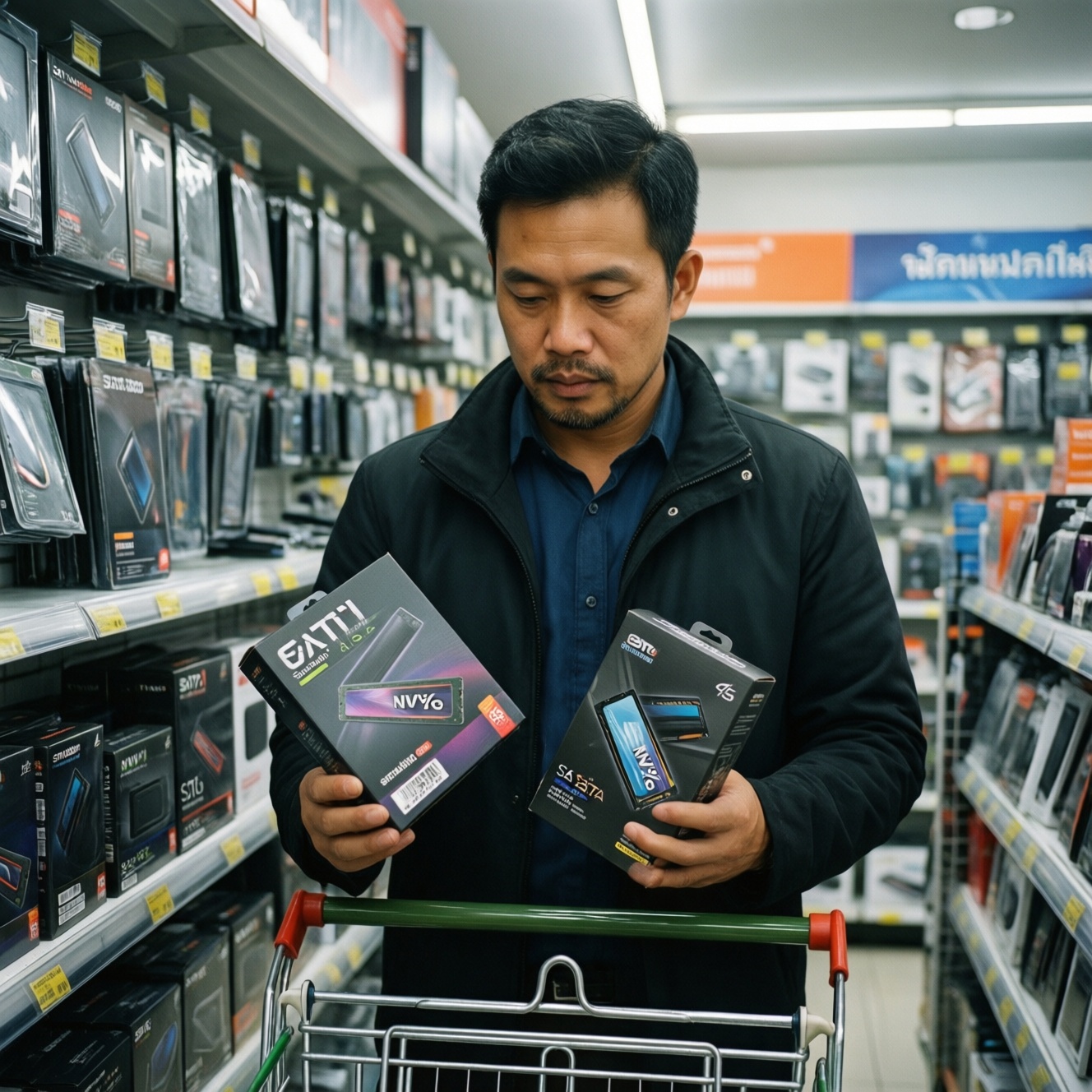
People often ask "อัปเกรด SSD SATA vs NVMe คุ้มไหม" as if it's a single yes/no. The practical answer is: match the interface to your platform and workload. Also, "SSD NVMe Gen3 กับ Gen4 ต่างกัน" mostly shows up in sustained transfers and heavy multitasking on systems that can keep the drive cool and fully connected.
| Variant | Who it fits | Pros | Cons | When to choose |
|---|---|---|---|---|
| SATA 2.5-inch SSD | Older laptops/desktops with only SATA bays | Broad compatibility; easy cloning; predictable thermals | Limited by SATA; less headroom for heavy scratch workloads | When your device lacks NVMe, or you want simple, reliable upgrades (often compared via "SSD SATA 2.5 นิ้ว ราคา") |
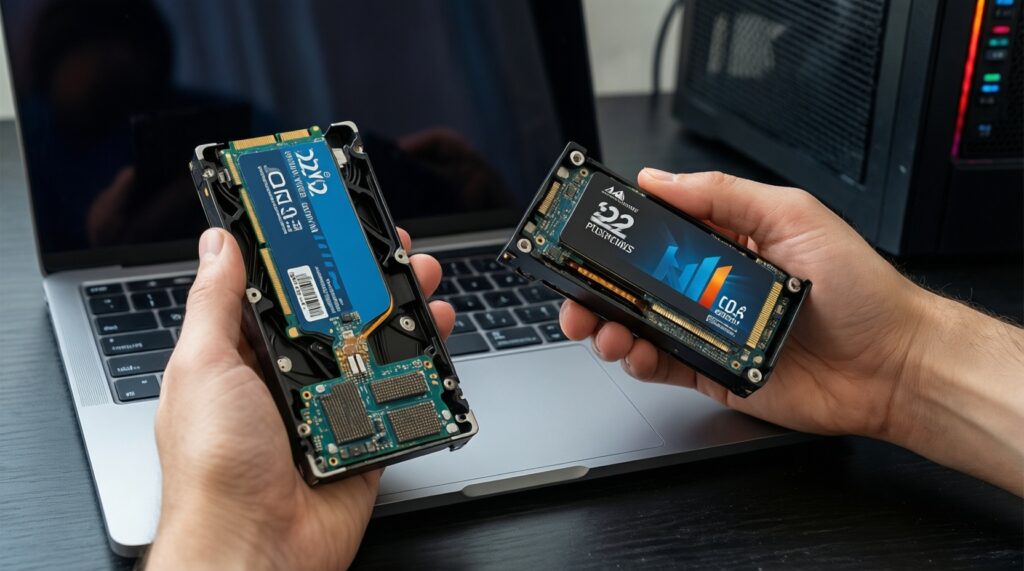
| M.2 SATA SSD | Systems with M.2 slot that is SATA-only | No cable; same SATA behavior as 2.5-inch | Easy to buy the wrong type (looks like NVMe but isn't) | When the M.2 slot does not support NVMe and you want a clean internal install |
| NVMe Gen3 (PCIe NVMe) | Mainstream laptops and desktops with NVMe support | Big jump in responsiveness and transfers vs SATA; usually easier to cool than top-end models | Still can throttle in cramped laptops; quality varies widely | When you want the safest performance-per-baht choice without platform drama |
| NVMe Gen4 | Modern desktops, gaming rigs, creator PCs | Higher peak and better heavy-workload headroom than Gen3 on capable systems | More sensitive to cooling and motherboard implementation; can be wasted on older platforms | When your board/CPU truly supports Gen4 and you can cool it; common shopping context: "ซื้อ SSD NVMe Gen4 ราคา" |
| NVMe Gen5 | Enthusiast desktops with strong cooling and sustained I/O needs | Most headroom for extreme sequential workloads when properly cooled | Heat and throttling risk is high; expensive for typical usage | When you have a Gen5-capable platform, airflow/heatsink budget, and a workload that actually stresses storage (often searched as "SSD NVMe Gen5 ราคา") |
| NVMe in external enclosure (USB) | Users needing portable fast storage | Portable; good for shuttling projects and backups | Limited by USB controller/enclosure thermals; not the same as internal NVMe | When your internal upgrade path is constrained but you still need fast external workspace |
Compatibility checklist: sockets, lanes, BIOS/OS support and thermal limits
- If your laptop has only a SATA bay and no NVMe-capable M.2 slot, then a SATA 2.5-inch SSD is the correct upgrade even if NVMe is cheaper per performance on paper.
- If your device has an M.2 slot, then confirm whether it supports NVMe or only M.2 SATA before buying; the wrong keying/spec leads to non-detection.
- If your motherboard shares PCIe lanes with other devices (extra M.2 slots, some SATA ports, or certain expansion slots), then expect trade-offs like disabled ports or reduced link speed; check the board manual's lane-sharing notes.
- If you plan to boot from the new drive, then verify BIOS/UEFI NVMe boot support and update firmware before cloning or reinstalling.
- If the drive will sit under a GPU or inside a thin chassis, then prioritize a model known for low power draw and stable sustained writes, and plan a heatsink or thermal pad strategy.
Reliability metrics: TBW, DWPD, power consumption and thermal throttling
- Decide the write intensity: mostly reads (gaming/office) vs frequent large writes (video scratch, datasets, VMs).
- Pick a capacity that keeps free space available; avoid operating near full to reduce performance drops and write amplification.
- Compare endurance and warranty terms across finalists; treat endurance as a sizing signal, not a performance signal.
- Prefer drives with consistent sustained-write behavior for creator/IT workloads; don't optimize for peak-only marketing.
- Check power and thermals: for laptops, favor efficient controllers; for desktops, budget for a proper heatsink if the drive tends to run hot.
- Plan data safety: keep a tested backup regardless of drive class; higher-end SSDs reduce risk but don't eliminate failure.
Economics of upgrade: cost per GB, performance per dollar and resale/upgrade paths
- Buying Gen4 or Gen5 for a platform that negotiates down to older speeds, then wondering why it "feels the same."
- Overpaying for peak speed while ignoring sustained writes and thermal throttling in real use.
- Choosing too little capacity, forcing the drive to stay nearly full and reducing both performance consistency and usable lifespan.
- Ignoring hidden costs: heatsink, cloning enclosure, thermal pads, or a clean OS reinstall plan.
- Assuming all NVMe drives are equal; controller, NAND type, and firmware tuning create large real-world differences even within the same "Gen."
- Upgrading storage when the real bottleneck is RAM pressure or CPU limits (symptoms: constant swapping, stutters under multitasking).
- Not factoring resale: a solid SATA SSD can still be repurposed as a secondary drive or sold, changing the effective upgrade cost.
- Using external enclosures as a substitute for internal performance without checking USB limitations and enclosure thermals.
Persona-driven upgrade paths: recommendations for gamers, creators, IT pros and everyday users
For most gamers, NVMe Gen3 is the sensible baseline and Gen4 is a good step if the platform supports it and airflow is adequate; for creators moving large assets and using scratch disks, Gen4 often provides the best balance of headroom and practicality; for IT pros handling VMs and sustained I/O, prioritize consistent writes and endurance over peak claims; for everyday users on older machines, SATA remains the cleanest, most compatible win.
- Gamer: Choose NVMe Gen3 unless you have a Gen4-capable system and can keep the drive cool; spend the savings on capacity.
- Creator (photo/video/design): Choose NVMe Gen4 for a modern desktop; prioritize sustained-write stability and a heatsink-ready setup.
- IT pro (VMs, lab, heavy multitasking): Choose the most consistent NVMe you can cool and back up; endurance and throttling behavior matter more than peak generation.
- Everyday user (office, study, web): Choose SATA on SATA-only devices; on NVMe-capable laptops, Gen3 is typically the least risky upgrade.
Quick answers to common upgrade trade-offs
Will I notice a big difference moving from SATA to NVMe?
Usually yes for app launches, updates, and heavier multitasking, assuming your system supports NVMe properly. For light browsing and office work, the jump can feel smaller once you already have any SSD.
Is Gen4 always better than Gen3 in real use?

No. Gen4 helps most in sustained transfers and heavier I/O, but only if your platform supports it and cooling prevents throttling.
When does Gen5 make sense?
Mostly for enthusiast desktops with strong cooling and workloads that keep the drive busy for long stretches. For typical gaming and daily use, Gen5 is often poor value.
Can an M.2 SSD be SATA instead of NVMe?
Yes. M.2 is a form factor; the drive can be SATA or NVMe, and they are not interchangeable on all slots.
Do I need a heatsink for NVMe?
In thin laptops you often can't add much cooling, so pick an efficient drive. In desktops, a heatsink is recommended when the drive sits in a hot area or you do sustained writes.
Is a bigger SSD faster?
Often it can be more consistent under heavy writes, but it depends on the specific model. Capacity should be chosen first for workload and free-space headroom.
Should I clone my old drive or reinstall the OS?
Cloning is faster and keeps your setup; reinstalling can remove accumulated issues. If you suspect OS clutter or driver problems, a clean install can be worth the time.