The next Windows direction (as seen in Windows 11-era upgrades) centers on a more guided UX, tighter security defaults, and smarter performance tuning for modern CPUs-while keeping broad app compatibility. Practically, the decision to upgrade is driven by hardware readiness, security requirements, and your workflow, not aesthetics. Use the matrix below to decide now vs later.
Snapshot: Strategic Shifts in the Next Windows
- UX becomes more opinionated: snap layouts, multi-monitor memory, and settings consolidation reduce daily friction but require retraining.
- "AI-adjacent" productivity grows via OS-level suggestions and integrated services; value depends on your app stack and policies.
- Performance improvements target modern scheduling and power behavior; gains are largest on newer CPU generations and laptops.
- Security defaults tighten (TPM-backed features, stronger isolation); compatibility edge-cases shift from apps to drivers and peripherals.
- Licensing and edition choices matter more in managed environments; avoid buying the wrong SKU for your needs.
Feature Deep Dive: Standout UX, AI, and Productivity Additions
In practical terms, "next Windows" is less about a single headline feature and more about an OS that tries to standardize how you work: windowing, notifications, quick settings, and account-connected experiences. Compared with Windows 10, the system is designed to reduce context switching by making common actions (arranging windows, returning to a monitor setup, managing quick toggles) more consistent.
Productivity features mostly pay off when you repeat the same patterns daily: docking/undocking a laptop, switching between focus work and meetings, or using multiple desktops for role separation. If your organization locks down cloud integration, many "smart" conveniences may be neutral rather than transformative.
Use this compact view when you need to เปรียบเทียบ Windows 10 กับ Windows 11 for day-to-day work:
| Area | Practical difference | Who benefits most | Migration effort |
|---|---|---|---|
| Window management | More guided snapping and layout recall | Multi-window, multi-monitor users | Low: learn new shortcuts/layouts |
| Settings & quick controls | More consolidated toggles and flows | Laptop users, helpdesk teams | Low: update internal docs/screenshots |
| Account-connected features | Deeper integration with Microsoft services | Users in Microsoft 365 ecosystems | Medium: policy alignment and sign-in expectations |
| UI changes | New default layout and visual language | Organizations standardizing user training | Medium: retraining and change management |
- Impact: Faster daily navigation if your workflow matches the new defaults. Migration effort: Update shortcuts, user training, and screenshots.
- Impact: Better multi-monitor continuity for laptop docking. Migration effort: Validate display drivers and docking station firmware.
- Impact: More OS-integrated suggestions and "smart" surfaces. Migration effort: Align privacy/security policies and user expectations.
- Confirm which UX changes affect your team most (snapping, taskbar behavior, settings paths).
- Run a pilot with power users who use multiple monitors and virtual desktops.
- Update internal SOPs: screenshots, "where is X?" cheat-sheets, onboarding notes.
Performance and Architecture: Kernel, Scheduling, and Power Improvements
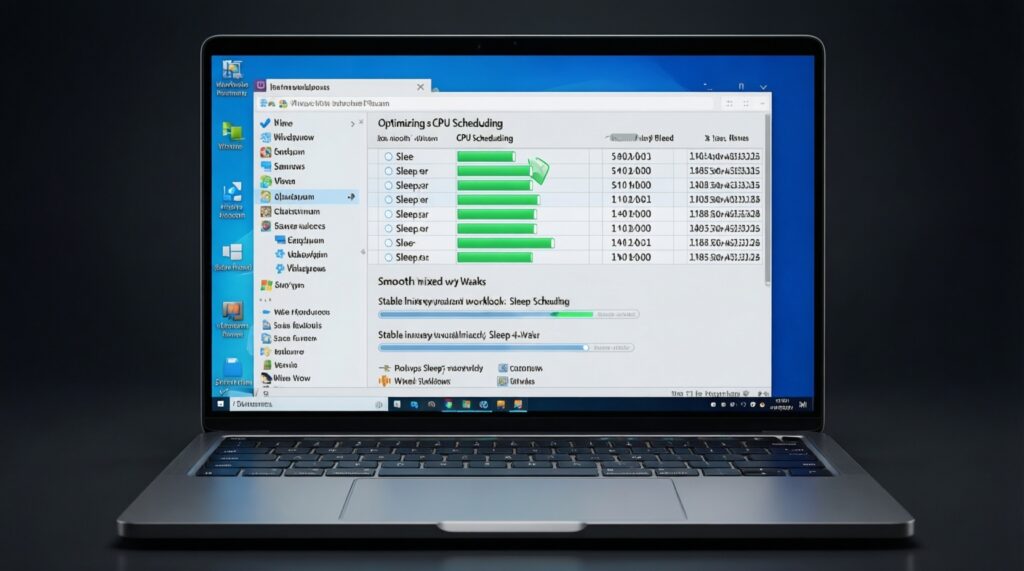
Architecturally, the newer Windows line focuses on "doing less work when you don't need it" and "scheduling better when you do." That shows up as smarter CPU scheduling on modern processors, more predictable sleep/wake on laptops, and better behavior under mixed workloads (calls + browser + IDE + containers).
- Smarter scheduling on newer CPUs. Impact: smoother foreground responsiveness during background tasks. Migration effort: ensure chipset/CPU drivers and BIOS are current.
- Power management tuning. Impact: improved battery and thermals on supported laptops. Migration effort: retest corporate power plans and device-specific tools.
- More resilient update and servicing patterns. Impact: fewer "surprise" disruptions when managed correctly. Migration effort: align maintenance windows, rings, and rollback plans.
- Better baseline performance on SSD-first systems. Impact: faster boot/app launch consistency. Migration effort: confirm storage health and encryption settings.
- Virtualization-aware workloads. Impact: better behavior when WSL/Hyper-V/VBS are used. Migration effort: validate RAM/CPU headroom and security baseline compatibility.
- Update BIOS, chipset, graphics, Wi‑Fi, and storage drivers before measuring performance changes.
- Benchmark your real workloads (Teams/Zoom + browser tabs + Excel/Power BI + IDE), not synthetic tests.
- Recheck battery, sleep/wake, and docking reliability on the exact laptop models you deploy.
Security Evolution: New Controls, Telemetry Changes, and Threat Mitigation
Security in the newer Windows direction is less about optional add-ons and more about secure-by-default posture-especially on devices that meet modern requirements. The practical question is not "is it more secure?" but "which controls will be enforced, and what will they break?"
- Managed laptops for hybrid work. Impact: stronger baseline protection for off-network endpoints. Migration effort: validate VPN, device compliance, and identity policies.
- Organizations requiring hardware-backed security. Impact: better protection against credential and boot-level attacks. Migration effort: confirm TPM status, firmware settings, and recovery key processes.
- Admins standardizing least privilege. Impact: fewer local admin dependencies over time. Migration effort: inventory apps requiring admin rights and remediate.
- Regulated environments with auditing needs. Impact: clearer policy-driven controls when paired with proper management tooling. Migration effort: map policies to controls, then test evidence collection.
- High-risk users (finance, executives, developers with secrets). Impact: better hardening options. Migration effort: extra compatibility testing for security features that rely on virtualization/isolation.
- Define your security baseline first (BitLocker, credential protections, isolation features), then test apps/drivers against it.
- Document recovery flows (lost PIN, BitLocker recovery, device re-enrollment) before broad rollout.
- Run a "security-on" pilot: enable the protections you actually plan to enforce, not a watered-down config.
Application Compatibility: Runtime, Legacy Support, and Developer Implications
App compatibility is usually strong for mainstream Windows software, but edge-cases shift toward drivers, legacy installers, and security-sensitive tools. For intermediate users and admins, the goal is to separate "app runs" from "app runs under your new security baseline."
- Pro: Most modern apps continue to work with minimal changes. Migration effort: low-validate critical apps and SSO flows.
- Pro: Better experience for modern developer stacks (terminal tooling, virtualization-based dev environments). Migration effort: medium-ensure RAM/CPU headroom and policy alignment.
- Pro: Improved management hooks when combined with modern device management. Migration effort: medium-update deployment packaging and compliance rules.
- Limit: Older peripherals and niche drivers can fail or behave inconsistently. Migration effort: medium-validate printers, scanners, dongles, VPN drivers.
- Limit: Legacy apps that require admin rights or outdated components may be blocked by hardening. Migration effort: medium/high-remediate permissions, update app versions, or isolate.
- Limit: Security features can create "it opens but doesn't work" issues. Migration effort: medium-test with the exact policy set you will enforce.
- Build an "app + driver" inventory: top 20 business apps plus all peripheral drivers.
- Test apps under your real security baseline (encryption, isolation, least privilege), not default settings.
- Create a fallback plan for legacy tools: upgrade, replace, virtualize, or isolate on a separate device.
Deployment and Licensing: Editions, Upgrade Paths, and Enterprise Rollout
Most upgrade pain comes from process and purchasing mistakes, not the OS itself. In Thailand, questions like อัปเกรด Windows 11 ราคา, Windows 11 Pro ราคา, and ซื้อ Windows 11 ของแท้ are common-but the practical fix is to choose the right edition and channel for your management model and support expectations.
- Myth: "Any key is fine; we'll sort it later." Reality/impact: wrong edition blocks needed features (domain join, policy control). Migration effort: medium-edition changes are avoidable but disruptive.
- Myth: "Buying 'genuine' is only about legality." Reality/impact: licensing channel affects supportability and audits. Migration effort: low-buy through appropriate, documented channels.
- Mistake: Upgrading before validating hardware readiness. Reality/impact: failures are often TPM/firmware/driver related. Migration effort: medium-pre-flight checks prevent rollbacks.
- Mistake: Treating rollout as a single wave. Reality/impact: pilots reduce helpdesk spikes and reveal driver/app edge-cases. Migration effort: medium-set rings and success criteria.
- Mistake: Ignoring edition fit for management. Reality/impact: unmanaged devices drift in configuration and security. Migration effort: medium-define standard images/policies.
- Decide edition by requirements (management, encryption, identity), then purchase accordingly; avoid impulse upgrades.
- Document where you buy licenses and how you assign them (asset records, device/user mapping).
- Roll out in rings: IT/power users → one department → broad deployment with rollback criteria.
Upgrade Decision Matrix: Who Should Move Now, Wait, or Skip
Your upgrade decision should start with hardware support and policy fit. If you're asking คอมพิวเตอร์รุ่นไหนรองรับ Windows 11, treat it as a gating question: unsupported hardware turns upgrades into ongoing exceptions (drivers, security features disabled, inconsistent user experience).
A practical decision workflow (readiness-first)
- Check hardware support. Confirm CPU generation, TPM availability/enabled status, Secure Boot, and driver availability for your model.
- Define your security baseline. Decide what you will enforce (encryption, isolation features, least privilege), then test against it.
- Validate critical apps and peripherals. Test the top business apps plus printers/scanners/VPN and any USB dongles.
- Choose the right edition and licensing channel. Align with management needs before you compare Windows 11 Pro ราคา or look up อัปเกรด Windows 11 ราคา.
- Pilot, then roll out in rings. Collect issues, fix images/policies, then expand.
Mini decision logic you can reuse

if device_is_supported and critical_apps_pass and security_baseline_ok:
    upgrade_now (pilot first, then ring rollout)
elif device_is_supported and (apps_unknown or drivers_risky):
    wait (inventory + targeted testing)
else:
skip (plan hardware refresh or keep Windows 10 until replacement)- Decide using gates (support → security baseline → apps/peripherals), not by UI preference.
- "Wait" is a valid outcome when drivers/peripherals are the real risk.
- "Skip" usually means "refresh hardware," not "never upgrade."
- Do you know which devices are supported and can prove it (model list + firmware/TPM status)?
- Have you tested your top apps under the security settings you will actually enforce?
- Is your licensing/edition choice documented (to avoid buying the wrong SKU while trying to ซื้อ Windows 11 ของแท้)?
- Do you have a pilot ring and a rollback plan for the first deployment wave?
Typical Upgrade Questions - Short, Actionable Answers
How do I quickly tell if my PC can run Windows 11?
Start with the vendor model specs, then confirm TPM and Secure Boot are enabled in firmware. This directly answers คอมพิวเตอร์รุ่นไหนรองรับ Windows 11 for your fleet: make a model-by-model list, not a guess.
Should I upgrade now or wait if everything works on Windows 10?
Upgrade when hardware is supported, your critical apps pass, and you want stronger default security. Wait if you rely on older peripherals/drivers or you haven't tested your enforced security baseline yet.
What's the practical difference between Windows 10 and Windows 11 for work?
เปรียบเทียบ Windows 10 กับ Windows 11 comes down to guided windowing/UI flows, security defaults, and better tuning for modern hardware. The biggest day-to-day gain is smoother multitasking on newer laptops, not a single "killer feature."
Do I need Windows 11 Pro?
Choose Pro if you need business management features (typical examples: policy control, business identity integration, and advanced security management). Don't decide based only on Windows 11 Pro ราคา; decide based on requirements first.
What should I check before paying for an upgrade?
Before comparing อัปเกรด Windows 11 ราคา, confirm your device is supported, your edition choice is correct, and your critical apps/peripherals are tested. Paying first and discovering incompatibilities later is the common failure mode.
How can I avoid fake or risky licenses?
If you're searching ซื้อ Windows 11 ของแท้, prioritize reputable channels and keep purchase/assignment records for audits and support. Also match the license type to how you deploy (per-device vs per-user, managed vs unmanaged).