A recent Windows update can make a PC feel slow, but the update is often only the trigger: background re-indexing, driver changes, corrupted component caches, or a new startup app usually cause the lag. Confirm with read-only checks (Task Manager, Event Viewer, Reliability Monitor), then apply reversible fixes first, and keep a rollback plan ready.
Rapid diagnostic checklist: is the update to blame
- Slowdown started within 0-48 hours after Windows Update finished and a reboot occurred.
- Task Manager shows sustained high Disk (often 100%) or high CPU by Windows components (SearchIndexer, TiWorker, MoUSO Core Worker, MsMpEng).
- Reliability Monitor shows a spike in failures or driver/app crashes on the update date.
- Event Viewer logs new WHEA/driver/service errors after the update.
- Safe Mode or a Clean Boot noticeably improves responsiveness (points to drivers/startup apps).
- Performance is worse only on AC/battery (power plan or vendor power service changed).
Signs an update caused system slowdown
- Boot/login takes much longer than before, especially right after the update reboot.
- File Explorer freezes when opening folders or right-clicking.
- Fan noise and heat are higher at idle; CPU stays elevated without user apps.
- Disk activity stays high while doing simple tasks (opening browser, switching windows).
- Network feels sluggish only on this PC (possible driver regression or update delivery activity).
- Stutter in UI animations and typing lag, even with few apps open.
Many users ask in Thai, อัปเดต Windows ล่าสุด ทำให้เครื่องช้าไหม. The practical answer is: sometimes yes, but you should prove the correlation before changing anything.
Gathering evidence: logs, performance traces and metrics
Follow "read-only first" diagnostics. Do not uninstall or tweak until you know what is consuming resources.
- Confirm the update timeline (read-only): Settings → Windows Update → Update history. Note KB numbers and install times.
- Check current load: Ctrl+Shift+Esc → Task Manager → Processes. Sort by CPU, Memory, Disk, Network for 2-3 minutes.
- Identify startup impact: Task Manager → Startup apps. Note "High impact" items (do not disable yet; just list them).
- Reliability Monitor (fast correlation view): Win+R →
perfmon /rel. Look for red X events on/after the update date. - Event Viewer for recurring errors: Win+R →
eventvwr.msc→ Windows Logs → System. Filter Current Log → Level: Critical/Error; check Driver/Service failures. - Resource Monitor for disk bottlenecks: Win+R →
resmon→ Disk tab. Watch "Disk Activity" and "Queue Length". - Check storage health and free space: Settings → System → Storage. Ensure enough free space for servicing operations and temp files.
- Windows Security quick sanity check: Windows Security → Virus & threat protection → Protection history (look for repeated scans/quarantine loops).
- Driver changes around the same time: Device Manager → right-click key devices (Display adapters, Network adapters, Storage controllers) → Properties → Driver tab (date/version).
- Optional lightweight performance capture (built-in): Win+R →
perfmon→ Performance Monitor; add counters: Processor(_Total)% Processor Time, PhysicalDisk(_Total)Avg. Disk Queue Length, MemoryAvailable MBytes.
Immediate remediation steps to regain responsiveness
Apply fixes in a reversible order. If you're searching for วิธีแก้ Windows 11 ช้า หลังอัปเดต, start with the top rows: they resolve the most common "post-update" slowdowns without risky system changes.
| Symptom | Possible causes | How to verify (read-only first) | How to fix (reversible first) |
|---|---|---|---|
| High disk (near 100%) after update | Search indexing catch-up; Windows Update cleanup; delivery optimization; Defender scan; storage driver issue | Task Manager/Resource Monitor: top disk processes; perfmon /rel shows update-related events |
1) Wait 30-90 minutes after first reboot if it's clearly servicing. 2) Settings → Windows Update → Advanced options → Delivery Optimization → turn off "Allow downloads from other PCs". 3) Windows Security: run a Quick scan (don't add exclusions blindly). 4) Reboot once more after idle. 5) If storage controller driver changed: Device Manager → Storage controllers → Driver → consider Roll Back Driver (see rollback section). |
| CPU high at idle | Windows Modules Installer Worker (TiWorker); MoUSO; telemetry; driver service loop | Task Manager: identify exact process; Event Viewer System log for service failures |
1) Let servicing finish (plug in, stable network). 2) Settings → System → Power → set Power mode to Balanced. 3) Run Windows Update again to complete pending updates, then reboot. |
| Slow boot and slow login | New startup apps; vendor updaters; driver initialization delay; OneDrive resync | Task Manager → Startup apps: High impact; perfmon /rel for app crashes |
1) Clean Boot test: Win+R msconfig → Services → Hide all Microsoft services → Disable all; Startup → Open Task Manager → disable non-essential; reboot.2) If fixed: re-enable in batches to find culprit. |
| Explorer freezes / right-click delay | Shell extension conflict; cloud sync hook; antivirus integration | Reliability Monitor shows "Windows Explorer stopped working" around update time |
1) Restart Explorer: Task Manager → Windows Explorer → Restart. 2) Temporarily pause sync clients (OneDrive/Google Drive) and test. 3) Uninstall recently added context-menu tools (Apps → Installed apps). |
| Wi‑Fi slower/unstable after update | Network driver regression; power saving; VPN filter driver | Device Manager → Network adapters driver date; Event Viewer: Netwtw*/ndis errors |
1) Device Manager → Network adapter → Driver → Roll Back Driver (if available). 2) Adapter Properties → Power Management: uncheck "Allow the computer to turn off this device". 3) Remove unused VPN/security network filters (Apps list). |
| Overall sluggish UI, stutter | GPU driver change; hardware acceleration conflicts; DWM issues | Task Manager: GPU engine usage; Reliability Monitor: display driver resets |
1) Roll back GPU driver or install vendor-stable driver (NVIDIA/AMD/Intel). 2) Turn off problematic app hardware acceleration (browser/app settings) and retest. |
| Low free space after update | Windows.old; update cache; temp files | Settings → System → Storage shows "Temporary files" growth |
1) Settings → System → Storage → Temporary files → remove safe categories. 2) Disk Cleanup: Win+R cleanmgr (use "Clean up system files" carefully).
|
Quick comparison: speed vs risk vs reversibility
| Fix | Speed of improvement | Risk | Reversibility |
|---|---|---|---|
| Wait for post-update servicing to finish (plugged in, idle) | Medium | Low | Fully reversible |
| Disable Delivery Optimization (P2P) | Low-Medium | Low | Easy to re-enable |
| Clean Boot to isolate startup/services | High (if culprit is third-party) | Low-Medium | Reversible by restoring services/startups |
| Roll back a device driver (GPU/Wi‑Fi/storage) | High (if driver regression) | Medium | Reversible by updating again |
| Uninstall latest quality update (KB) | High (if update bug) | Medium | Reversible (can reinstall later) |
| System Restore | High | Medium | Reversible (you can undo restore) |
| In-place repair install / reset (keep files) | High | Medium-High | Partially reversible (requires backup discipline) |
Safe advanced tweaks and when to apply them
If you're considering a โปรแกรมปรับแต่ง Windows 11 ให้เร็วขึ้น, prefer built-in, auditable settings first. Use third-party "tweak" tools only when you can revert changes and you understand exactly what is being modified.
-
Lock in a baseline before changing anything: record CPU/Disk top processes (Task Manager) and open
perfmon /relto snapshot stability. -
Clean Boot isolation (most useful advanced step): Win+R
msconfig→ Services → Hide all Microsoft services → Disable all; then disable non-essential Startup apps in Task Manager; reboot and re-test. -
Repair component store (low-risk, admin required): open Terminal (Admin) and run:
DISM /Online /Cleanup-Image /RestoreHealth
then:
sfc /scannow
Reboot after completion. - Reset Windows Update cache (use when updates loop or servicing is stuck): only after you confirm Windows Update errors in Settings/Event Viewer. Create a restore point first (see rollback section). Then follow Microsoft-supported steps or use Settings "Troubleshoot" where available.
- Driver strategy (reduce regression risk): prefer OEM/vendor stable drivers for GPU/Wi‑Fi/chipset; avoid "optional driver updates" during troubleshooting unless you are rolling forward from a known bad driver.
- Trim background apps (measured, reversible): Settings → Apps → Startup: turn off non-essential items, one group at a time; re-measure boot/login.
- Indexing scope tuning (only if SearchIndexer dominates disk): Settings → Privacy & security → Searching Windows: switch to "Classic" and reduce indexed locations; re-check disk usage afterward.
- Visual effects tuning (small gains, safe): System Properties → Advanced → Performance Settings → "Adjust for best performance" (or custom). Validate that the bottleneck is CPU/GPU, not disk.
- Avoid registry "debloat" scripts on production machines: they are hard to audit and can break update servicing. If you must, do it only with a full backup image and documented changes.
Rollback and recovery plan: uninstalling, using System Restore and backup images
Escalate to rollback when: (1) the slowdown is severe and persistent beyond normal post-update activity, (2) logs show repeating driver/service errors, or (3) a specific KB/driver correlates with the start of the issue. If this is a work/production PC, prioritize minimal downtime and reversibility.
Short rollback plan before escalation (order of operations)
- Verify it's not "still finishing": leave the PC idle for a while, plugged in, then reboot once and retest.
- Create a restore point: Control Panel → System → System Protection → Create.
- Uninstall the latest quality update (most direct rollback): Settings → Windows Update → Update history → Uninstall updates → remove the most recent cumulative/quality KB; reboot and retest.
- Roll back the likely driver: Device Manager → device → Properties → Driver → Roll Back Driver (if available); reboot and retest.
- System Restore (broader rollback): Win+R
rstrui→ choose a restore point before the update; complete and retest. - Recover from image backup (fastest to known-good state): use your organization's imaging tool or Windows recovery media, then apply updates in a controlled way.
When to involve a specialist or paid service
- Repeated BSODs, WHEA hardware errors, or disk SMART warnings (stop troubleshooting and protect data).
- Storage controller/GPU driver problems where rollback/update cycles do not stabilize performance.
- Business devices with BitLocker/MDM policies where improper rollback can trigger recovery keys or compliance issues.
- You need a controlled rebuild, tuning, and driver baseline; in Thailand you'll see offers like บริการลง Windows 11 และปรับแต่งเครื่องให้เร็ว. Use providers who document changes and keep rollback capability.
Hardware upgrade escalation (when software isn't the bottleneck)
If disk is consistently the limiter or memory pressure is constant (high commit, heavy paging), a hardware upgrade may beat endless tweaking. People often search อัปเกรด SSD เพิ่ม RAM ให้คอมเร็วขึ้น ราคา; pricing depends on device and parts, so decide based on measurements, not guesses.
- Upgrade to SSD if Disk active time is high and queue length stays elevated during normal use.
- Add RAM if Memory is regularly near full and the system pages to disk while multitasking.
Hardening update workflow to avoid repeated slowdowns
- Update in a maintenance window: allow post-update idle time for indexing and servicing.
- Keep a rollback path ready: enable System Protection and verify you can access
rstruiand Advanced Startup. - Separate drivers from OS updates when possible: avoid optional driver updates during critical periods.
- Maintain free space: keep enough headroom for updates, temp files, and feature upgrades.
- Baseline performance monthly: note boot time perception, Task Manager idle CPU/disk, and Reliability Monitor trend.
- Control startup creep: review Startup apps after installing new software.
- Prefer vendor drivers for key devices: GPU, Wi‑Fi, chipset/storage-especially on laptops.
- Don't "debloat" blindly: removing servicing components can make the next update slower or fail.
- Document changes: if you apply tweaks, record exactly what you changed so you can revert quickly.
Concise answers to common update-performance concerns
How do I know whether the slowdown is really caused by the latest update?
Match the install time in Settings → Windows Update → Update history with the first day the issue appeared, then confirm with perfmon /rel and Task Manager which component is consuming CPU/Disk.
Is it normal for Windows 11 to be slow right after an update?
Yes, temporary slowdowns can happen while Windows finishes servicing, re-indexes search, and runs security scans. It should settle after some idle time and a reboot; if it persists, investigate logs and drivers.
What is the safest first fix that won't "break production"?
Do read-only checks (Task Manager, Reliability Monitor, Event Viewer), then try a Clean Boot test to isolate third-party startup/services. Both are reversible and provide high diagnostic value.
Should I use a Windows 11 optimizer/tweaking tool?
Only if it clearly documents every change and you can revert it. Built-in tools and targeted driver rollbacks are usually safer than all-in-one "optimizer" suites.
Which rollback option should I try first?
Uninstall the most recent quality update (KB) first, because it's precise and reversible. If a specific driver changed, try Roll Back Driver next; use System Restore when the exact cause is unclear.
When should I stop troubleshooting and consider SSD/RAM upgrades?
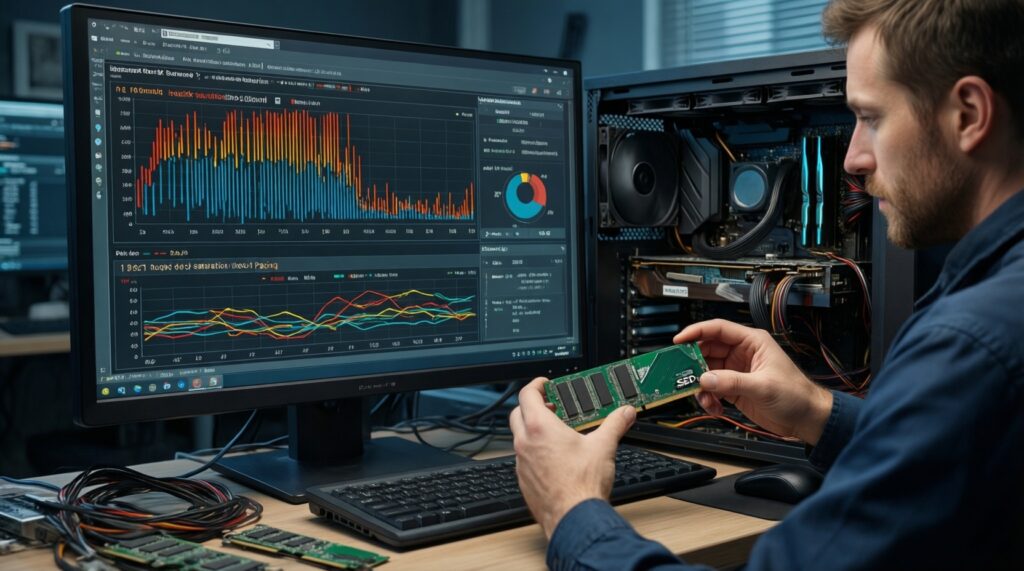
If measurements show persistent disk saturation or constant paging under your normal workload, hardware is the bottleneck. An SSD or more RAM often yields a bigger improvement than additional software tweaks.
When is it worth paying for setup and tuning services?
If you need a documented, repeatable baseline (drivers, startup, backups) or you're losing time to repeated regressions, a professional service can help-especially when it includes a rollback-ready configuration.