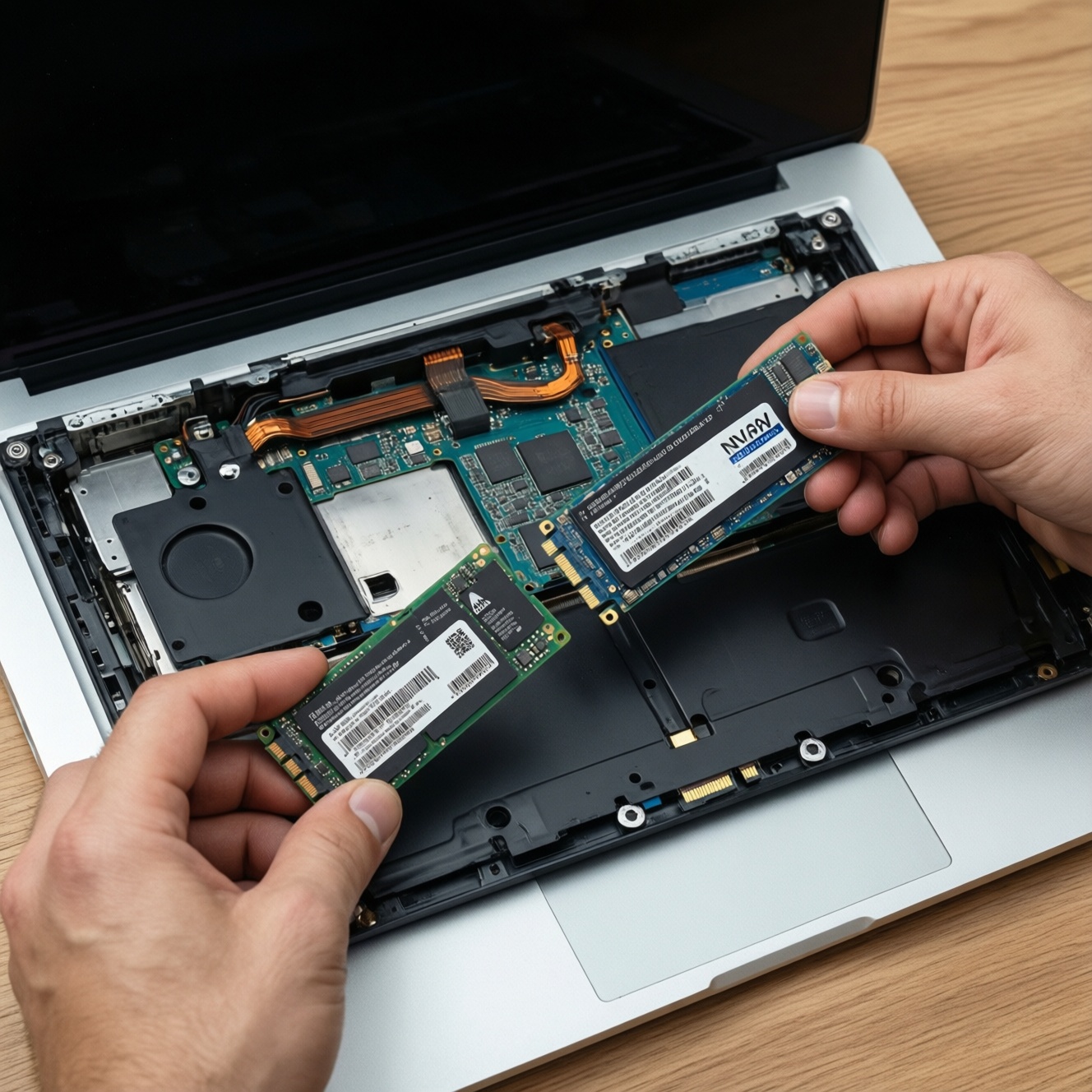
Upgrading an SSD in a laptop/PC is mainly a compatibility check: your slot and BIOS must support the drive's interface (SATA vs PCIe/NVMe), the physical form factor must fit (M.2 key and length), and thermals must be managed so NVMe performance doesn't throttle. Verify these limits first, then plan migration and firmware/TRIM.
Pre-upgrade Essentials: What to Verify First
- Identify the current storage interface: 2.5-inch SATA, M.2 SATA, or M.2 PCIe/NVMe (they are not interchangeable by name alone).
- Confirm M.2 keying and length support: common keys are B, M, and B+M; common lengths are 2230/2242/2260/2280/22110.
- Check motherboard/firmware limits: PCIe generation and lane count (x2 vs x4), NVMe boot support, and whether slots share lanes with other devices.
- Plan thermals: available clearance for a heatsink/thermal pad, airflow path, and whether your workload is sustained (more heat) or bursty.
- Choose a migration method and verify security settings: cloning vs clean install, BitLocker/device encryption status, and UEFI boot mode.
Interface and Form Factor: SATA vs M.2 vs NVMe - keys and dimensions
"SATA", "M.2", and "NVMe" describe different layers. SATA is a storage interface/protocol usually seen as 2.5-inch drives or sometimes on M.2 sticks. M.2 is a physical form factor (a small card), not automatically faster. NVMe is a protocol that typically runs over PCIe on an M.2 slot.
This is why the question SSD SATA กับ NVMe ต่างกัน matters: SATA SSDs (2.5-inch or M.2 SATA) and M.2 NVMe SSDs can look similar, but they require different host support. An M.2 slot may accept only SATA, only PCIe/NVMe, or both-your manual/BIOS and the slot's wiring decide.
For M.2, you must match both keying and length:
- Keying: M-key is common for NVMe; B+M is common for SATA M.2 (some NVMe drives are M-key only).
- Length: 2280 is most common in desktops and many laptops; thin laptops may require 2230 or 2242; some boards support 22110.
| What you see in ads | What it actually implies | Typical compatibility risk | What to verify |
|---|---|---|---|
| 2.5-inch SATA SSD | SATA interface, 7mm/9.5mm drive | Needs a SATA bay/caddy + SATA cable/connector | Bay presence, connector/caddy, thickness clearance |
| M.2 SATA | M.2 card using SATA protocol | Won't work in NVMe-only M.2 slots | M.2 slot supports SATA mode (manual/BIOS) |
| M.2 NVMe (PCIe) | M.2 card using NVMe over PCIe | Won't work in SATA-only M.2 slots; may run at fewer lanes/gen | M-key, supported length, PCIe gen/lanes, NVMe boot |
Motherboard Limits: PCIe lanes, BIOS/UEFI support and slot sharing
Motherboard limits determine whether a drive works at all, whether it boots, and what performance ceiling you'll get. A common "works but slower" case is an NVMe drive running at PCIe Gen3 x2 instead of Gen3 x4 due to slot wiring or lane sharing.
- PCIe generation (Gen): Gen4 SSDs are usually backward-compatible, but they will negotiate down (e.g., to Gen3) if the platform is older.
- Lane count (x2 vs x4): Some M.2 slots are electrically x2; the drive will function but with lower peak throughput.
- NVMe boot support: Older systems may detect NVMe as a data drive but not boot from it without UEFI NVMe modules.
- Slot sharing: Populating an M.2 slot can disable certain SATA ports or reduce GPU/other PCIe slot bandwidth on some boards.
- BIOS settings: Look for Storage/PCIe configuration options like M.2 mode (SATA/PCIe/Auto), CSM vs UEFI, and Secure Boot constraints after cloning.
- Practical check on Windows: In Device Manager, confirm the drive appears under "Disk drives", and in "Storage controllers" you should see an NVMe controller for NVMe SSDs.
Thermal Management: Heatsinks, airflow, and preventing NVMe throttling
NVMe SSDs can throttle under sustained writes/reads. Thermal planning is not about "adding metal everywhere", but ensuring the drive can shed heat in your specific chassis clearance and airflow.
- Thin laptop upgrade scenario: You เปลี่ยน SSD โน้ตบุ๊ก เป็น NVMe in an ultrabook with a bottom cover close to the SSD. A tall heatsink may not fit; a thin thermal pad to the chassis panel often works better than a tower-style heatsink.
- Gaming desktop with GPU heat: The M.2 slot under the GPU gets hot. Prefer the motherboard's included M.2 shield (if present) and ensure the case intake fans feed that area.
- Content creation / long exports: Large sustained writes (scratch/cache) are the most likely to trigger throttling. Consider a drive known for stable sustained behavior and ensure the thermal solution contacts the controller and NAND area properly (as designed by the heatsink/pad).
- External enclosure workflow: If you clone via an NVMe-to-USB enclosure, enclosure thermals matter too; sustained cloning can heat-soak small enclosures and reduce speed.
- Buying question scenario: When evaluating SSD พร้อมฮีตซิงก์ M.2 ซื้อที่ไหน, first check physical clearance (especially laptops) and whether your motherboard already includes an M.2 cover; stacking heatsinks can worsen contact or prevent installation.
Power and Performance Constraints: Voltage, controller differences and sustained IOPS
Most upgrades are electrically "plug-and-play", but power and controller behavior can affect battery life, temperatures, and consistency. Laptops are more sensitive than desktops, especially with high-end Gen4/Gen5-class drives running on older platforms.
Benefits you can realistically expect
- Lower latency and higher parallelism with NVMe (especially noticeable in heavy multitasking, VM work, large project builds).
- More responsive sustained workloads when the platform supports PCIe x4 and the SSD has a competent controller and cache strategy.
- Capacity upgrades without re-cabling: one-slot M.2 laptops benefit most when you ซื้อ SSD M.2 NVMe 1TB to replace a smaller module.
Constraints that often surprise intermediate builders
- Thermal throttling looks like "inconsistent speed": benchmarks start high and then drop sharply on long transfers.
- Platform caps dominate: a Gen4 SSD in a Gen3 x2 slot will not deliver Gen4-class throughput.
- Battery/idle power: some high-performance NVMe drives draw more power under load and may run warmer in laptops, affecting fan behavior.
- Workload mismatch: if your use is mostly boot + browsing, SATA SSDs can feel similar day-to-day despite lower peak numbers-important when you compare อัปเกรด SSD โน้ตบุ๊ก ราคา options.
Laptop-specific Fitment: caddies, connector types, screw positions and bezel clearance
- Myth: "If it's M.2 it will fit." Reality: length (2230-22110) and keying must match, and the standoff/screw position must exist where your SSD ends.
- Missing SATA hardware: some laptops have an empty 2.5-inch bay but no SATA flex cable/caddy in the box; budget time to source the exact part number.
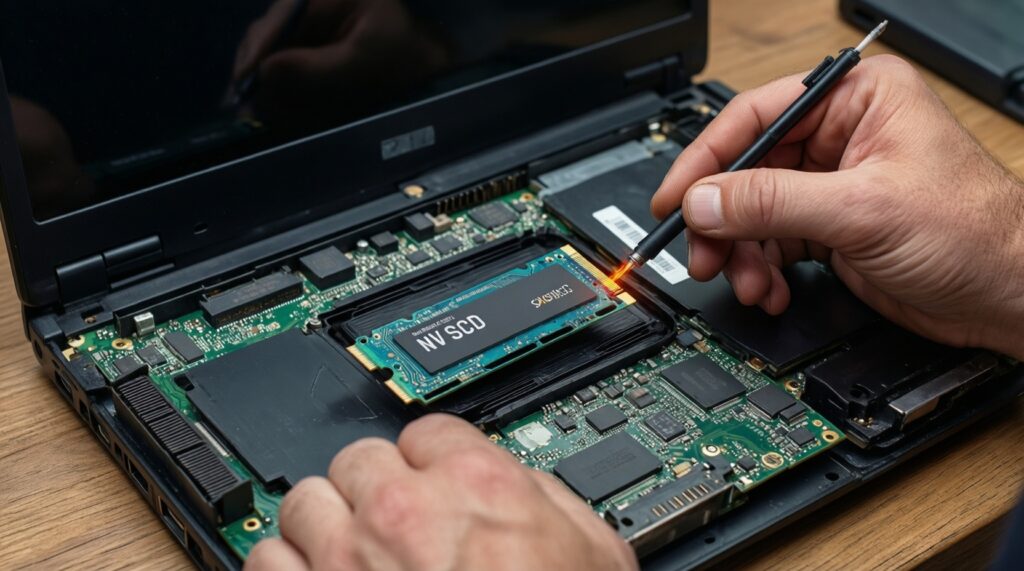
- Single-sided vs double-sided SSD thickness: tight laptop bays may not accept thick/double-sided M.2 modules or modules with tall heatsinks.
- Bezel/panel pressure: if the bottom cover presses on the SSD/heatsink, it can cause poor contact or mechanical stress; use thin pads designed for laptop clearances.
- Slot is present but not wired for NVMe: some systems have an M.2 slot that supports only SATA mode; an NVMe drive won't be detected.
Data Migration and Software: cloning approaches, TRIM, encryption and firmware updates
Choose cloning when you want a fast swap with minimal reinstall; choose a clean install when you're changing partition schemes, OS versions, or you suspect driver/bootloader mess. Before cloning, suspend/turn off device encryption (or confirm you have recovery keys) and ensure you know whether you boot in UEFI mode.
Mini-case: cloning a laptop SATA SSD to an M.2 NVMe SSD
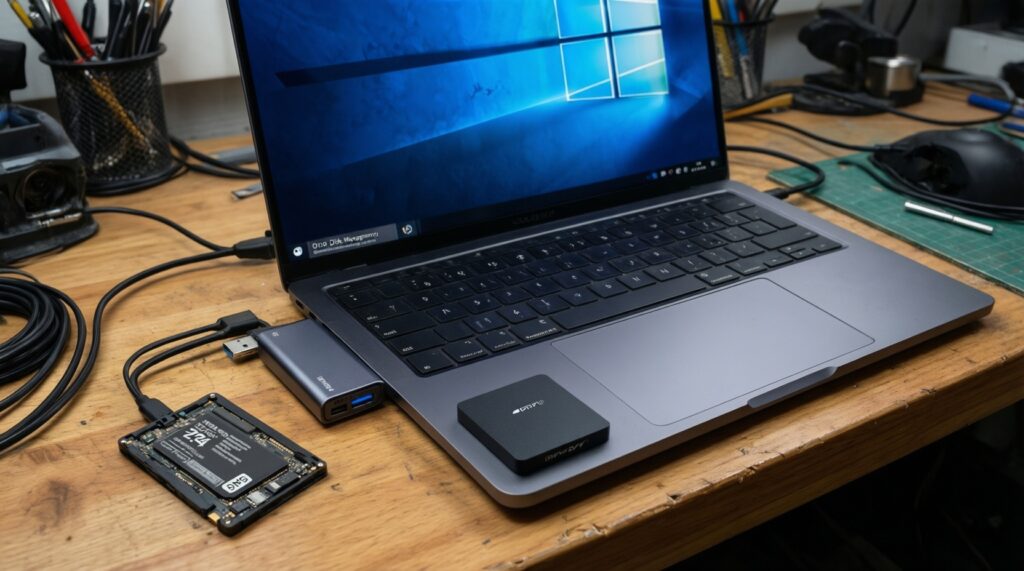
- Install the new SSD (or connect via NVMe-to-USB enclosure if the laptop has only one internal slot).
- In Windows, confirm the new disk is detected in Disk Management (do not format unless your cloning tool requires it).
- Clone all required partitions (EFI System Partition, MSR, OS, Recovery) from source to target.
- Shutdown, replace the old drive (if applicable), then set the new NVMe as first boot device in UEFI.
- After first boot, verify TRIM is enabled and that the system boots in UEFI, not legacy CSM.
Quick verification commands (Windows)
- TRIM: run
fsutil behavior query DisableDeleteNotify(0 typically indicates TRIM enabled). - Boot mode hint: run
msinfo32and check "BIOS Mode" (UEFI is preferred for NVMe boot). - Encryption check: in Settings, search for "Device encryption" or "BitLocker" and confirm status before cloning.
Concise pre-upgrade self-check (step-by-step)
- Confirm your target drive type matches the slot mode (2.5-inch SATA vs M.2 SATA vs M.2 NVMe), including M.2 key and length (2230-22110).
- Verify platform limits: PCIe Gen and lanes for the slot, NVMe boot support, and any lane/SATA-port sharing notes in the manual.
- Check physical clearance: standoff position, cover pressure, and whether a heatsink/thermal pad solution fits your chassis.
- Plan migration: clone vs clean install, confirm UEFI boot, and handle encryption/recovery keys before you start.
- After upgrade, validate: BIOS sees the drive, OS boots, TRIM works, and sustained transfers don't throttle unexpectedly.
Targeted Clarifications and Uncommon Compatibility Scenarios
Can I install an NVMe SSD in an M.2 slot that previously had an M.2 SATA SSD?
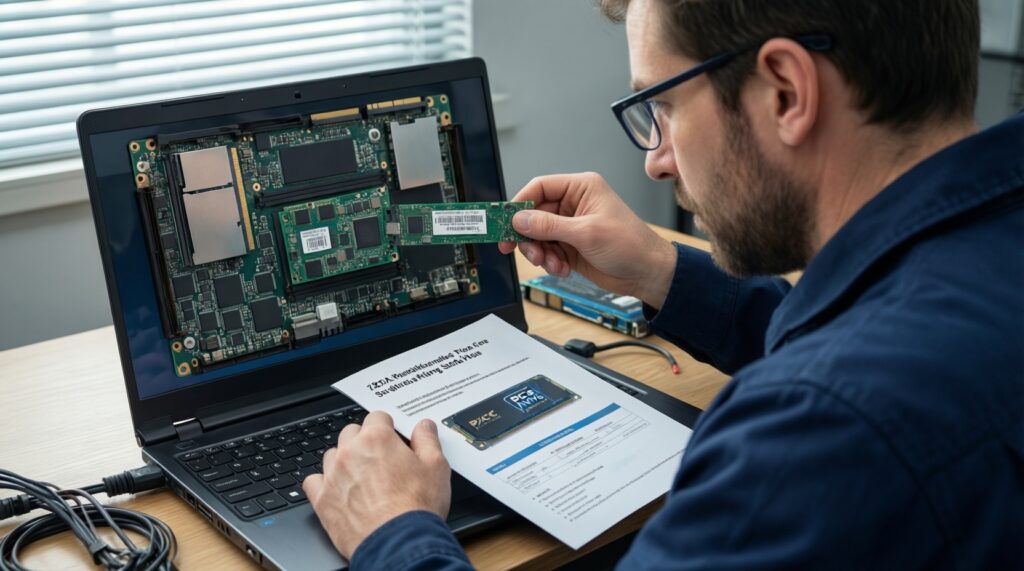
Only if that M.2 slot is wired for PCIe/NVMe (some are SATA-only). Check the laptop/service manual or BIOS storage settings for M.2 mode (SATA/PCIe/Auto).
Will a PCIe Gen4 NVMe SSD work on a Gen3 motherboard?
Usually yes, but it will run at Gen3 speeds. If the slot is x2 instead of x4, it will be further limited.
Why is my new NVMe drive detected in Windows but not bootable?
Your firmware may lack NVMe boot support or you may be in legacy/CSM mode. Switch to UEFI boot and ensure the clone includes the EFI System Partition.
Do I need a heatsink for every M.2 NVMe SSD?
No; it depends on sustained workload and chassis airflow. In laptops, a thin thermal pad to the chassis is often more compatible than a tall heatsink.
Can a double-sided M.2 SSD cause fit issues in laptops?
Yes. Some thin laptops only accept single-sided modules; double-sided can press against the cover or fail to seat properly.
If my motherboard has an M.2 "shield", should I still buy an SSD with a built-in heatsink?
Usually pick one or the other. Stacking heatsinks can worsen contact or block installation; check your board's intended thermal pad thickness and clearance.
Is it normal that upgrading to NVMe doesn't feel much faster for basic use?
Yes. For boot and light apps, SATA SSDs already have low latency; NVMe advantages show more in heavy multitasking and sustained transfers, which matters when comparing อัปเกรด SSD โน้ตบุ๊ก ราคา tradeoffs.