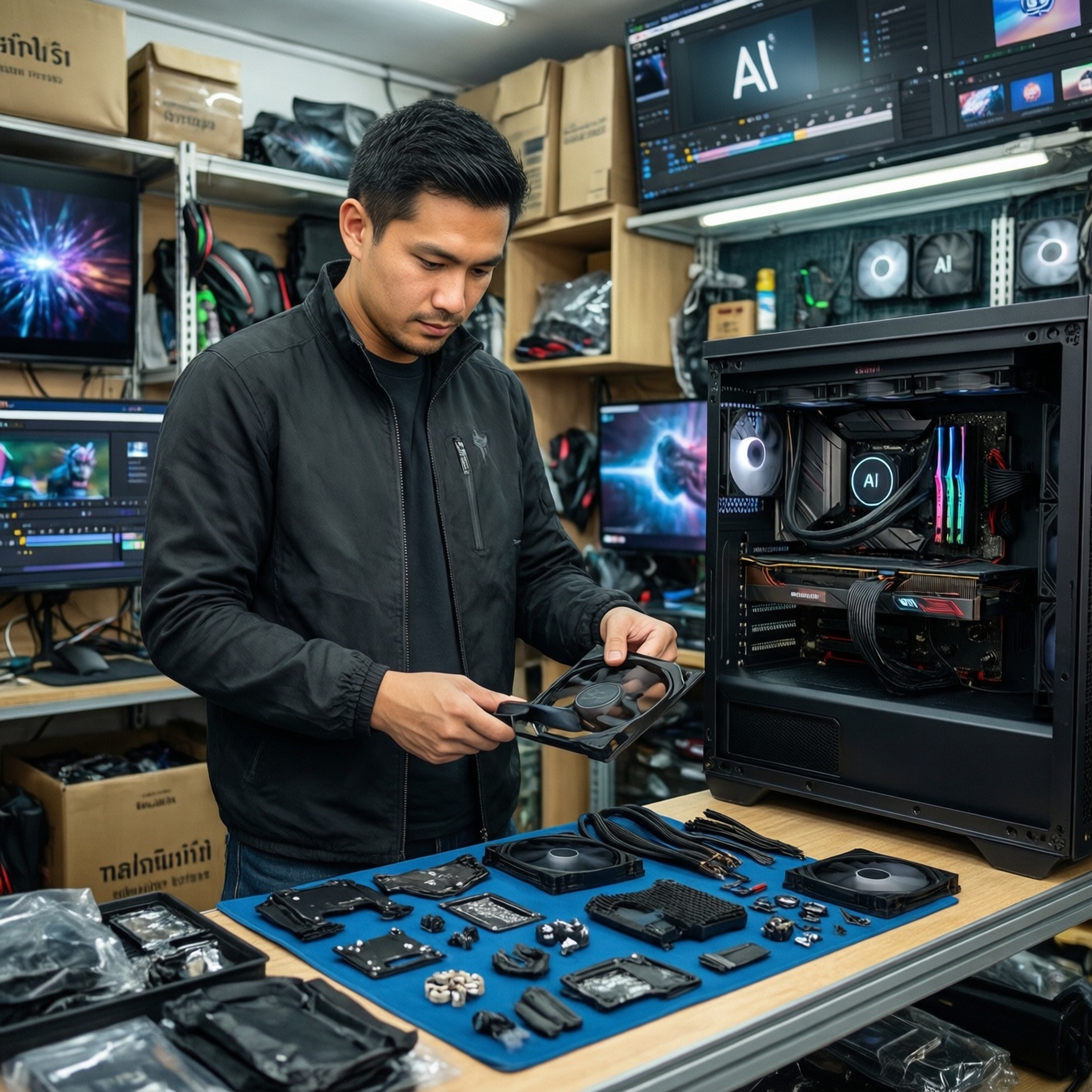
For a limited budget PC in Thailand, build around your real workload: gaming needs a stronger GPU, video editing needs more RAM and fast storage, and entry AI work needs VRAM and stable power delivery. Use clear budget tiers, pick compatible parts (socket, RAM type, PSU connectors), and plan a 1-3 year upgrade path.
Quick reference: best builds per budget and purpose
- Value gaming (≤ $600): prioritize GPU tier first, then a modern 6-core CPU, 16GB RAM, 1TB NVMe; keep motherboard and case basic but reliable.
- "จัดสเปกคอมงบ 20000" (≈ entry tier): target 1080p gaming and general work; leave headroom for a future GPU upgrade.
- Midrange creator/streaming (≈ $800-$1,200): 8-core class CPU, 32GB RAM, 1-2TB NVMe, GPU with a modern encoder for streaming and fast preview.
- "จัดสเปกคอมงบ 30000" (≈ midrange THB tier): balanced CPU+GPU for gaming + editing; prioritize platform longevity (BIOS support, RAM expansion, PSU quality).
- "จัดสเปกคอมตัดต่อวีดีโอ": 32-64GB RAM depending on timelines, separate NVMe for cache/scratch, avoid tiny SSDs that fill up and slow down.
- "จัดสเปกคอมทำ AI": buy as much VRAM as you can reasonably afford; ensure PSU cables/connectors match the GPU; plan cooling and airflow.
Budget Gaming Builds (≤ $600): where to spend and where to save
This tier fits 1080p gaming, esports titles, and everyday work where you want the best FPS per baht. It's also the safest way to start if you plan to upgrade the GPU later.
Don't build this tier if you need heavy 4K editing, large AI training runs, or you already know you'll buy a high-power GPU soon (you may waste money replacing PSU/case/cooling).
Example parts priorities (not brand-locked)
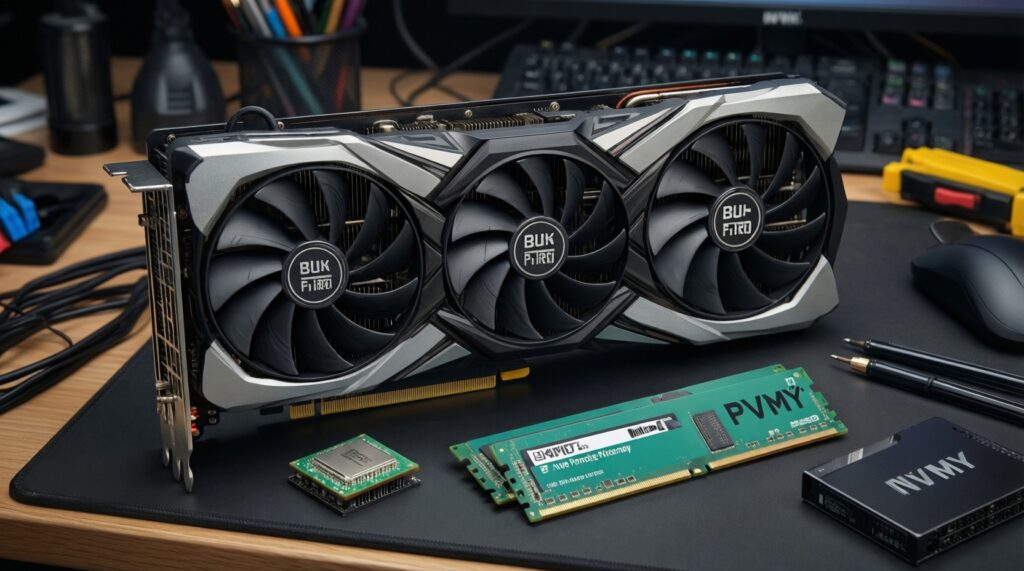
- GPU first (largest share of budget): choose the best value GPU available locally; verify PSU connectors and physical length.
- CPU second: modern 6-core class CPU is usually enough for gaming; avoid overspending here at this budget.
- Memory & storage: 16GB RAM (2 sticks) + 1TB NVMe as a baseline; upgrade RAM later if needed.
- Save on: premium motherboards, RGB, oversized AIO coolers, and high-end cases.
Midrange Systems for Streaming and Multitasking (≈ $800-$1,200)
This tier targets smooth gaming while streaming, heavier multitasking, and more serious creator workloads. It's the "buy once, upgrade later" sweet spot if you choose a solid platform.
What you need before buying parts
- Workload definition: game resolution/refresh rate, editing codec type, AI use (inference vs training).
- Local price check: compare Bangkok retail/online pricing and warranty terms (some GPUs differ by warranty length and service quality).
- Compatibility tools: a PC part compatibility checker (socket, RAM type, case clearance), plus the motherboard QVL as a sanity check for RAM.
- Power and connectors: confirm your chosen GPU's power plugs (8-pin, 12VHPWR) and recommended PSU wattage range.
- OS/app requirements: ensure your NLE/streaming app and AI frameworks support your GPU and driver versions.
Compact comparison table (use as a shopping checklist)
| Tier / Purpose | CPU target | GPU target | RAM | Storage layout | PSU & cooling notes | Best next upgrade (1-3 years) |
|---|---|---|---|---|---|---|
| ≤ $600 Gaming | Modern 6-core | Best value GPU in budget | 16GB (2×8) | 1TB NVMe | Quality 80+ unit; airflow case; stock/entry tower cooler | GPU, then RAM to 32GB |
| $800-$1,200 Streaming + multitask | 8-core class | Midrange GPU with modern encoder | 32GB (2×16) | 1-2TB NVMe + optional second drive | Extra PSU headroom; quieter cooling; ensure case GPU clearance | GPU or add dedicated scratch NVMe |
| Editing-focused | 6-12 cores depending on timeline complexity | Midrange GPU (VRAM matters for effects) | 32-64GB | NVMe OS/apps + NVMe scratch + large project drive | Sustained load cooling; stable PSU; prioritize low throttling | More RAM + faster/larger scratch |
| Entry AI/ML (hobby + inference) | 6-12 cores (don't starve data loading) | Max VRAM you can afford | 32GB+ | Fast NVMe for datasets + capacity drive | Connector match is critical; airflow; consider undervolting | GPU (VRAM), then RAM and storage |
Affordable Video Editing Workstations: codecs, RAM and GPU needs
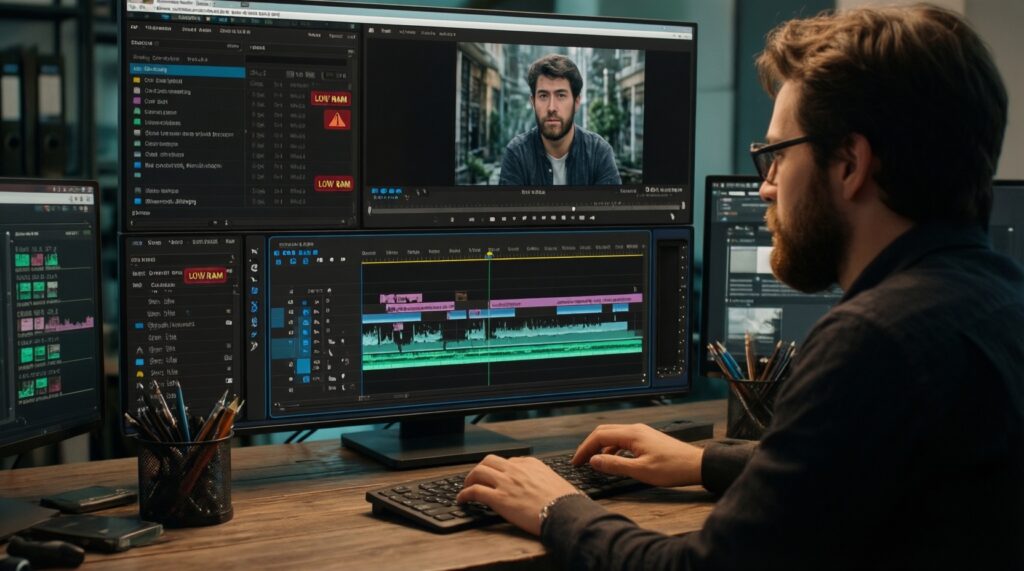
Risks and limits to consider first (risk-aware):
- Codec mismatch: some codecs are CPU-heavy; others benefit from GPU decode/encode. If your workflow depends on a codec your GPU doesn't accelerate, you'll see stutter.
- RAM pressure: insufficient RAM forces swapping to disk, which kills timeline responsiveness.
- Scratch disk bottlenecks: putting OS, apps, cache, and media on one small SSD leads to slowdowns as it fills.
- Thermal throttling: long renders expose weak cooling and bad case airflow.
- Power instability: low-quality PSUs can cause random crashes under render/export load.
-
Profile your editing workload
List your common resolutions (1080p/4K), frame rates, codecs (H.264/H.265/ProRes-like intermediates), and how many layers/effects you use. This tells you whether you're CPU-bound (decode/effects) or GPU-bound (effects/color/AI tools).- If you routinely use long-GOP camera codecs and see choppy playback, plan for stronger decode support and/or proxies.
- If you use lots of noise reduction, stabilization, or AI upscaling, favor more GPU performance and VRAM.
-
Set RAM and storage as the "responsiveness base"
Start at 32GB RAM for serious editing; go higher if you keep many apps open or work with heavy timelines. Use at least one NVMe for OS/apps and a separate fast NVMe for cache/scratch when possible.- Keep 15-25% free space on SSDs to avoid performance drops when nearly full.
- Prefer two-stick RAM kits (dual channel) for better bandwidth and stability.
-
Choose a GPU that matches your NLE features
Pick a GPU with enough VRAM for your timeline resolution, effects, and monitors. Ensure your editing software supports GPU acceleration on your chosen platform and driver branch.- For many creator tools, modern hardware encoders help export speed and streaming quality.
- More VRAM reduces "out of memory" errors when stacking effects and high-res assets.
-
Balance CPU cores vs single-core performance
Exports can use many cores, but timeline interactivity often benefits from strong single-core performance. Favor a well-rounded CPU tier rather than chasing core counts while neglecting cooling and motherboard power delivery. -
Validate thermals and stability before committing the build
Plan cooling for sustained loads (renders), not just short gaming bursts. After assembly, run a combined CPU+GPU stress test and a real export test to confirm no throttling or crashes.- If temps are high, improve case airflow first (fan placement) before buying a bigger cooler.
- If crashes happen under load, re-check PSU, GPU power cabling, and memory settings (disable aggressive XMP/EXPO if needed).
Entry-Level AI/ML Rigs: practical specs for hobby models and inference
- GPU VRAM target defined: you know the approximate VRAM needs of the models you'll run (text/image), and you chose VRAM accordingly.
- Correct GPU power connectors: PSU has the exact connectors required; no unsafe adapters or loose seating.
- Enough system RAM: 32GB+ if you load larger datasets or run multiple tools; avoid constant disk swapping.
- Fast dataset drive: NVMe storage for active datasets; capacity drive for archives.
- Cooling headroom: case airflow supports sustained GPU loads (inference loops, fine-tuning) without constant throttling.
- Driver/framework alignment: your GPU drivers and ML framework versions are compatible (plan updates carefully).
- Stable power: reputable PSU, proper grounding, and a surge protector/UPS if your area has unstable mains.
- Upgrade plan written down: next step is either more VRAM (GPU), more RAM, or more NVMe-based on your first bottleneck.
Component trade-offs: choosing CPU, GPU, RAM and storage by workload
- Overspending on CPU for gaming builds: for จัดสเปกคอมเล่นเกม, the GPU usually dictates FPS; a pricey CPU paired with a weak GPU is a common imbalance.
- Buying a GPU without checking PSU connectors: "it fits" is not enough-power plugs and cable rating matter for stability and safety.
- Single-stick RAM: 1×16GB often reduces bandwidth versus 2×8GB/2×16GB, hurting minimum FPS and creator workloads.
- Underestimating storage: small SSDs fill quickly with games, caches, and project files; once nearly full, performance and workflow degrade.
- Ignoring case clearance: GPU length, CPU cooler height, and radiator support must match the case specs.
- Chasing maximum watts instead of PSU quality: a higher watt label doesn't guarantee stable voltage delivery under spikes.
- Running "auto" memory overclocks blindly: unstable XMP/EXPO settings can look like random app crashes or corrupted renders.
- Mixing old and new drives without a plan: using a slow HDD for active editing cache makes the whole system feel laggy.
- AI builds that starve data loading: a strong GPU paired with too little RAM/slow storage wastes GPU time waiting for data.
Support components: PSUs, cooling, motherboards and future upgrades
- Option A - Upgrade-friendly motherboard: choose a board with more M.2 slots and stronger VRM if you plan a CPU upgrade within 1-3 years; appropriate for "จัดสเปกคอมงบ 30000" where you want longevity.
- Option B - PSU with headroom: pick a reputable PSU with extra capacity and the right GPU connectors if a GPU upgrade is likely; appropriate for AI and streaming builds with transient power spikes.
- Option C - Air cooling focus: a quality tower air cooler + high-airflow case is often the simplest, lowest-risk route for sustained editing/AI loads; appropriate when you value reliability and easy maintenance.
- Option D - Storage-first expansion: add a second NVMe (scratch/datasets) before changing CPU/GPU when your bottleneck is loading, caching, or media management; appropriate for "จัดสเปกคอมตัดต่อวีดีโอ".
Practical concerns, compatibility checks and quick fixes
How do I avoid buying incompatible CPU and motherboard?
Match the CPU socket and chipset generation, then confirm the exact CPU is supported by the motherboard BIOS version. If the board may ship with an older BIOS, choose one with BIOS flashback or ask the seller to update it.
Is 16GB RAM enough for gaming and light editing?
For gaming it's often workable, but heavy multitasking and editing benefit from 32GB to reduce swapping. If you start with 16GB, use 2 sticks and leave two slots free for an easy upgrade.
My PC reboots under load-what should I check first?
Check GPU power cables (fully seated), then PSU quality/capacity, then CPU/GPU temperatures. If you enabled XMP/EXPO, try default RAM settings to rule out memory instability.
Do I need a separate scratch/cache drive for video editing?
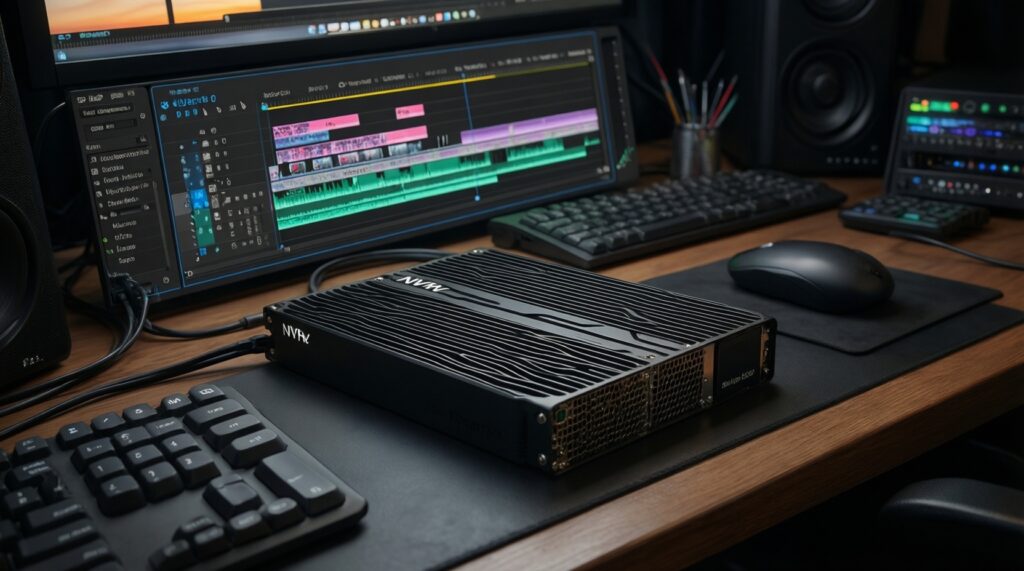
It's not mandatory, but it's a high-impact upgrade when timelines stutter or exports slow down. A dedicated fast NVMe for cache/scratch keeps OS and projects from competing for the same disk.
For จัดสเปกคอมทำ AI, what matters more: CPU or GPU?
For most hobby AI and inference, GPU VRAM and GPU capability matter most. CPU still matters for data loading and preprocessing, so avoid pairing a strong GPU with an entry CPU that bottlenecks pipelines.
Can I reuse an old case and PSU to save budget?
Reusing a case is usually fine if airflow and clearances are adequate. Reusing a PSU is higher risk; only do it if it's a reputable model in good condition with the right connectors and enough headroom.