
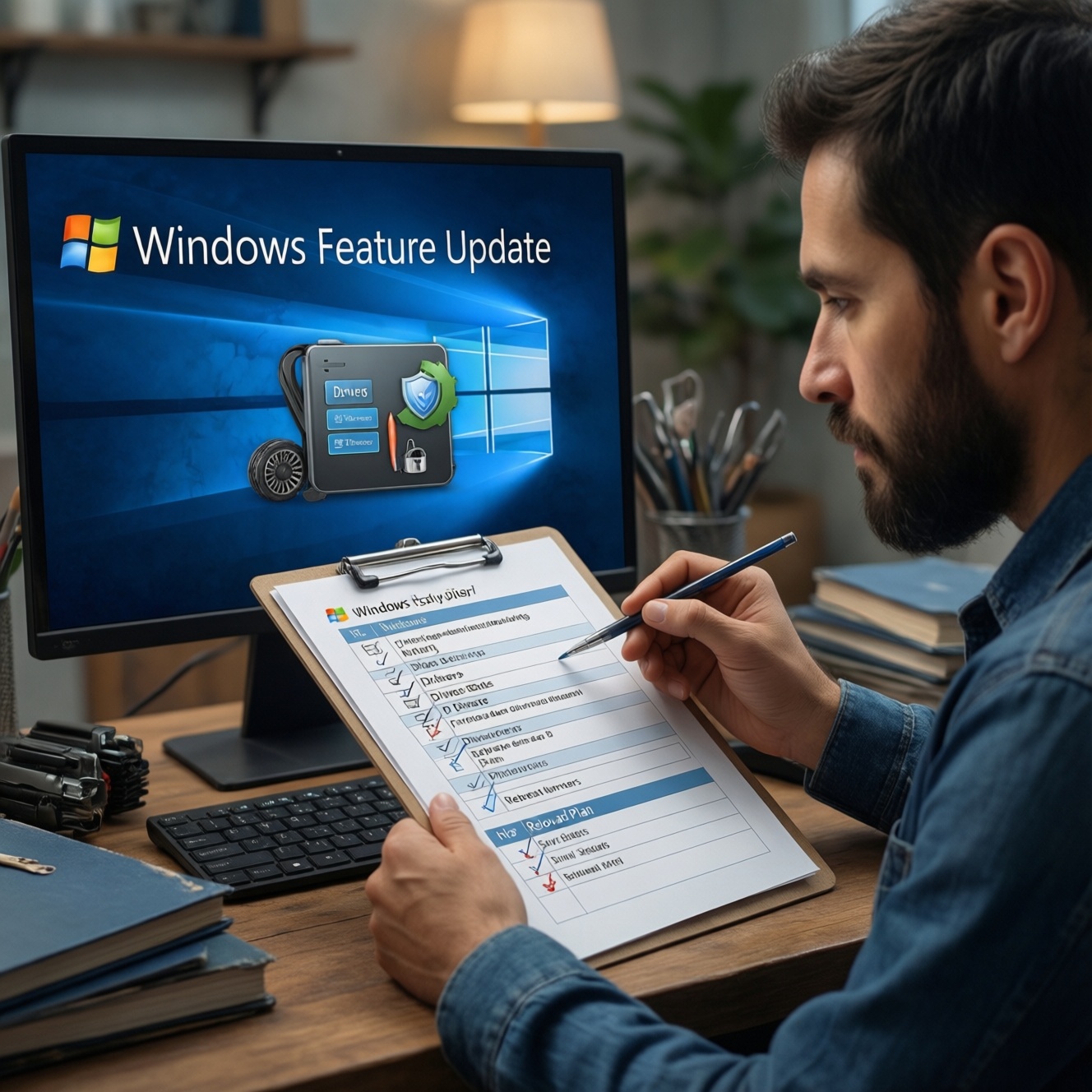
A major Windows feature update (such as Windows 11 24H2) changes UI defaults, driver behavior, and security baselines, so preparation matters more than clicking "Install." Use the checklist below to back up, verify hardware, free disk space, update firmware/drivers, and plan rollback. This reduces common boot, Wi‑Fi, printer, and performance issues after the upgrade.
Executive summary: critical changes at a glance
- Feature updates can reset defaults (browser, power plans, privacy toggles) and re-enable some services.
- Driver re-detection is the #1 cause of post-update breakage (Wi‑Fi, Bluetooth, GPU, printers).
- Security posture may tighten (SmartScreen, virtualization-based security), impacting older tools and tweaks.
- Disk space and third-party antivirus conflicts are common preventable blockers.
- Have a rollback plan before you start (restore point + BitLocker recovery key + local admin access).
What's New in the Latest Windows Release
Big updates are best for users who need ongoing security fixes, improved app compatibility, and current drivers-especially on supported Windows 11 hardware. Consider delaying if you rely on niche peripherals, a critical workstation workflow, or you are currently stable and mid-project.
- Good time to update: you can schedule downtime, your OEM drivers are current, and you can test key apps.
- Delay the update: you see widespread reports for your device class, you depend on legacy VPN/endpoint tools, or you cannot afford downtime.
If you're specifically searching for อัปเดต Windows 11 24H2 ปัญหา, treat it as a signal to do extra driver/firmware preparation and keep rollback options ready.
User Interface and Workflow Changes That Matter
Plan for small but disruptive workflow shifts: Settings layout, notifications, default apps, taskbar behavior, and File Explorer integration can change between feature updates.
What you should have ready (access, tools, credentials)
- Admin access: a local administrator account (not only Microsoft Account sign-in).
- Backup target: external SSD/HDD or a reliable network share.
- Recovery info: BitLocker recovery key (if device encryption is enabled).
- Install media: a Windows USB installer for recovery and "in-place repair" scenarios.
- License plan: if your activation is unclear, decide whether you need to ซื้อคีย์ Windows 11 แท้ from an authorized channel (avoid gray-market keys).
Compact comparison: old vs new behavior you'll notice
| Area | Before the feature update | After the feature update | What to do |
|---|---|---|---|
| Default apps & links | Your chosen defaults typically stay unchanged | Some associations may revert (browser/PDF/image handlers) | Re-check Settings > Apps > Default apps; confirm work-related file types |
| Device drivers | Stable driver stack you already tested | Windows may install newer "compatible" drivers automatically | Update OEM drivers first; keep last-known-good Wi‑Fi/GPU drivers ready |
| Security toggles | Custom exclusions/tweaks might persist | Security baselines can harden, impacting tools (scripts, unsigned drivers) | Verify Defender, SmartScreen, and virtualization settings; retest critical apps |
Under-the-Hood: Performance, Security, and Compatibility
Follow this safe upgrade path: stabilize the system first, then upgrade, then validate. If you're comparing อัปเกรด Windows 11 ราคา versus staying on your current version, include the "hidden cost" of downtime-preparation below reduces it.
-
Confirm your hardware and firmware readiness
Do a quick spec check (CPU generation, TPM, Secure Boot) and ensure BIOS/UEFI is not outdated. For Thai searches like เช็กสเปกเครื่องสำหรับ Windows 11, focus on TPM 2.0 + Secure Boot + supported CPU, then verify drivers exist for your exact model.
- Check Secure Boot: run
msinfo32→ "Secure Boot State" - Check TPM: run
tpm.msc→ "Specification Version"
- Check Secure Boot: run
-
Back up data and capture recovery essentials
Back up user folders and any app-specific data, then record BitLocker recovery keys and sign-in methods. This is the difference between a minor hiccup and a full rebuild.
- Create a restore point (if enabled) and keep a USB recovery drive if possible
- Export Wi‑Fi profiles if you manage many networks:
netsh wlan export profile key=clear
-
Clean up disk space and reduce startup conflicts
Free space and remove risky third-party hooks (tuning tools, old VPN clients, legacy antivirus). This prevents install loops and post-update slow boots.
- Uninstall: unused OEM utilities, disk "optimizers," outdated printer suites
- Temporarily disable non-essential startup apps (Task Manager > Startup)
-
Update OEM drivers first, then run Windows Update
Install BIOS/UEFI updates and OEM chipset/network/audio/GPU drivers from your device maker where available. Then run Windows Update to pick up prerequisites before the feature update.
- Prefer OEM Wi‑Fi/Bluetooth packages on laptops (they often include power-management fixes)
- On desktops, verify GPU driver is current (NVIDIA/AMD/Intel)
-
Install the feature update in a controlled way
Use the standard Windows Update path first. If Windows Update fails repeatedly, use an in-place upgrade via official installation media to preserve apps and files.
- Keep the device on AC power; avoid updating on unstable Wi‑Fi
- Disconnect non-essential peripherals (older printers, capture cards, USB hubs)
-
Validate system health and activation after reboot
Immediately verify device activation, drivers, and core workflows. If activation is broken and you're considering ซื้อคีย์ Windows 11 แท้, resolve edition mismatch first (Home vs Pro) before purchasing anything.
- Activation: Settings > System > Activation
- Driver health: Device Manager > check for unknown devices
Fast mode: minimal-risk upgrade flow
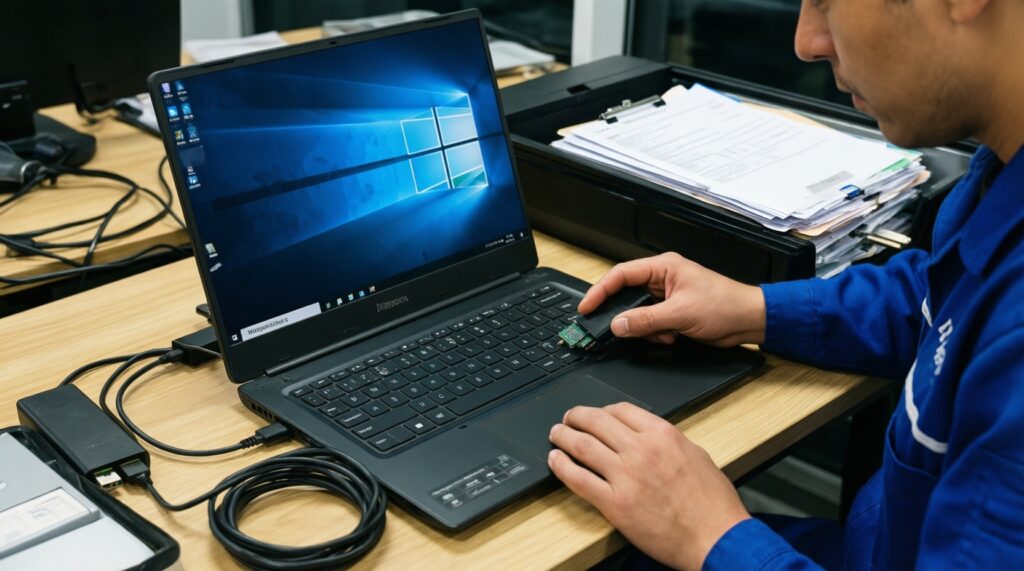
- Update BIOS/UEFI + OEM chipset/Wi‑Fi/GPU drivers, then reboot once.
- Back up user data and record BitLocker recovery key; unplug non-essential USB devices.
- Free disk space; uninstall old VPN/antivirus/tuning tools temporarily.
- Run Windows Update and install the feature update; keep AC power connected.
- After reboot, confirm activation, Wi‑Fi, audio, printer, and performance baselines.
Common Post-Update Problems and Diagnostics
Use this checklist to confirm the upgrade succeeded and to quickly isolate the common breakpoints.
- Windows version/build matches expectation: run
winverand confirm the feature update applied. - Activation is valid: Settings > System > Activation (resolve edition mismatch before buying a key).
- Disk health and free space: ensure the system drive has working headroom; check Storage settings.
- Wi‑Fi/Bluetooth stability: Device Manager > Network adapters; check for warning icons.
- GPU driver loaded correctly: test display resolution/refresh rate; check Device Manager > Display adapters.
- Windows Update is not stuck: Settings > Windows Update; no repeated "Failed" on the same KB.
- Event Viewer errors are not spiking: check Windows Logs > System for repeated critical driver failures.
- Core apps still launch: Office/browser/VPN/line-of-business apps; reconfigure permissions if prompted.
- Printers and scanners: print a test page; re-add device if WSD/driver model changed.
Quick diagnostic commands (safe, read-only)
- System file check:
sfc /scannow - Repair component store (if SFC can't fix files):
DISM /Online /Cleanup-Image /RestoreHealth - See failed updates (PowerShell):
Get-WindowsUpdateLog(then inspect the generated log)
Step-by-Step Checklist to Prepare Your PC
These are the preventable mistakes that most often lead to "update failed," boot loops, or degraded performance afterward-especially relevant if you're comparing ลง Windows 11 ใหม่ ราคา (clean install cost) versus preparing well and upgrading safely.
- Skipping a backup (10-60+ min). Copy user folders and export critical app data before any feature update.
- Not checking BitLocker recovery (2-5 min). Confirm you can access the recovery key before reboot-heavy installs.
- Updating on low battery or unstable power (0 min). Keep AC power connected on laptops.
- Too little free disk space (10-30 min). Clear temporary files and uninstall unused apps; avoid "last GB" scenarios.
- Leaving legacy antivirus/VPN hooks enabled (5-20 min). Temporarily remove or disable incompatible security tools.
- Outdated BIOS/UEFI and chipset drivers (15-45+ min). Update firmware and OEM drivers first to avoid device detection issues.
- Too many peripherals connected (1-2 min). Disconnect non-essential USB devices to reduce driver conflicts.
- Upgrading without a rollback plan (5-15 min). Ensure restore options exist and you know how to reach Advanced Startup.
Pre-update timing plan (realistic scheduling)
- Prep (30-90 min): drivers/firmware, disk cleanup, backup verification.
- Install window (45-120+ min): download + install + multiple reboots (device-dependent).
- Validation (15-45 min): activation, device checks, printing, VPN, performance sanity check.
Rollback, Recovery and Advanced Troubleshooting
Choose the least disruptive option that matches your symptoms and how critical the machine is.
-
Rollback to the previous version (when the update "works" but breaks your workflow)
Use Settings > System > Recovery > Go back (if available) soon after updating. This is best when drivers/apps regress and you need immediate stability.
-
In-place repair upgrade (when Windows is unstable but still boots)
Run official Windows installation media and choose to keep files and apps. Use this when Windows Update is broken or system files are corrupted.
-
System Restore or Startup Repair (when boot issues appear)
Use Advanced Startup options to run Startup Repair or restore a known good point. Best when a driver or update causes boot loops.
-
Clean install (when the system is beyond repair or you want a fresh baseline)
This is the most disruptive path and often why people ask about ลง Windows 11 ใหม่ ราคา. Do it when malware, deep corruption, or years of accumulated software make troubleshooting uneconomical.
Concise answers for common update scenarios
Should I update immediately or wait?
Update if you can schedule downtime and have backups plus current OEM drivers. Wait if you depend on specialized peripherals or a mission-critical setup with no time to validate.
How do I quickly check if my PC is eligible for Windows 11?
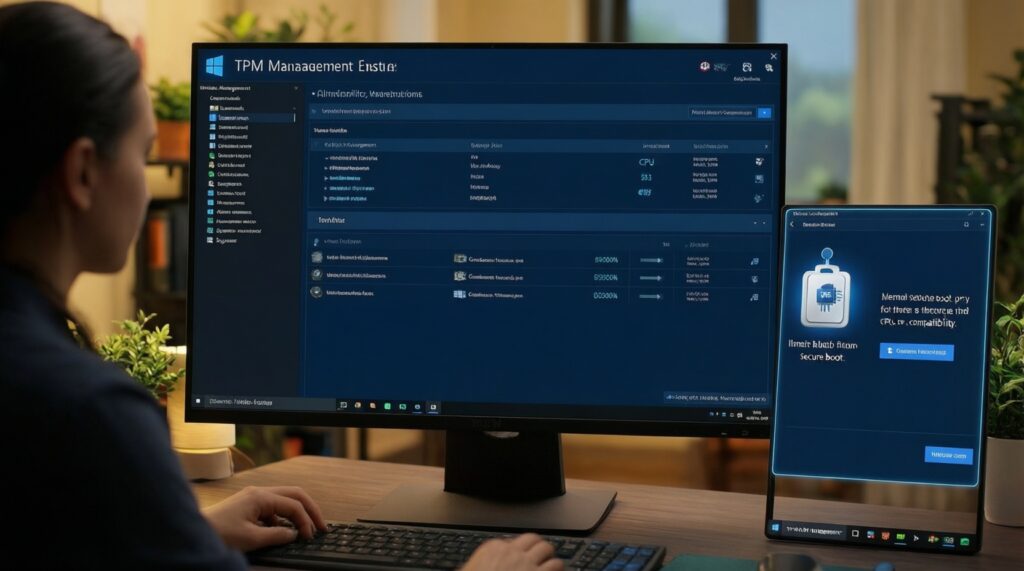
Verify TPM 2.0 and Secure Boot via tpm.msc and msinfo32. For users searching เช็กสเปกเครื่องสำหรับ Windows 11, also confirm your CPU model is supported and OEM drivers exist.
My Wi‑Fi stopped working after the update-what's the first fix?
In Device Manager, remove the Wi‑Fi adapter (uninstall device) and reboot to re-detect. If it persists, install the OEM Wi‑Fi driver package instead of the generic Windows one.
Windows Update fails repeatedly-should I do a clean install?
Try an in-place repair upgrade first to keep files and apps. Choose a clean install only if Windows cannot stay stable or you want a full reset.
Do I need to buy a new Windows key after updating?
Usually no-digital licenses reactivate automatically if edition matches. If activation fails, diagnose edition mismatch before deciding to ซื้อคีย์ Windows 11 แท้.
What does "อัปเกรด Windows 11 ราคา" depend on in practice?
Cost depends on whether you already have a transferable license and whether downtime forces paid support. Budget time for backups, validation, and potential driver fixes.
What are the most common "อัปเดต Windows 11 24H2 ปัญหา" categories?
Driver regressions (Wi‑Fi/GPU/printers), changed defaults, and security-feature conflicts are the most frequent. Preparation-especially OEM drivers and rollback readiness-reduces impact.