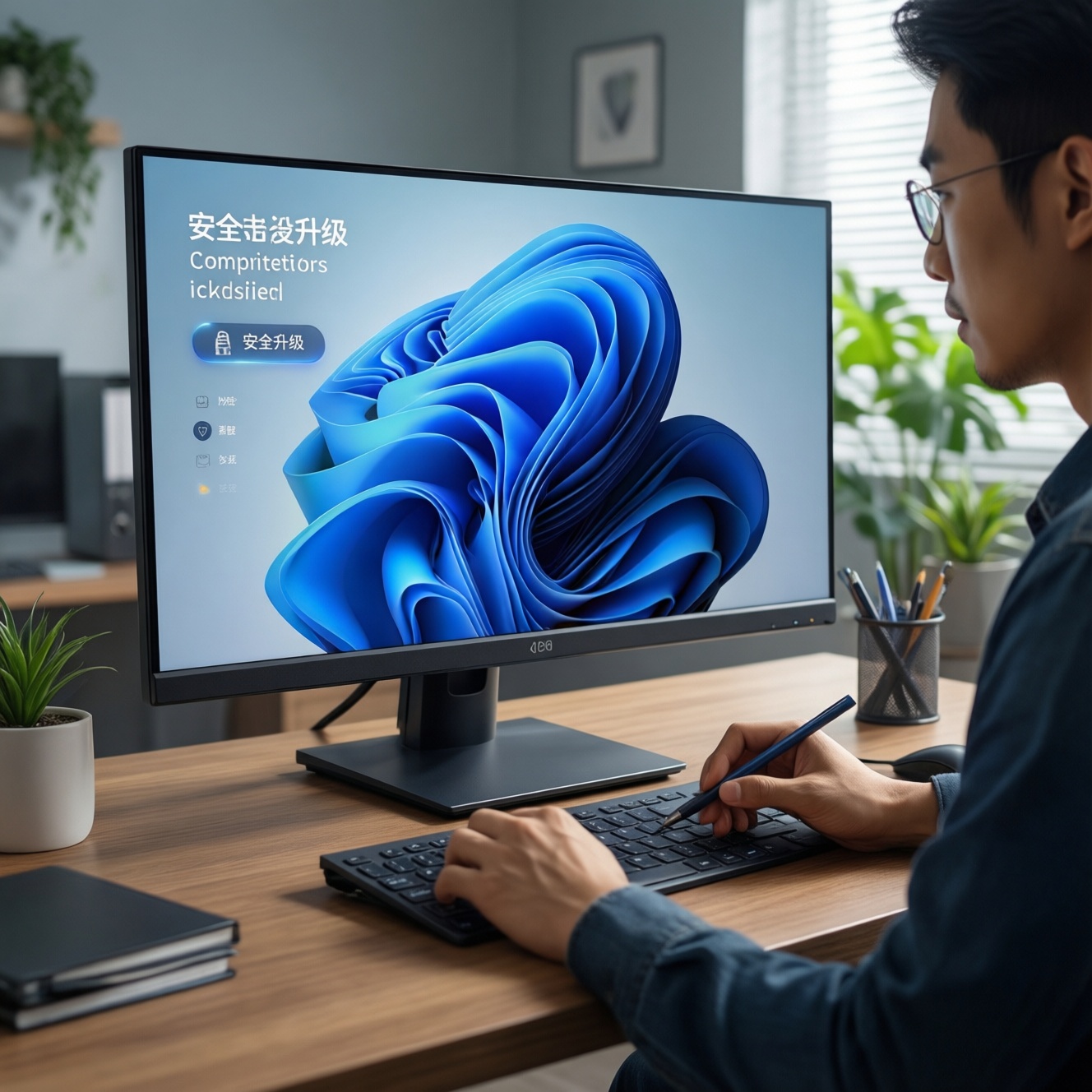


For a cost-effective PC upgrade this year, identify the current bottleneck before buying anything. Upgrade RAM or an SSD when the system feels slow, choose a GPU when games are graphics-limited, and replace the CPU only when processor usage limits performance. Verify motherboard, power supply, cooling, case clearance, and BIOS compatibility first.
First Component to Upgrade for Best Price-to-Performance
- Measure CPU, GPU, RAM, disk usage, temperatures, and frame-time behaviour during your normal workload.
- Choose เพิ่ม RAM คอมพิวเตอร์ when memory pressure causes stuttering, application reloads, or heavy paging.
- Consider an SSD รุ่นไหนดี decision when booting, loading, file transfers, or application launches are the main delays.
- Choose a GPU when resolution, visual quality, or frame rate is limited while the CPU has available headroom.
- Search for CPU รุ่นไหนดี only after confirming that the motherboard, BIOS, cooler, and power delivery support the intended processor.
- For gaming, compare การ์ดจอรุ่นไหนดี options at your target resolution instead of selecting solely by model name.
Assessing Your Current Bottleneck: How to Identify CPU/GPU/RAM/SSD Limits
This process suits users who want to improve gaming, creative work, multitasking, or general responsiveness without replacing the whole PC. Do not upgrade immediately if performance is already acceptable, the system has unresolved crashes, or the desired component cannot be confirmed as compatible.
Quick diagnostic sequence
- Reproduce the problem with your usual game, application, or file workflow.
- Monitor CPU usage, per-core activity, GPU usage, VRAM, RAM usage, disk activity, temperatures, and clock speeds.
- Repeat the test after closing background applications and checking for thermal throttling.
- Identify the resource that remains near its limit while the others have meaningful headroom.
- Confirm that the limitation is repeatable before purchasing hardware.
| Component | Typical symptom | Likely upgrade value | Longevity consideration |
|---|---|---|---|
| CPU | Low GPU usage with high CPU or one-core load; slow simulation or compiling | High when processor-limited | Check socket, BIOS, cooling, and platform support |
| GPU | Low frame rates at the selected resolution with high GPU load | High for graphics-heavy workloads | Check VRAM, PSU, dimensions, and display goals |
| RAM | Paging, stutter, application reloads, or slow multitasking | Often efficient when capacity is insufficient | Match capacity, modules, speed, and platform limits |
| SSD | Slow boot, application launches, loading, or file operations | High for responsiveness when using a hard drive or old SSD | Check interface, slots, heatsink space, and migration plan |
CPU Upgrades: When a New Processor Delivers Tangible Gains
A CPU upgrade is appropriate when processor load repeatedly limits frame rates, productivity workloads, or system responsiveness. It is less suitable when the GPU is fully loaded, memory capacity is exhausted, or slow storage is the main complaint.
What you need before installation
- Motherboard model and current BIOS version.
- Supported CPU list from the motherboard manufacturer.
- CPU cooler with confirmed mounting support and adequate thermal capacity.
- Thermal paste, a suitable screwdriver, and a clean, static-safe workspace.
- Important files backed up before changing hardware.
Update the BIOS only according to the motherboard manufacturer's instructions and avoid interrupting power during the update. After installation, load stable default settings, confirm temperatures and clock speeds, then test the applications that originally exposed the bottleneck.
GPU Priorities: Balancing Frame Rates, Resolutions, and Budget
Use the following sequence when deciding which graphics card fits the system. It is designed to reduce the risk of buying a powerful card that the monitor, CPU, power supply, or case cannot support.
Risks and limitations:
- Performance varies by game, application, resolution, settings, drivers, and CPU capability.
- A card that fits physically may still exceed the power supply's capacity or connector requirements.
- Used hardware requires additional checks for condition, warranty, temperature, and operating history.
- Do not treat benchmark results from another system as a guaranteed result for your PC.
-
Define the target display experience
Write down the monitor resolution, refresh rate, and the games or applications that matter most. Select the upgrade around this target rather than around the highest available specification.
-
Confirm the current graphics limit
Monitor GPU usage, VRAM use, CPU load, and frame-time consistency during a repeatable scene. High GPU utilisation with unsatisfactory frame rates usually supports a GPU-first path.
- GPU-limited: reduce resolution or quality and observe a meaningful performance change.
- CPU-limited: GPU utilisation remains lower while CPU load or a single core is heavily occupied.
-
Check platform compatibility
Measure available case clearance, identify the PCIe slot, verify power connectors, and confirm that the PSU meets the card manufacturer's requirements.
-
Compare practical value
Compare expected performance at the target resolution, power draw, cooling noise, warranty, and total purchase cost. Prioritise a balanced card over one that requires several additional upgrades.
-
Install and validate safely
Shut down, disconnect power, remove the old driver or use the recommended driver procedure, install the card securely, and connect every required power lead. Test temperatures, stability, frame times, and display outputs before keeping the packaging.
Memory and Storage: Practical RAM and SSD Choices for Responsiveness
RAM improves responsiveness when the system is short of memory; it does not automatically increase performance when capacity is already sufficient. An SSD is usually the more noticeable change when the operating system or applications still run from a hard drive. For either upgrade, verify the interface, capacity, physical format, and platform support.
| Upgrade path | Choose it when | Cost profile | Expected benefit | Longevity |
|---|---|---|---|---|
| Add or replace RAM | Memory usage reaches the platform limit during normal work | Usually moderate | Smoother multitasking and less paging | Good if capacity and module compatibility are confirmed |
| Install an SSD | The system uses a hard drive or an aging, nearly full SSD | Usually moderate | Faster boot, loading, and file access | Good when capacity and backup strategy are adequate |
| Replace with a faster SSD | The workload actually benefits from higher storage throughput | Variable | Useful for sustained transfers and selected professional workloads | Depends on workload, cooling, and endurance specifications |
Result verification checklist
- System detects the full installed RAM capacity.
- Memory operates at a stable supported setting.
- Operating system recognises the SSD at the expected capacity.
- Boot order remains correct after installation or cloning.
- Applications open without errors or missing files.
- Paging activity decreases during the same workload.
- Boot and loading behaviour improves in repeatable tests.
- Temperatures remain within the manufacturer's recommended operating range.
Compatibility Checklist: Motherboard, PSU, Cooling and BIOS Considerations
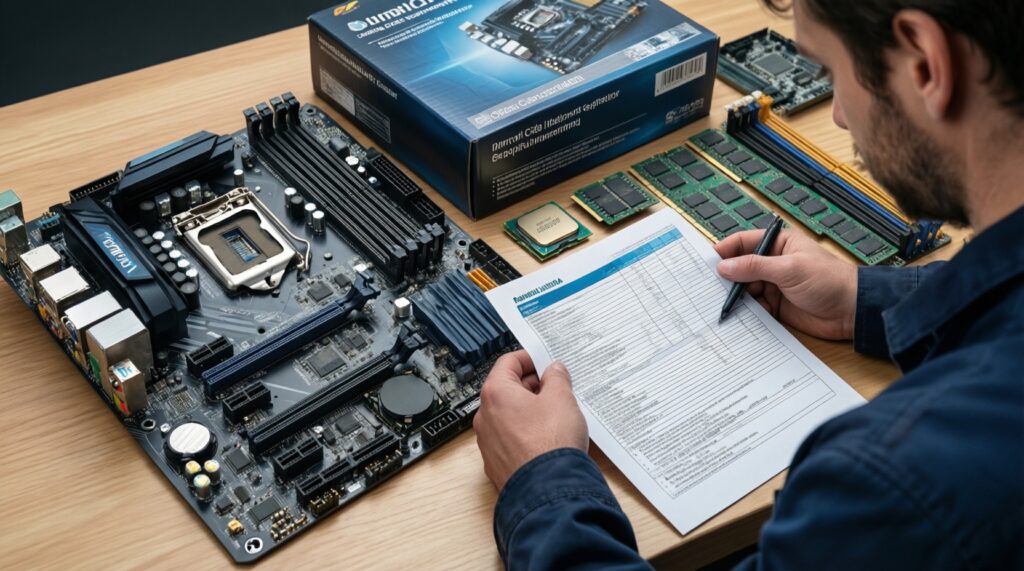
Complete these checks before ordering parts. If any item is uncertain, pause the purchase and confirm it from the manufacturer's documentation or the exact model label.
- Verify the CPU socket, supported generation, and minimum BIOS version.
- Check motherboard memory type, module capacity, slot configuration, and supported settings.
- Confirm the SSD interface, physical size, available slot, and lane-sharing limitations.
- Measure GPU length, height, thickness, and radiator or front-fan clearance.
- Confirm PSU wattage, age, quality, and required native power connectors.
- Check cooler mounting hardware, case airflow, and CPU cooler clearance.
- Back up important data before BIOS updates, cloning, or hardware changes.
- Install drivers from trusted manufacturer or operating-system sources.
- Do not force connectors, memory modules, storage drives, or expansion cards into place.
Cost-effectiveness Matrix: Building Upgrade Paths by Use Case and ROI
| Use case | Recommended first check | Likely upgrade path | When to stop |
|---|---|---|---|
| Everyday work and study | RAM pressure and system-drive type | SSD first if using a hard drive; RAM if multitasking causes paging | Stop when applications open smoothly and memory remains adequate |
| Gaming at a fixed resolution | GPU and CPU usage during target games | GPU when graphics-limited; CPU when frame times are processor-limited | Stop when the target refresh experience is stable |
| Content creation | Application-specific CPU, GPU, RAM, and storage activity | Upgrade the resource that dominates export, preview, simulation, or file workflows | Stop when the limiting workload moves to another component |
| Uncertain diagnosis | Repeatable monitoring and compatibility inspection | Choose a low-risk incremental upgrade, such as storage or RAM when clearly indicated | Do not buy until the bottleneck is reproducible |
Common Upgrade Concerns and Concise Solutions
Should I upgrade the CPU or GPU first?
Monitor both during the workload that matters. Choose the GPU when it is consistently the limiting resource; choose the CPU when processor load or frame-time behaviour limits performance while the GPU has headroom.
Is adding RAM always the best way to make a PC faster?
No. RAM helps when the system is paging or multitasking exceeds available capacity. If memory is sufficient, an SSD or a CPU/GPU upgrade may provide more noticeable improvement.
How can I choose a suitable SSD without overbuying?
Match the SSD to the motherboard interface, physical format, capacity requirement, and workload. Prioritise reliable compatibility, adequate free space, warranty, and backup planning over specifications your applications cannot use.
Can a new GPU work with an older motherboard?
Often it can, but confirm the slot, case clearance, PSU connectors, firmware behaviour, and CPU balance. The motherboard connection alone does not guarantee a balanced or trouble-free upgrade.
Do I need a BIOS update before installing a new CPU?
Only when the motherboard's support documentation requires a newer BIOS for that processor. Check the supported CPU list and update procedure first, and do not interrupt power during the update.
What should I do if the upgrade causes crashes?
Power down safely, reseat the component and cables, restore stable default settings, check temperatures, and reinstall appropriate drivers. If instability remains, test the original component or use the seller's warranty process.
Is buying used hardware safe?
It can be reasonable when the seller provides clear model details, testing evidence, return terms, and warranty information. Avoid parts with uncertain power connectors, visible damage, unexplained overheating, or no practical return option.